Your Library
Chapter 7: Your Library
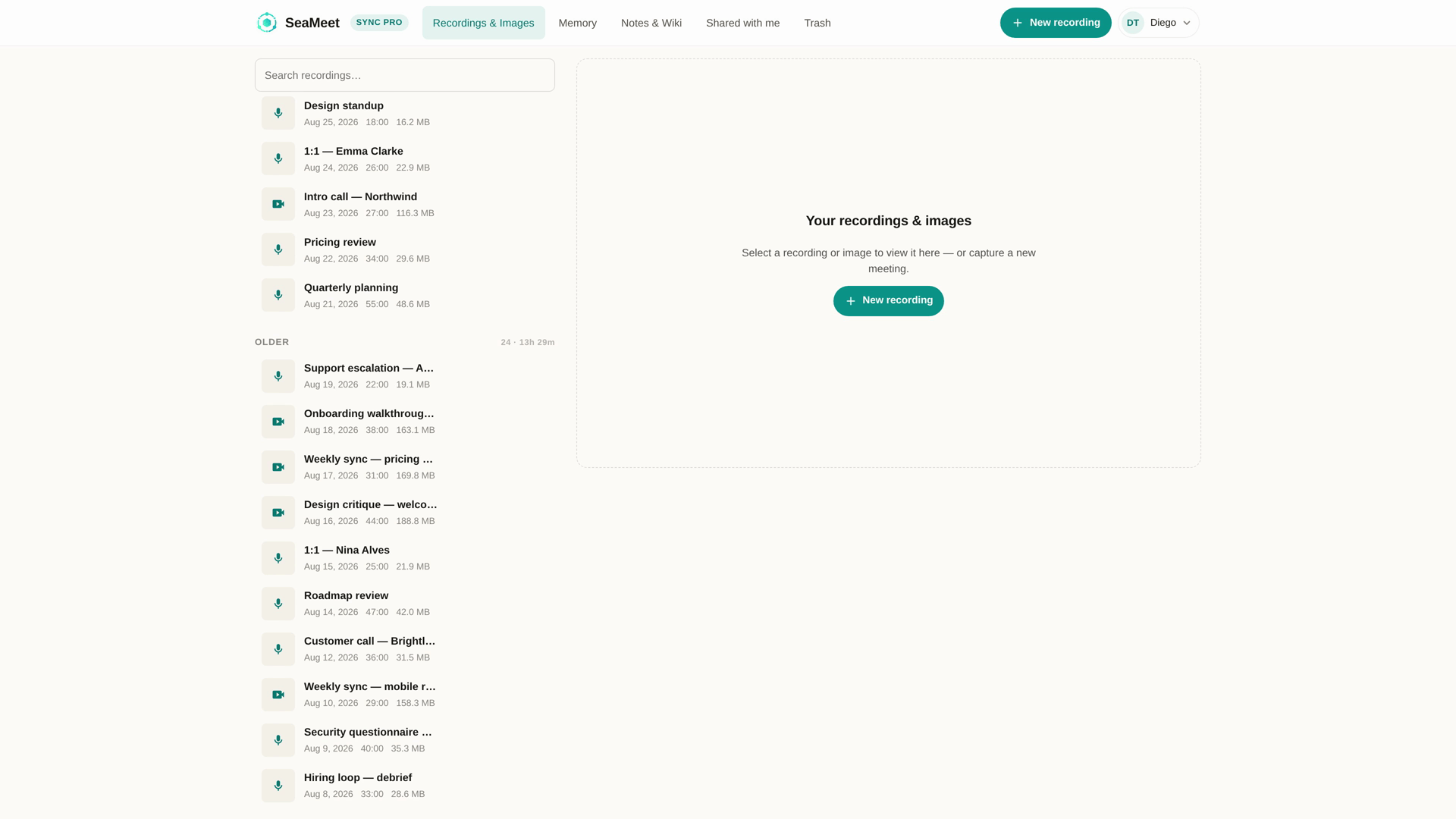
Your library is the list of every recording tied to your SeaMeet account, plus recordings other people shared with you, plus (on team plans) the team's shared library. It's the main surface after a Sync Pro sign-in.
Where recordings come from
Every row in the library came from one of these sources:
- Web recorder — you clicked Stop at
app.seameet.ai/recordor on a per-app record page. - Chrome extension — a recording uploaded from Chrome's side panel.
- Desktop app — a recording uploaded from the desktop app's cloud sync.
- Guest saves — someone else's recording that you saved into your library via a share link.
The recorder itself is a separate surface — the library is where recordings end up.
The three scopes
At the top of the library, a scope selector switches between three views:
- My library — recordings you own.
- Shared with me — recordings other people shared with you, saved via link or granted directly. Each row carries a "Shared by" attribution — see Chapter 12.
- Team library (team plans only) — recordings your team members added to the shared team pool. See Chapter 13.
Each view supports the same search, filter, and sort. The permissions differ — rename and delete work only in My library.
Search
The search bar at the top matches on:
- Recording title.
- The AI-generated summary text (headline, overview, action items, decisions, chapter titles).
- The transcript (both live and post-processed).
- Notes you took during or after the recording.
This is why the AI summary and live notes are worth investing time in: they make things findable. A well-titled recording with a rich summary and thoughtful notes is instantly retrievable months later.
The search box updates the URL as you type, so a filtered view is copy-pasteable.
Filter and sort
Filter chips narrow the list by:
- Date range — this week, this month, custom range.
- Source — web recorder, extension, desktop, uploaded.
- Shared / not-shared.
- Team member (team plans) — narrow to recordings a specific person made.
Filters combine — three chips active means match all three.
Sort defaults to most-recent first. Toggle to oldest-first, or sort by duration.
What a row shows
- The recording's title — either the AI-renamed headline or "Untitled —
<date>" until AI processing finishes. - Date and duration.
- The source icon (web recorder / extension / desktop).
- A share icon and a more menu.
- A status pill for anything unusual — Uploading, Processing, Failed, Trashed.
- (On mobile) The Chinese date
2026年7月28日no longer wraps its trailing 日 to a new line — a v1.16.2 fix worth mentioning if you're on a CJK locale and see wrapping oddness.
Click the row to open the recording in the player.
Batch actions
Click checkboxes on rows (or Shift-click to range-select) to enable batch actions in a toolbar at the top:
- Delete (moves to Trash — see Chapter 9).
- Share (creates one link covering all selected).
- Export CSV of titles + dates for external tracking.
Renaming, descriptions, tags
- Rename — click the title in the player, or use the row's more-menu. Renaming propagates everywhere (library, share links, transcripts).
- Description — free-form notes about the recording, visible to viewers of share links.
- Tags (if enabled on your plan) — group recordings across dates. A tag filter chip is available in the search bar.
The "New recording" button
As of v1.16, New recording in the header goes straight to the recorder — no menu, no picker. "Download SeaMeet" and "Install extension" moved to the profile menu (top-right) so they don't compete with the main action.
Storage caps and archiving
- Free tier. The library is capped in total minutes retained. When you exceed the cap, oldest recordings are archived — visible but not playable, with a prompt to upgrade or delete to restore access.
- Sync Pro (individual). No cap on library size.
- Team plans. Cap depends on seat count.
A storage indicator in the top bar appears when you're over 80% of your cap.
The home page as library
Signed-in with Sync Pro? The home page IS the library. Signed-in on free/expired? Same library, in capped mode with an upgrade banner. Signed-out or anonymous guest? The home page is the recorder launchpad, not the library — you can't have a library without an account.
Common problems
"I uploaded five minutes ago and it's not here." Refresh. New rows appear as they finish server-side ingest, usually within 30 seconds of upload finishing; AI post-processing can take another minute. The Processing status pill tells you it's being worked on.
"A recording is stuck on Uploading." Open the recorder surface that made it. Chrome extension: the "saved on this device" list shows Failed with a resumable Upload button. Desktop app: check the sync panel. Web recorder: the recorder page itself shows a retry.
"I can't see the team library." Only visible on team plans. If you're on a team but not seeing it, your team owner may not have granted you shared-library access yet — ask them.
"I deleted something by mistake." Check Trash — recoverable for 30 days.
Quick Reference
| Task | How |
|---|---|
| Search | Top search bar (title + summary + transcript + notes) |
| Filter | Chip row under the search bar |
| Sort | Sort dropdown, top-right |
| Rename | Click the title, or row more-menu |
| Delete | Row menu → Delete (30-day Trash) |
| Restore | Trash view → Restore |
| Batch | Row checkboxes → toolbar appears |
| Switch scope | Selector at the top: My / Shared with me / Team |
| New recording | Header button (jumps straight to recorder) |
Last updated: 2026-08-28
Published: