Sharing Recordings
Chapter 11: Sharing Recordings
Every recording in your library can be shared. The share URL is a single link at /r/<your-recording-id> that opens the player for whoever you send it to. Viewing a shared recording requires signing in — a signed-out visitor is asked to sign in first, and sees nothing until they do. This chapter is what happens between "I want to share this meeting" and "the other person is watching it", plus the nuances that decide what viewers actually see.
The share link — the fast path
- Open the recording in the player.
- Click Share (top-right).
- Copy the link that appears.
- Send it.
The recipient opens it and lands on the shared-recording page. If they're not signed in, they see a sign-in card first — no preview, no teaser. After signing in they see the recording, transcript, and AI summary. How much of it they can see depends on the recording owner's plan (see below), not on the viewer's.
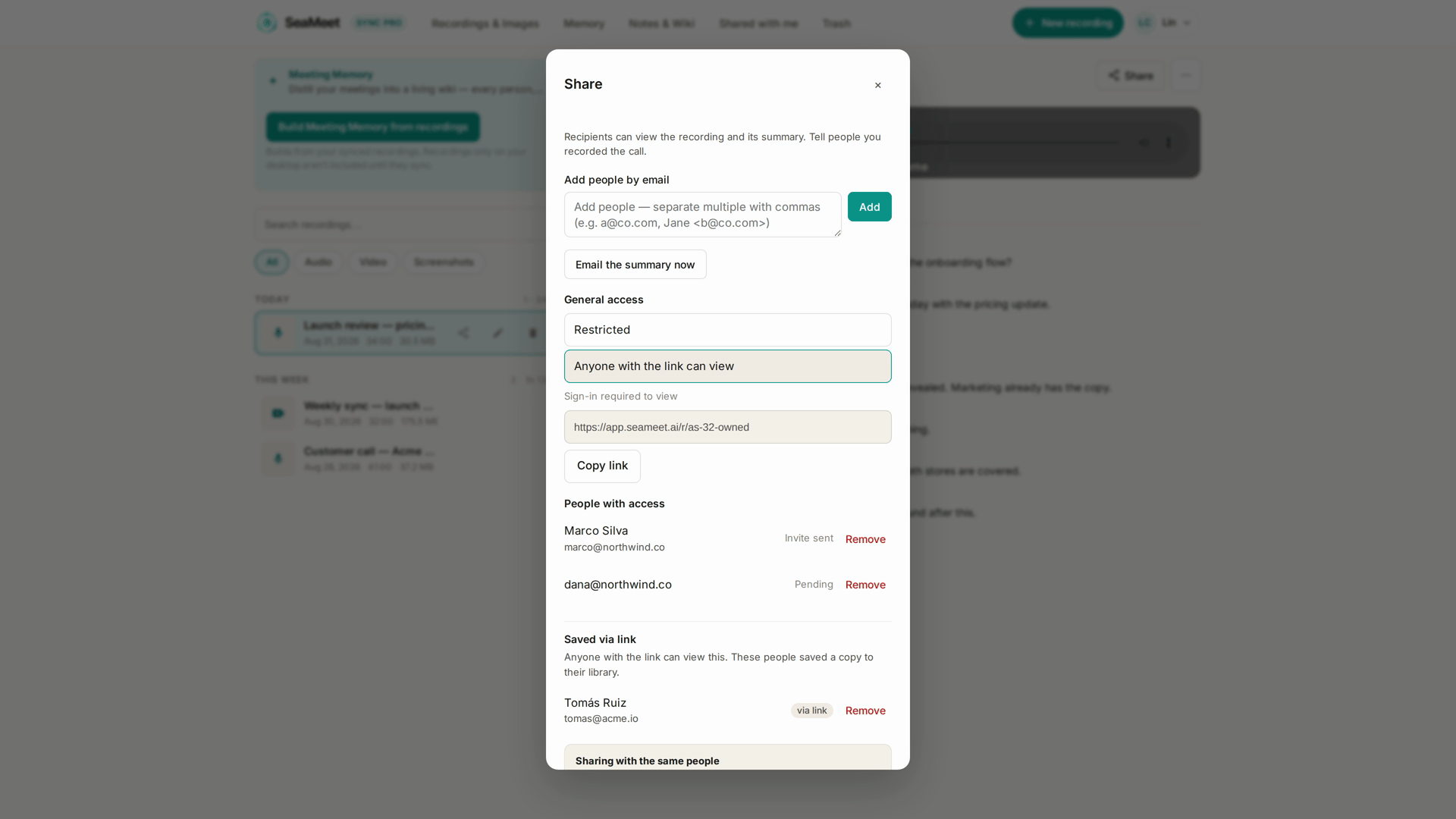
The post-stop share step
Right after Stop on a signed-in recording, the app navigates you straight to the new recording's playback page with the Share dialog already open — sharing is offered automatically, no extra click needed. Copy the link, send it, done. This is the fastest path from a finished recording to a shared link.
Share links don't carry personal referral attribution — following one doesn't credit anyone's referral account. If you want referral credit for bringing a friend, send them your own referral link from Account → Refer a friend (see the referral program).
Who sees what — the owner's plan decides
Share links work for any signed-in viewer. But how much they see is decided by the recording owner's plan, not the viewer's:
- Signed-out visitor. A sign-in card and zero content. Signing in is the funnel from share → sign-up.
- Recording created by a Sync Pro owner. Full recording, transcript, and summary — for every signed-in viewer, free or Pro.
- Recording created by a free-tier owner. The standard 15-minute rolling reveal applies to every viewer — and to the free owner watching their own recording in the web app.
- You (a Sync Pro owner). Always full, always uncapped.
The reveal cap is a property of the recording, inherited from its owner's plan. A Sync Pro-created recording plays in full for a free-tier viewer — upgrading the viewer changes nothing. And a free-tier-created recording still caps a Sync Pro viewer at 15 minutes — the extra tier doesn't reach into someone else's recording (the AI summary was generated at teaser depth when the recording was made, so there's no deeper summary to reveal anyway).
Invite by email
The Share dialog also offers Invite by email. This is not a public link — it's an invitation tied to a specific email address. The invited person receives an email, opens it, and lands in your recording as an authenticated viewer bound to their account. If they sign in with a different email, they can't accept.
Use invitations for sensitive recordings when you want an audit trail of who opened it. Use plain share links when speed matters more.
Sharing on every plan
- Free tier. Sharing works — create links, invite by email, flip access, remove people. There's no daily quota or other cap on share management; what's Sync Pro-gated is AI depth, not sharing. Recipients see the recording subject to its owner-set reveal cap (above).
- Sync Pro. Recordings you create are shared — and watched — in full.
- Team. Same as Sync Pro plus the team-library toggle (see Chapter 13).
Revoking access
Each recording has an access mode, set in the Share dialog:
- Restricted — only the people listed under People with access can open it: you, plus everyone you invited by email.
- Anyone with the link — any signed-in person holding the URL can open it, on top of everyone you invited.
Two ways to stop someone from watching:
- Cut the link. In the Share dialog, switch access back to Restricted. Everyone who reached the recording through the link loses access; people you invited by email keep theirs.
- Remove one person. In People with access, find their row and click Remove. Works whether or not they ever opened the recording; they aren't notified. People who saved your recording via link are listed there too, grouped under Saved via link.
Deleting the recording (moving it to Trash) also cuts everyone off during the 30-day Trash retention. Restoring it reinstates access at the same URL — a /r/<id> link never changes.
Because share settings are owner-only, nobody can re-share your recording from a saved copy: someone who saved it holds a read-only reference, not a shareable asset. If a saved viewer should lose access, Remove them from the list.
The "record your own" CTAs on shared pages
Viewers of a shared recording page see "record your own" CTAs — the other half of the viral loop that the post-stop share step starts. This is deliberate: sharing a SeaMeet recording is also an implicit invitation to try SeaMeet.
Sharing to your team
If you're on a team plan, the team library isn't reached through the Share dialog. The recording page itself has a privacy toggle: Share with team puts the recording in your teammates' Team library scope; Mark private — only me pulls it back out. See Chapter 13.
Common problems
"Recipient says the link doesn't work." Check whether you switched access back to Restricted, removed them, or moved the recording to Trash. If none of those, make sure they're signed in — a signed-out visitor only sees the sign-in card.
"Recipient can see only the first 15 minutes." The recording's creator is on free tier — the cap belongs to the recording, so it applies to every viewer. Options: the owner upgrades to Sync Pro, or you send them the file.
"I shared to someone; they never opened it and I want to revoke." Open the Share dialog and switch back to Restricted (or Remove them). Works even for unopened links. No notification to them.
"Someone re-shared my recording without asking. Can I take it down?" They can't — share settings are owner-only, so your recording can't be re-shared by someone else. If they saved it to their library, Remove them from the access list and their reference stops working.
"The share link says 'invalid or expired' but I never revoked it." Check the recording — someone (maybe you from another device) may have moved it to Trash. Restore it from Trash and the same link works again.
Quick Reference
| Task | How |
|---|---|
| Create a share link | Player → Share → copy URL |
| Invite by email | Player → Share → Invite by email |
| Stop link sharing | Player → Share → access → Restricted |
| Remove one person | Player → Share → People with access → Remove |
| Share immediately after Stop | Automatic — the Share dialog opens on the recording right after saving |
| Add a recording to the team library | Recording page → privacy toggle → Share with team (see Chapter 13) |
| Save someone else's shared recording | Shared page → Save to my library (see Chapter 12) |
| See who shared with you | Library → Shared with me → column shows sender |
Last updated: 2026-08-31
← Chapter 10: Meeting Memory | Chapter 12: Guest Saves and Shared-With-Me →
Published: