How to transcribe a voice message to text
To turn a voice message into text, save it from your messaging app as a file, then upload it to a transcription tool. SeaMeet reads .opus, .ogg, .m4a, .aac and .amr voice notes as they are, and the first 15 minutes of each one are free, which covers most voice messages in full.
Transcribe a voice message in five steps
Works with voice notes from WhatsApp, Telegram and other apps, on a phone or a computer.
- 01
Save the voice message as a file
Save or share the voice message from your messaging app to your files. The WhatsApp and Telegram guides linked below show where to tap on Android, iPhone and computer.
- 02
Open the voice message tool
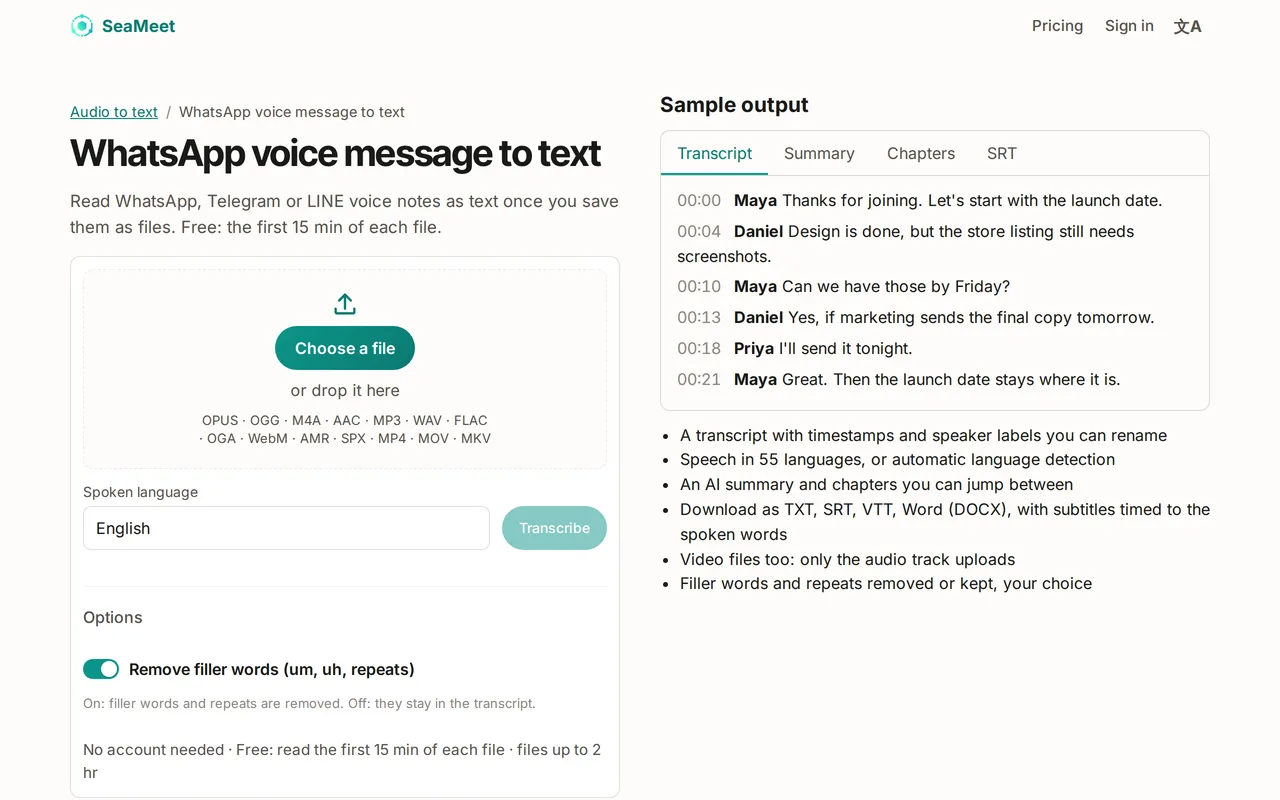
Open SeaMeet’s voice message to text page and select Choose a file, or drop the file onto the box. You don’t need to convert it first.
- 03
Set the spoken language
Under Spoken language, pick the language of the message from the list of 55, or choose Detect automatically.
- 04
Select Transcribe
The file is uploaded and the transcript is prepared. If the button says Sign in free to transcribe, sign in first; your file is kept.
- 05
Read or download the text
Read the message with timestamps, and speaker labels if more than one person speaks. To keep it, select Download and choose Text (.txt) or Word (.docx).
Which voice message files work
Voice notes usually arrive as .opus, .ogg, .m4a, .aac or .amr files, depending on the app and the phone. All of them work without converting. If a file has another ending, save it again from the app rather than renaming it.
Each file can be up to 512 MB and 5 hours long, far more than any voice message.
What you get for free
On the free plan you can read the first 15 minutes of each transcript, which is the whole message for nearly every voice note. You can transcribe up to 10 files a day and 6 hours in total. Sync Pro unlocks the full transcript of longer recordings.
Try it
Read your voice message as text
Choose the voice note file, set the language and read the transcript. Free for the first 15 minutes of each message.
FAQ