SeaMeet on the Logitech MX Creative Keypad
Record your meetings from one key: live levels on the key, one-key screenshots, and every control a press away. The SeaMeet plugin for the Logitech MX Creative Keypad.
The film: your meetings, on one key
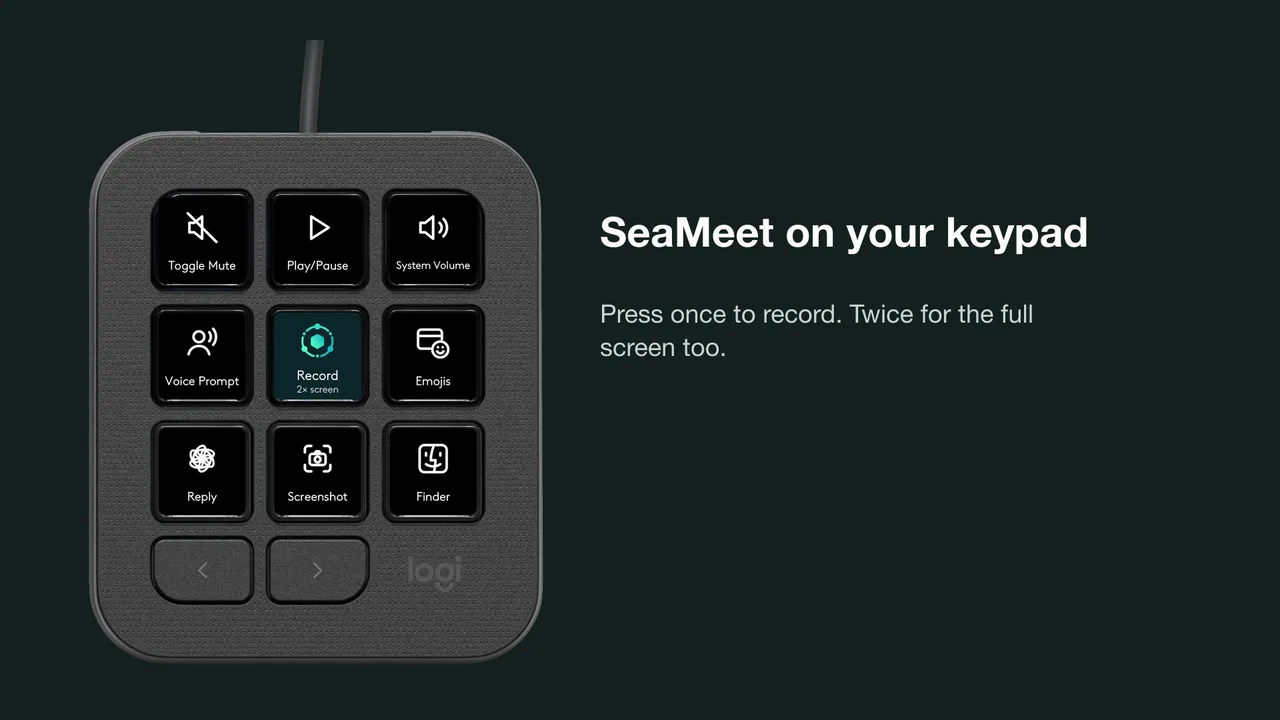
One key records
Press once to record the call. Press twice to record your whole screen too. When a call starts, SeaMeet knows, and the key asks.
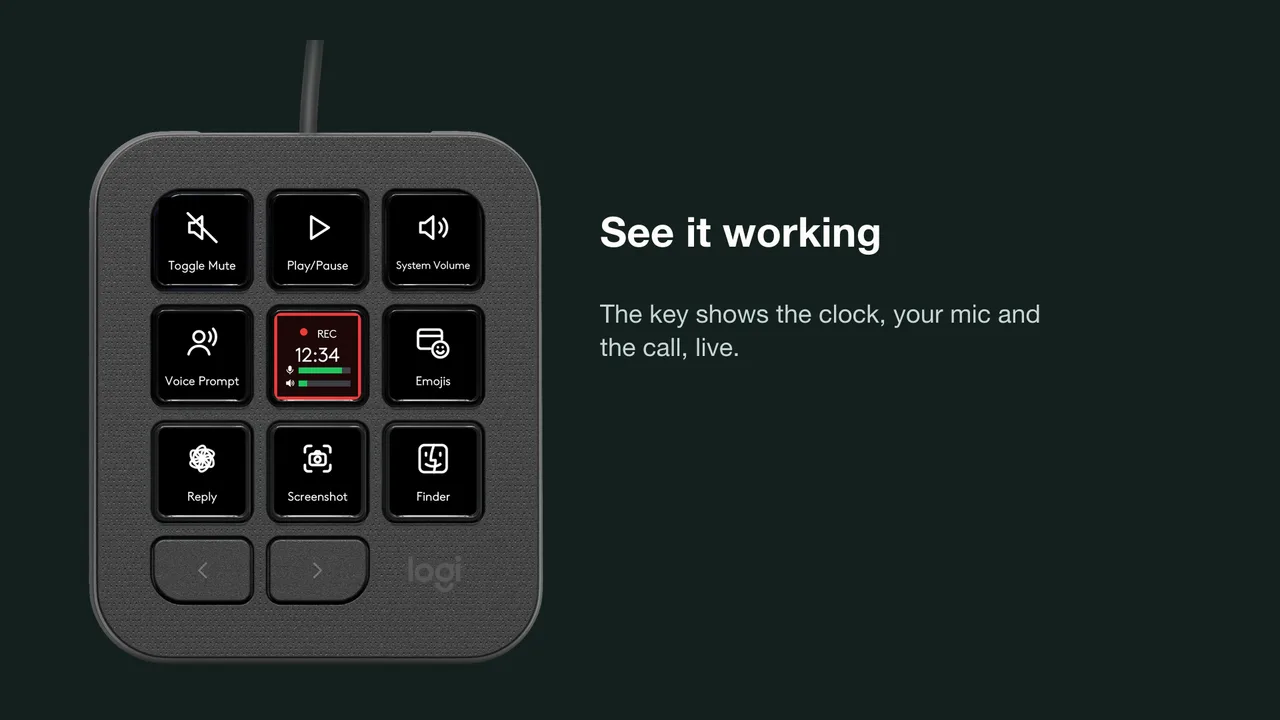
See it working
While recording, the key shows the clock, your microphone and the call, live, so you can tell it is working without leaving the conversation.
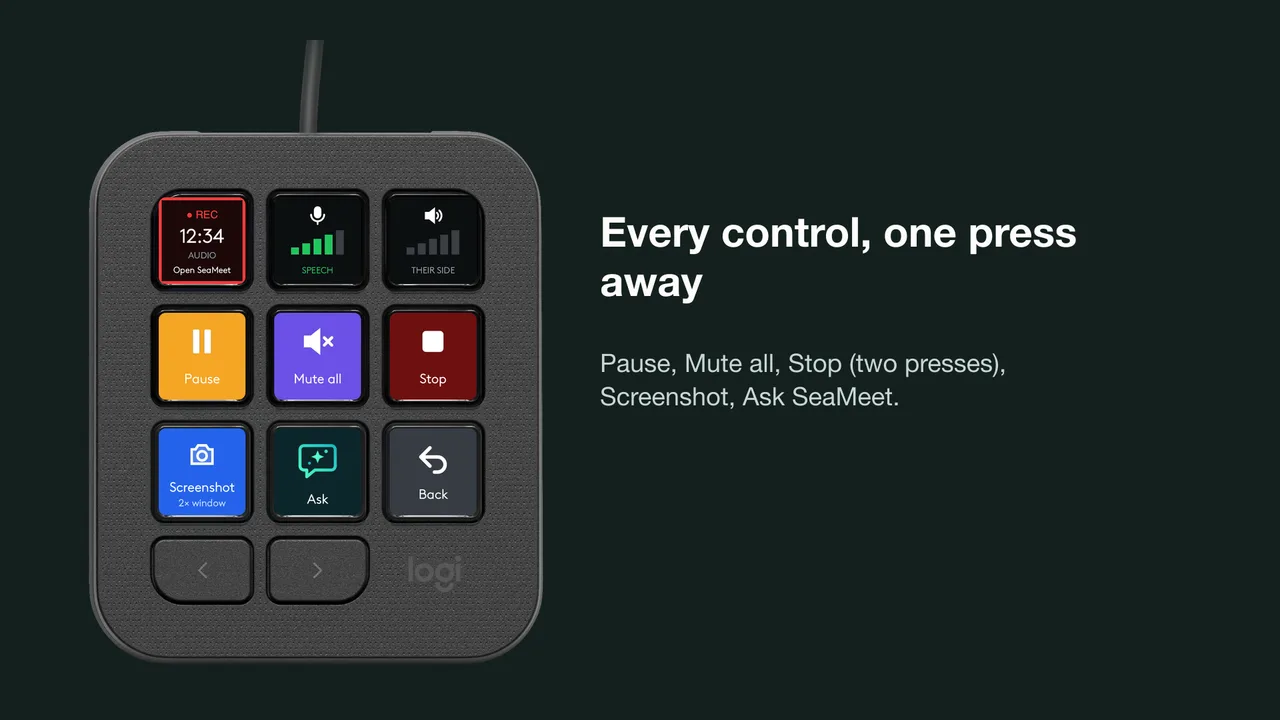
Every control, one press away
Pause, mute everything at once, take a screenshot that stays with your meeting, ask SeaMeet. Stop takes two presses, so a stray tap never ends a meeting.
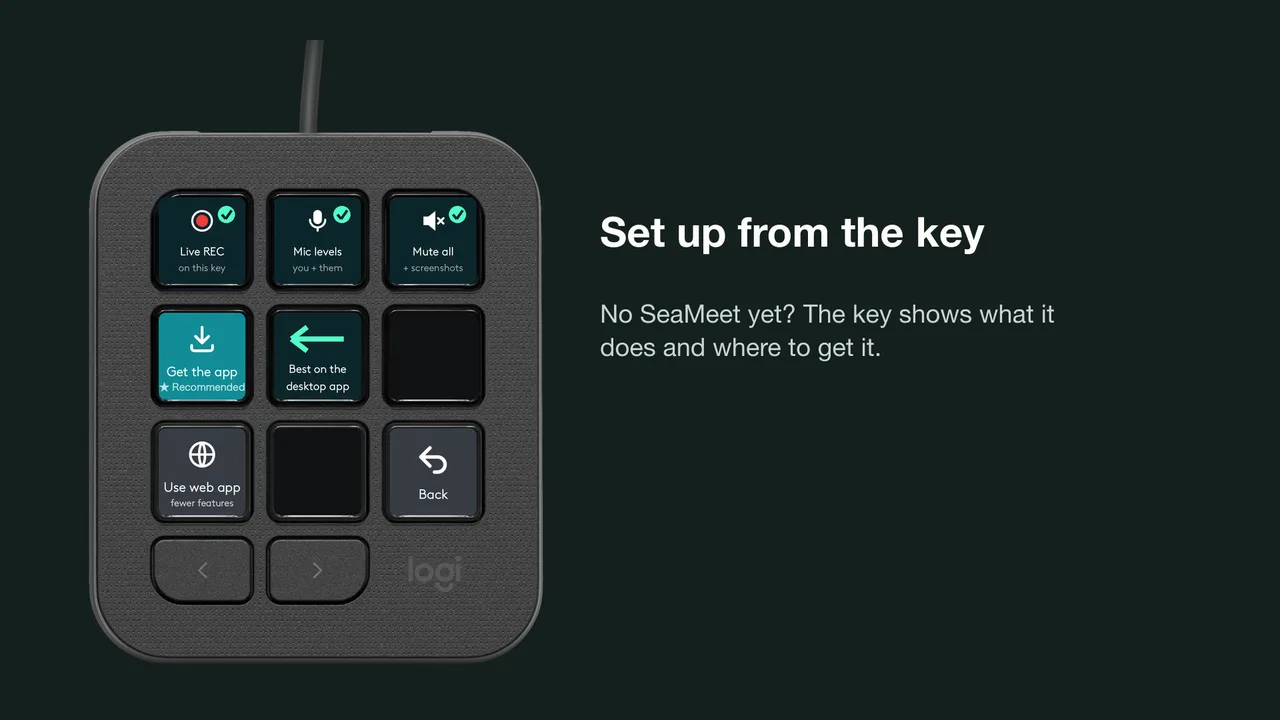
Set up from the key
No SeaMeet yet? The key shows what it does and where to get it. Missing a permission? The key tells you, and one press opens the right setting.
Watch: SeaMeet on the MX Creative Keypad
Set up in a minute
- Step 1
Get SeaMeet
Install the free SeaMeet desktop app for macOS or Windows.
- Step 2
Add the plugin
In Logi Options+, open the Logi Marketplace and add SeaMeet.
- Step 3
Put SeaMeet on a key
Drag the SeaMeet action onto any key of your MX Creative Keypad. That is it: press it at your next meeting.
Works with the SeaMeet desktop app on macOS and Windows; without it, the plugin's web keys control SeaMeet in your browser at app.seameet.ai. The plugin talks only to the SeaMeet app on your computer and sends nothing anywhere else. Logitech, Logi, MX and Options+ are trademarks of Logitech. No endorsement implied.