How to compress an audio file
To make an audio file smaller, save it again as an MP3 at a lower bitrate, and as mono if it is mostly speech. SeaMeet’s free audio compressor does this in your browser: choose the file, pick a quality and download the smaller MP3, without uploading anything.
Compress an audio file in four steps
Works on a computer or a phone, in a recent Chrome, Edge or Firefox. You don’t need an account.
- 01
Open the audio compressor
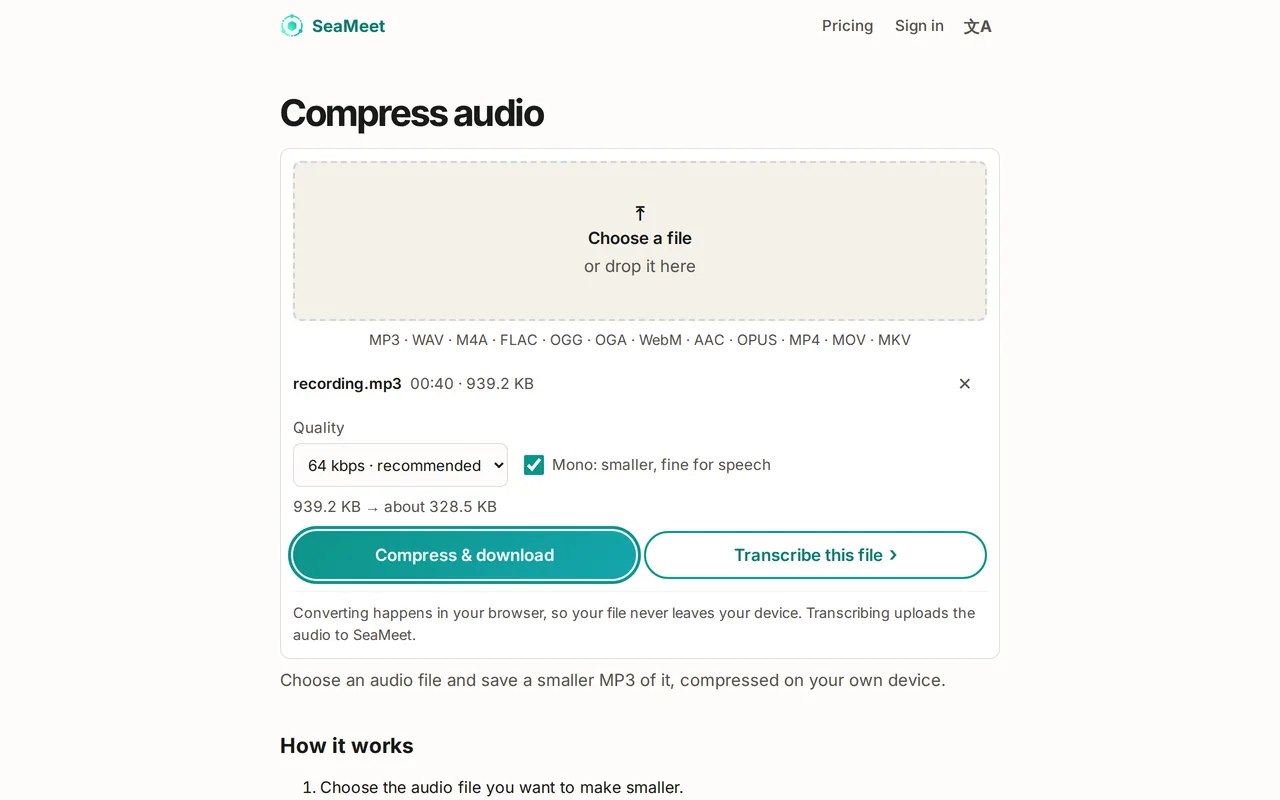
Open SeaMeet’s Compress audio page and select Choose a file, or drop the file onto the box. MP3, WAV, M4A, FLAC, OGG, OPUS, AAC and WebM work, and so do videos (MP4, MOV, MKV): only the sound is kept.
- 02
Pick a quality
Under Quality, keep 64 kbps · recommended for voice recordings, or choose 32 or 48 kbps for an even smaller file. The page shows the current size and roughly what the new file will weigh.
- 03
Keep Mono for speech
Mono: smaller, fine for speech is ticked by default. Keep it for voice recordings, and untick it for music you want to keep in stereo.
- 04
Select Compress & download
Your browser compresses the file and the MP3 downloads automatically. A file called talk.wav comes out as talk.mp3; an MP3 you compress comes out as talk-64k.mp3.
Which setting should you choose?
The Quality setting is the bitrate of the new MP3: how much data each second of sound may use. Lower means a smaller file and, at some point, duller sound.
- Voice memos, lectures, interviews, calls: 64 kbps with Mono. Speech stays clear and the file is small enough for most email and upload limits.
- As small as possible: 32 kbps with Mono. Speech is still understandable, but it starts to sound flat.
- Music: untick Mono and choose 96 kbps · higher quality, the highest setting on this page.
Good to know before you compress
Your file is not uploaded. The compression runs on your own device, so it works for private recordings, and the only limit on size is the free storage your device needs for the new MP3. On some phone browsers, an MP3 larger than 128 MB can’t be created; use a computer for very long recordings.
If the page says the file is already small, compressing won’t save much: it is already at or below the bitrate you picked. The result is always an MP3, even if you start from WAV or M4A.
Try it
Compress your audio file now
Choose a file, keep the recommended setting and download a smaller MP3 in a few seconds. Free, no account, nothing uploaded.
FAQ