Stopping and Saving
Chapter 6: Stopping and Saving
Stopping a recording is a decision point. What happens next depends on whether you were signed in and whether you're on a paid plan. This chapter maps the flow.
Signed-in Stop — the fast path
You clicked Stop. In one action:
- The recording and its live transcript finalise locally.
- The audio uploads to R2 (SeaMeet's object store), resumable in 8 MB chunks — a lost network doesn't lose the recording.
- Your live notes (see Chapter 5) upload as the recording's Notes section.
- A "Recording saved" toast appears. The recording is visible in your library.
- Post-processing starts asynchronously — a higher-quality transcript, speaker labels, AI summary. Typically ready within a minute for meetings under 30 minutes.
- The post-stop share step (see below) offers to grab a share link right now.
If your session drops mid-upload, the resume happens transparently on the next request. Long meetings resume from where they left off, not from zero.
The Anon-Stop modal
For anonymous recordings, Stop opens a modal instead of an upload. Three primary paths:
- Sign in and upload — the recording is preserved through the sign-in flow and uploads to your new library as your first recording. This is the intended growth funnel: try before you commit.
- Download the audio — a
.webmfile (or.mp4for video) saves to your device. Nothing lands in the cloud. - Discard — the recording is dropped.
Sync Pro pricing appears up front. As of v1.20.3, the Anon-Stop modal states the plan directly, with the annual-billed monthly-equivalent rate and the plan's differentiators (unlimited transcript, Meeting Memory, storage headroom) visible — plus a See plans link into pricing. This is deliberate: a guest deciding whether to sign up deserves the price surfaced, not tucked under a chevron.
The Sync Pro card also leads with differentiators. Pricing leads with two lines that distinguish SeaMeet from the market — "No bot joins your call — ever" and "Records WhatsApp, LINE, WeChat, Telegram, Discord, Skype calls" — with a strip of app logos underneath linking straight to each app's record page.
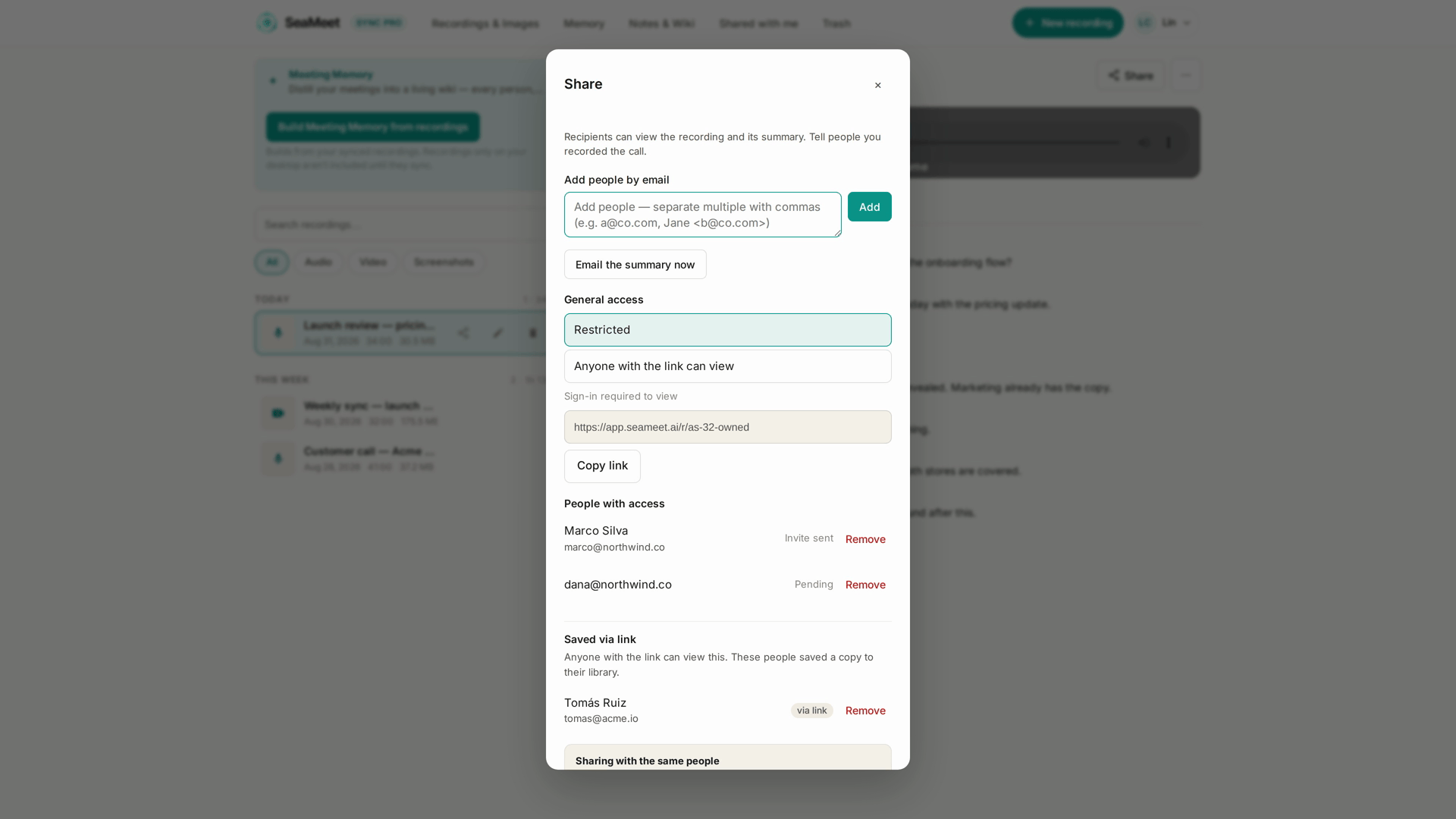
The post-stop share step
For signed-in users, immediately after Stop the app navigates to the new recording's playback page with the Share dialog already open — no extra click needed. Copy the link, send it, done. See Chapter 11 for what the link does.
Share links don't carry personal referral attribution — following one doesn't credit anyone's referral account (see Chapter 15 for how referrals actually work).
Rather than a share dialog, viewers on a shared recording page see "record your own" CTAs — the loop's other half.
What appears in the library
Immediately after Stop:
- The recording row shows up with status Processing (AI summary running) or Uploading (still transferring).
- The title is a placeholder ("Untitled —
<date>") until the AI-generated summary lands, at which point the recording auto-renames itself to the summary's headline. Typically 30–60 seconds. - The default naming matches the default-name guard on the server side — the "Untitled —
<date>" pattern was specifically chosen so the AI rename fires correctly (a mismatch used to cause AI titles to never replace the default).
Refresh the library to see the update, or wait — the page will surface it automatically.
Free-tier caveats on the post-stop flow
Free-tier signed-in accounts recording a long meeting:
- The live transcript may cut off partway through if the free transcription pool exhausts (though the post-processed transcript still runs on the audio).
- The AI summary runs but at teaser depth — the full summary requires Sync Pro. Upgrading later regenerates the summary at full depth without re-processing the transcript.
- The library retention cap may archive older recordings to make room.
Nothing about Stopping is different for free tier vs Sync Pro — it's the downstream flows (playback reveal cap, sharing) that differ.
When things go wrong
"I stopped and nothing appeared in my library." Refresh the library. If nothing after two minutes, check your network in the browser dev tools — a failed upload should show a resumable retry button in the recorder page.
"The recording is stuck on Processing forever." AI post-processing timed out or errored. Open the recording; regenerate the summary from the more-menu, or contact support if the transcript is also missing.
"The Anon-Stop modal keeps not saving my recording." Confirm you clicked Sign in and completed the flow — the recording is preserved only if you sign in from the modal, not if you sign in separately. If it happens repeatedly, download the audio as a backup and file a bug.
"My recording auto-renamed to something wrong." The AI took its best shot from the transcript. Click the title in the player to rename manually — it propagates everywhere (library, share links, transcripts).
Quick Reference
| Task | How |
|---|---|
| Stop and save (signed in) | Click Stop → wait for the toast |
| Stop and preserve (anonymous) | Click Stop → Sign in and upload in the Anon-Stop modal |
| Download instead of upload (anonymous) | Anon-Stop modal → Download |
| Share the recording immediately | Post-stop share step → copy the link |
| Rename a recording | Click the title in the player |
| See the Sync Pro pricing before deciding | Anon-Stop modal → See plans |
Last updated: 2026-08-31
← Chapter 5: Live Captions and Live Notes | Chapter 7: Your Library →
Published: