Meeting Memory — a searchable wiki of your meetings
Chapter 10: Meeting Memory — a searchable wiki of your meetings
Meeting Memory is the surface that turns your library into a wiki. Every recording gets analysed for topics, entities, and decisions; those get organised into pages you can browse, and an ask-box on top of the whole archive answers questions with citations back to the source meetings.
Meeting Memory is Sync Pro. Free tier sees a preview of the ask-box on a single recording, but the cross-recording archive requires an active subscription.
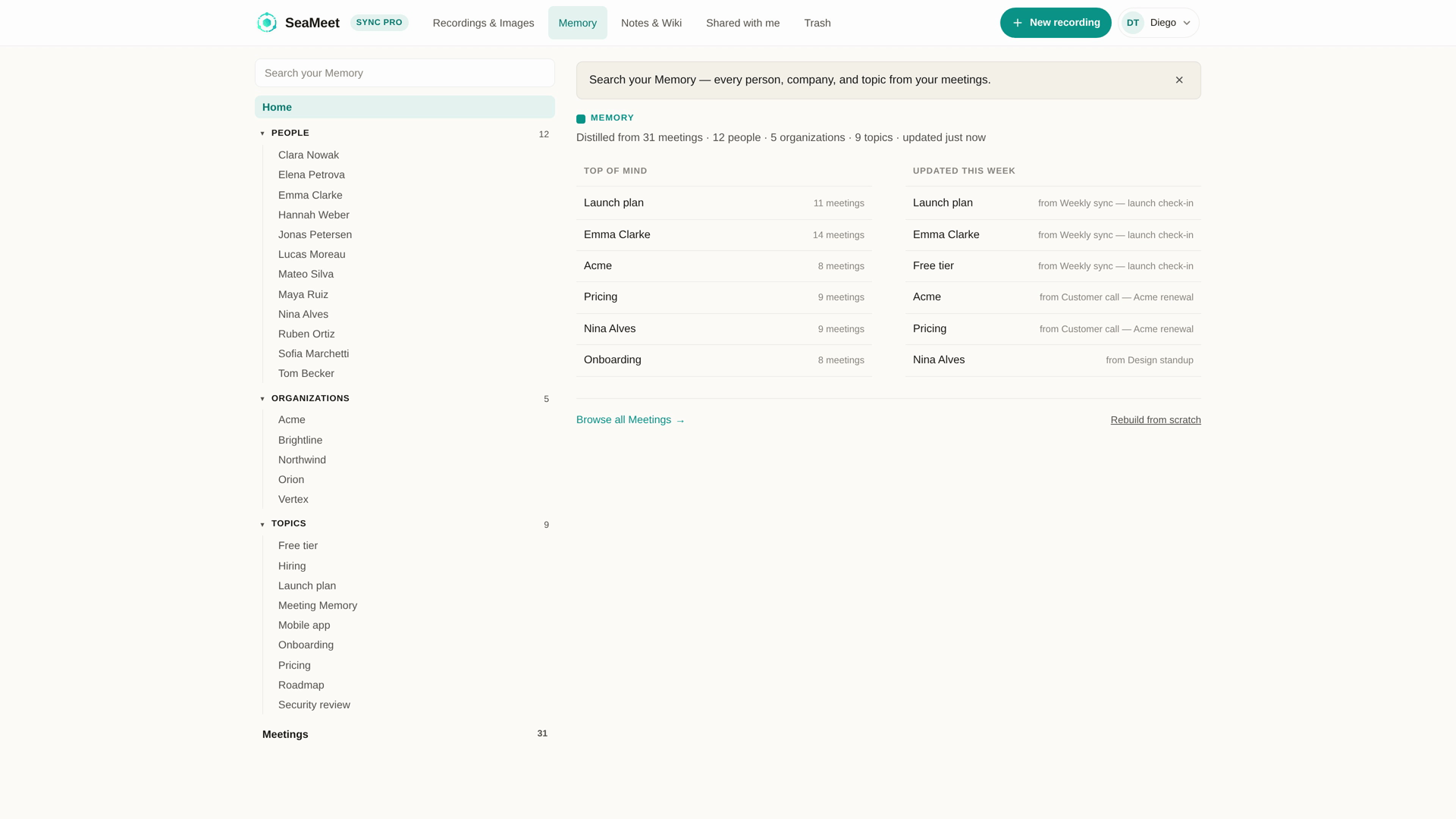
The three surfaces
Memory home. A landing page showing:
- Updated this week — the topics your recent recordings touched, with a strip per topic.
- Recently added — the last few meetings, chronological.
- Explore — a searchable index of all topics across your archive.
Per-topic pages. Each topic is a wiki page — SeaMeet-generated content pulled from every meeting that discussed it. Structured like a Wikipedia article: overview, key facts, timeline, related topics, and citations back into source recordings.
The ask-box. A prompt at the top of Memory home. Type a question — "what did we decide about Q3 hiring?" or "when did we last talk about the pricing objection?" — and the answer comes back with citations naming the source meetings and linking into the transcript at the relevant moment.
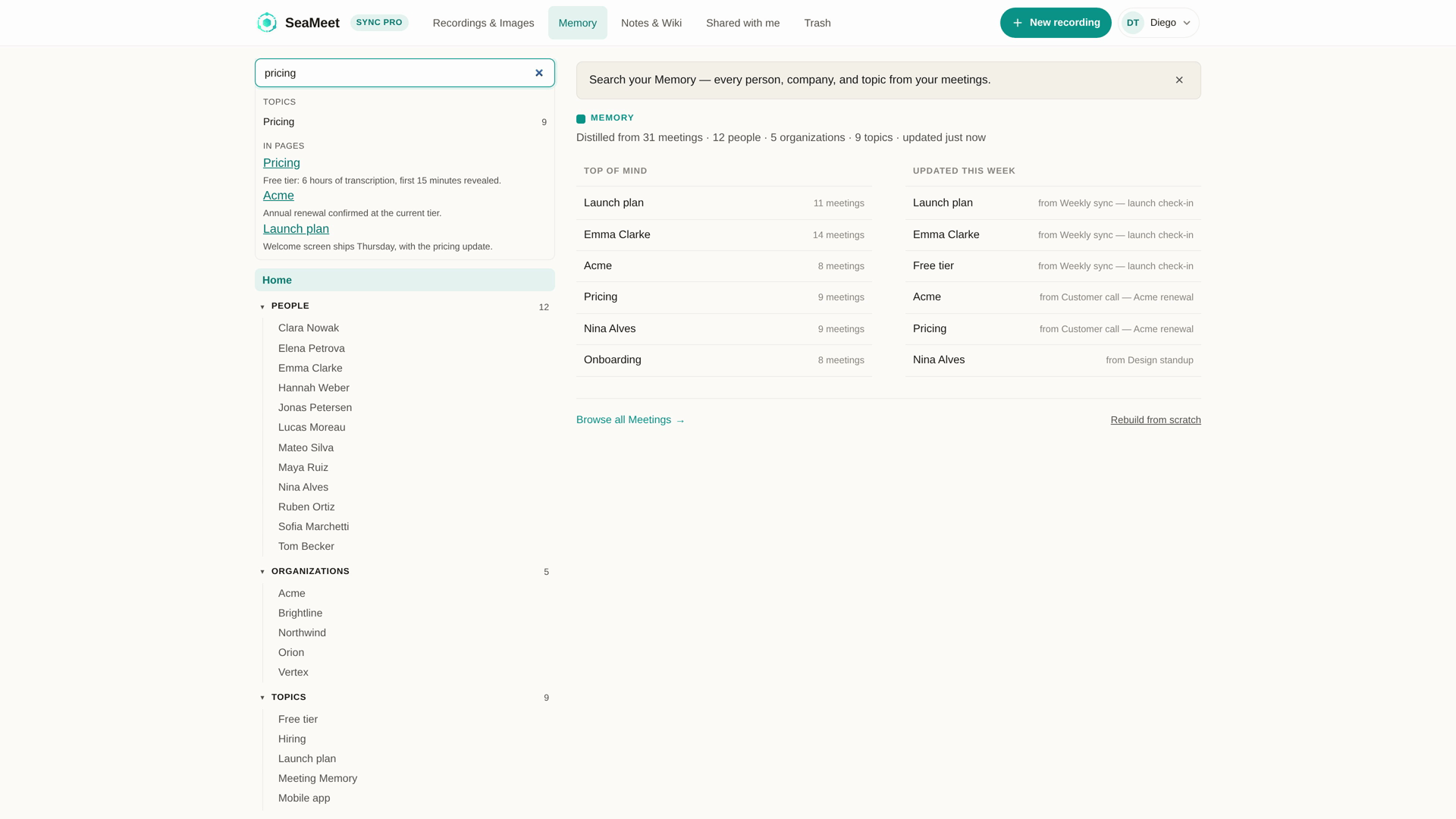
The ask-box
The ask-box runs a retrieval-augmented generation flow across your recording archive — grounded in your own meetings, not general knowledge.
Answers include:
- A concise response at the top.
- Citations as inline
[Meeting: <title>, <date>]markers naming each source meeting. Every citation links into the transcript at the relevant timestamp. - A "based on N meetings" footer so you know how much archive was in scope.
The ask-box on Memory home queries the full archive (Sync Pro). The single-recording ask-box on any player page queries just that recording (available on all tiers).
Topic strips on Memory home
Topic strips on Memory home show per-topic previews — a topic name, a short description, and the most recent 2-3 meetings that touched it. Click a strip to open the full topic wiki page.
The strips update as new recordings land — Memory reprocesses to find fresh topics or extend existing ones. A recording made today can appear in a topic's strip within a few minutes of upload processing.
On CJK-language accounts (v1.16.2 fix): a long source-meeting title next to a short topic name no longer collapses the topic name into a one-character-per-line column. Meeting titles wrap to the right; topic names stay on their own line.
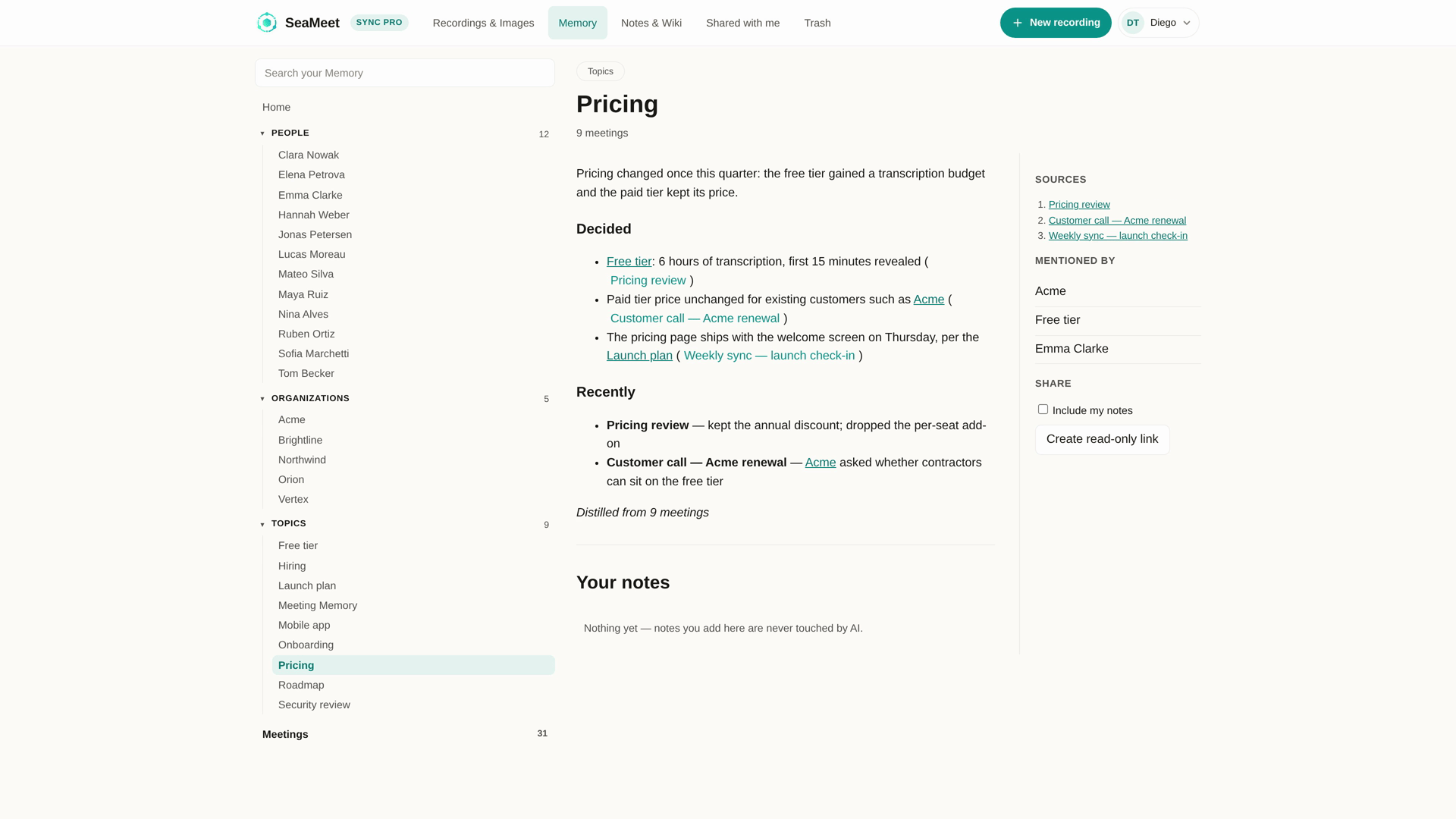
Per-topic wiki pages
Each topic page includes:
- Overview — a paragraph or two synthesised from every meeting mention.
- Key facts / decisions — bulleted, most confident first.
- Timeline — chronological order of when the topic came up.
- Related topics — cross-links between related wiki pages.
- Sources — full list of meetings that contribute to this page, with links.
Pages regenerate when new recordings add material. A version dropdown on each page shows previous versions, in case a rewrite dropped a fact you cared about.
Corrections propagate everywhere
If SeaMeet got a name wrong ("Sarah Chen" transcribed as "Sarah Chan"), fix it once:
- In a transcript segment, click the misheard word to open a correction popover and type the right one.
- The correction propagates to every mention of that name across your archive — the transcript, the AI summary, the Memory topic pages, everywhere.
- Your account's Corrections list shows every correction you've made, so you can undo a bad correction or re-apply one that got reverted by a re-processing pass.
Corrections are per-user — your correction of a name doesn't affect what shared-with-you viewers see.
Building Memory from your existing recordings
If you're new to Sync Pro but have a backlog of recordings, Memory doesn't backfill automatically. Instead:
- Memory home shows a Build now call to action.
- Click and Memory processes every recording in your library. Depending on how many, this can take from minutes to hours.
- A progress indicator shows how many recordings have been processed.
- New recordings continue to add automatically once the initial build completes.
Rebuilding from scratch
If your Memory drifts (a lot of corrections were made, or the topic organisation feels off), the Rebuild Memory from scratch button in your account triggers a fresh full pass across your archive. Existing versions are preserved (via the version dropdown on each page), but the new pass takes precedence.
Rebuilds are rate-limited — no more than once per week per account. This exists because the compute cost is significant.
Sharing a Memory page
Individual topic pages can be shared like recordings via a Share button — a public link that anyone with the URL can open. Sharing a Memory page shares the assembled page as it exists at share time; regenerations after share create new versions that the shared link tracks.
Free-tier viewers of a shared Memory page see the same reveal cap they'd see on a shared recording — the first section unlocked, the rest blurred behind an upgrade prompt.
Retention on Memory
Memory pages persist as long as the source recordings do. If you delete a recording, Memory reprocesses the topics it contributed to on the next scheduled pass — the page shrinks or disappears depending on how many other recordings cover the same topic.
Trashing a recording (as opposed to permanently deleting) does NOT remove it from Memory during the 30-day Trash window — Trash is a display state, and Memory's underlying transcript access is preserved. Restoring an unarchived recording re-includes it fully.
Quick Reference
| Task | How |
|---|---|
| Ask across your whole archive | Ask box at the top of Memory home |
| Browse per-topic wiki pages | Memory home → topic strip, or Explore |
| Correct a misheard name everywhere | Transcript segment → click the word → Correction popover |
| Build Memory from existing recordings | Memory home → Build now |
| Rebuild from scratch (rate-limited weekly) | Account → Rebuild Memory from scratch |
| Share a Memory page | Topic page → Share (public link) |
| See a Memory page's version history | Topic page → version dropdown |
Last updated: 2026-08-28
← Chapter 9: Trash and Retention | Chapter 11: Sharing Recordings →
Published: