Teams — invitations, seats, shared library
Chapter 13: Teams — invitations, seats, shared library
Team plans (as of v1.17.0) let a group of colleagues share one SeaMeet workspace. Each member gets Sync Pro-level features, plus access to a shared team library.
Buying a team plan
Team plans are picked at checkout:
- Visit
app.seameet.ai/pricing. - Pick For my team (or click the who=team URL parameter if you arrived via a marketing link).
- Adjust the seat count in the team picker. There's a minimum seat count (visible on the pricing page — currently the floor for the smallest team).
- Click Get seats and complete Stripe checkout.
Seat count can be adjusted mid-cycle from the Stripe Customer Portal — changes prorate. Seat prices scale down slightly at higher seat counts (visible on the pricing page).
Inviting members
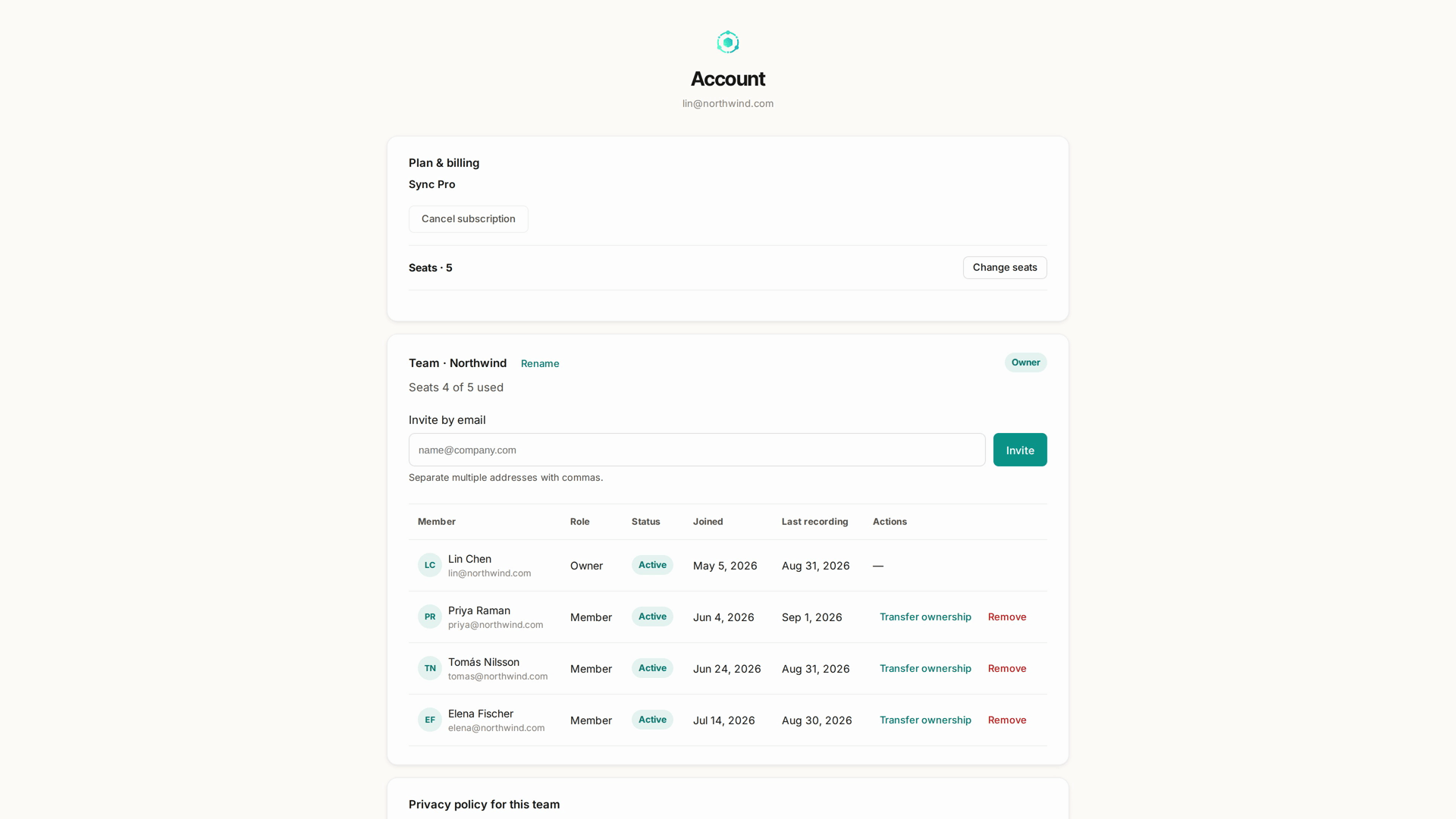
Once you have a team plan, an Invite panel appears on your Account page under Team management.
- Enter one or more email addresses.
- Optionally add a personal note.
- Send invitations.
Each invitee receives an email with an invitation link. The link opens app.seameet.ai/team/join?token=<token> (the TeamJoin page).
Invitation retention: links expire after 7 days. Send a fresh invitation from Team management if you need to.
Accepting an invitation
The invitee opens the invitation link and lands on the TeamJoin page. Depending on their state:
- No account. The page prompts them to sign up. On sign-in completion, the invitation is auto-accepted and they land in the shared team library.
- Existing personal Sync Pro subscription. The page shows their current subscription's remaining period and confirms that accepting will supersede it — no double-charging, and joining doesn't invalidate their remaining paid period.
- Existing free-tier account. One-click accept.
- Wrong email. The invitation is tied to a specific email. Signing in with a different address rejects the invitation; the invitee must sign in with the invited address, or ask the team owner to re-invite the correct one.
After accept: their session has team seat access, and the Team library scope appears in their library selector.
The team library
A separate scope in the library, alongside My library and Shared with me. Any team member can add a recording to it from the recording page's privacy toggle (Share with team), and every team member sees it.
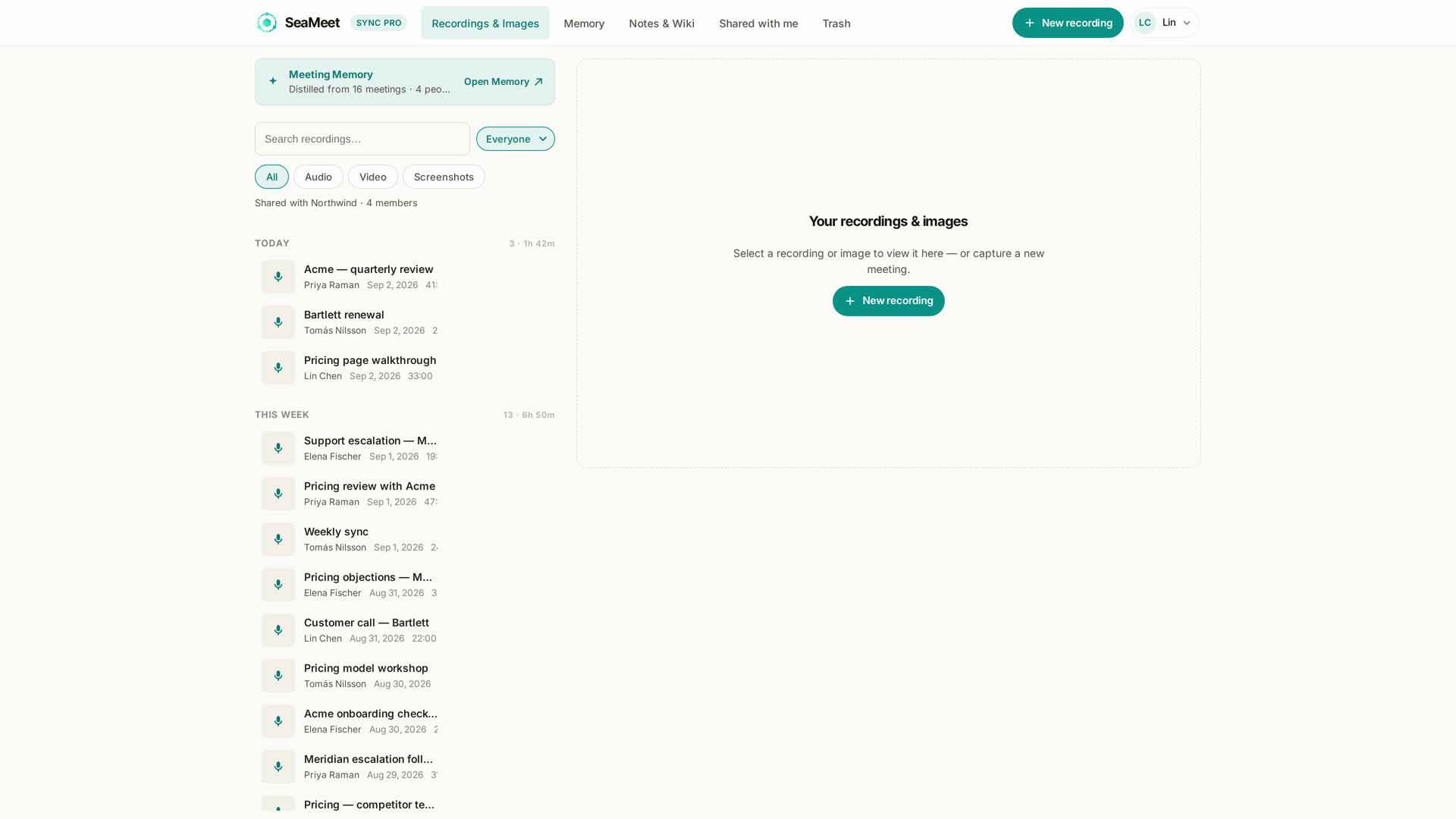
- Team library recordings do not count against individual retention caps. Moving a recording into the team library removes it from your personal quota footprint.
- Any member with write access can add or remove team-library recordings.
- Only team owners can add or remove team members and adjust seats.
- Removing a member frees a seat immediately. Their recordings that they added to the team library stay in the team library.
Roles
Currently two roles: Owner and Member.
- Owner — buys the plan, sees billing, manages seats, invites and removes members, adjusts team library access.
- Member — full Sync Pro features + read/write on the team library. Cannot see billing, cannot manage members.
A team can have multiple owners (the initial buyer, plus anyone the initial owner promotes) — useful for handing off ownership without losing access. Ownership transfer goes through the Customer Portal.
What team members can do that solo Sync Pro can't
Nothing on the recording-and-playback side — Sync Pro individual and Team members get the same recording, transcript, AI summary, and Memory features.
Team differences:
- Team library scope — shared visibility across members.
- Team member filter in library search — narrow to recordings by a specific colleague.
- Group billing — one Stripe subscription for everyone instead of N individual ones.
- Member management — inviting, seat allocation, role adjustment.
When someone leaves
Two paths, with different consequences:
Owner removes a member.
- The member loses team seat access instantly.
- Their session downgrades on next entitlement check (usually within 30 seconds).
- Their personal recordings (My library) are unaffected.
- Recordings they added to the team library remain in the team library.
- If they had a personal Sync Pro subscription before joining the team, it does NOT auto-resume — they're back to free tier unless they resubscribe.
Member leaves voluntarily. Same as above.
Owner cancels the team plan. All members downgrade at the end of the current billing period. Team library recordings remain accessible to members while their session is downgrading — they lose write access when the plan ends.
Language behaviour on invitations
The invitation email language matches the inviter's account language (specifically, users.locale on the inviter's server-side record — see Chapter 17 on the UI-vs-email-language distinction). The TeamJoin page itself localises on the invitee's browser/URL language.
Fixed footguns (worth knowing)
Several team-related edge cases were fixed in v1.20.0:
- "Subscribe again after cancelling" — you can now buy a seat after cancelling a personal subscription. Previously the flow looped: pricing said "Change seats" → Account said "Subscribe" → back to pricing.
- Team upsells no longer reach expired accounts. A failed payment now prompts you to fix your card instead of trying to sell you seats.
- Joining a team no longer claims your personal Sync Pro "will end" on a date that already passed. Copy corrected.
Common problems
"I invited someone but they never got the email." Ask them to check spam. If nothing after two minutes, resend from Team management. If it repeatedly fails, their corporate mail server may reject the sender — invite a personal address instead.
"Signed in with the wrong email — invitation was rejected." The invitation is tied to the invited email. Sign out and sign in with the invited address, OR ask the owner to re-invite your current address.
"My session shows free tier even though I accepted a team invitation." Sign out and back in — team membership triggers an entitlement re-check only on session start.
"Team member is not seeing the shared team library." The scope selector only shows Team when your session's entitlement includes a team seat. If it's missing, the seat isn't attached — usually a webhook lag; sign out and back in.
Quick Reference
| Task | Where |
|---|---|
| Buy team seats | /pricing → For my team → checkout |
| Change seat count | Stripe Customer Portal (Manage Billing) |
| Invite a member | Account → Team → Invite panel |
| Accept an invitation | Click the invitation email link |
| Add a recording to the team library | Recording page → privacy toggle → Share with team |
| Remove a member | Account → Team → member row → Remove |
| See who's on the team | Account → Team |
| Transfer ownership | Contact support (or in-portal soon) |
Last updated: 2026-08-31
← Chapter 12: Guest Saves and Shared-With-Me | Chapter 14: Sync Pro Plans and Billing →
Last updated: