Live Captions and Live Notes
Chapter 5: Live Captions and Live Notes
While a recording is in progress, two things run alongside it in the browser: a live transcript and (for signed-in users) a live notes editor. This chapter covers what each is, what it can do, and how they persist through interruptions.
Live captions
The transcript comes from SeaMeet's live speech-to-text service. Audio streams from the recorder to the STT service; caption segments stream back and append to the transcript pane as they arrive.
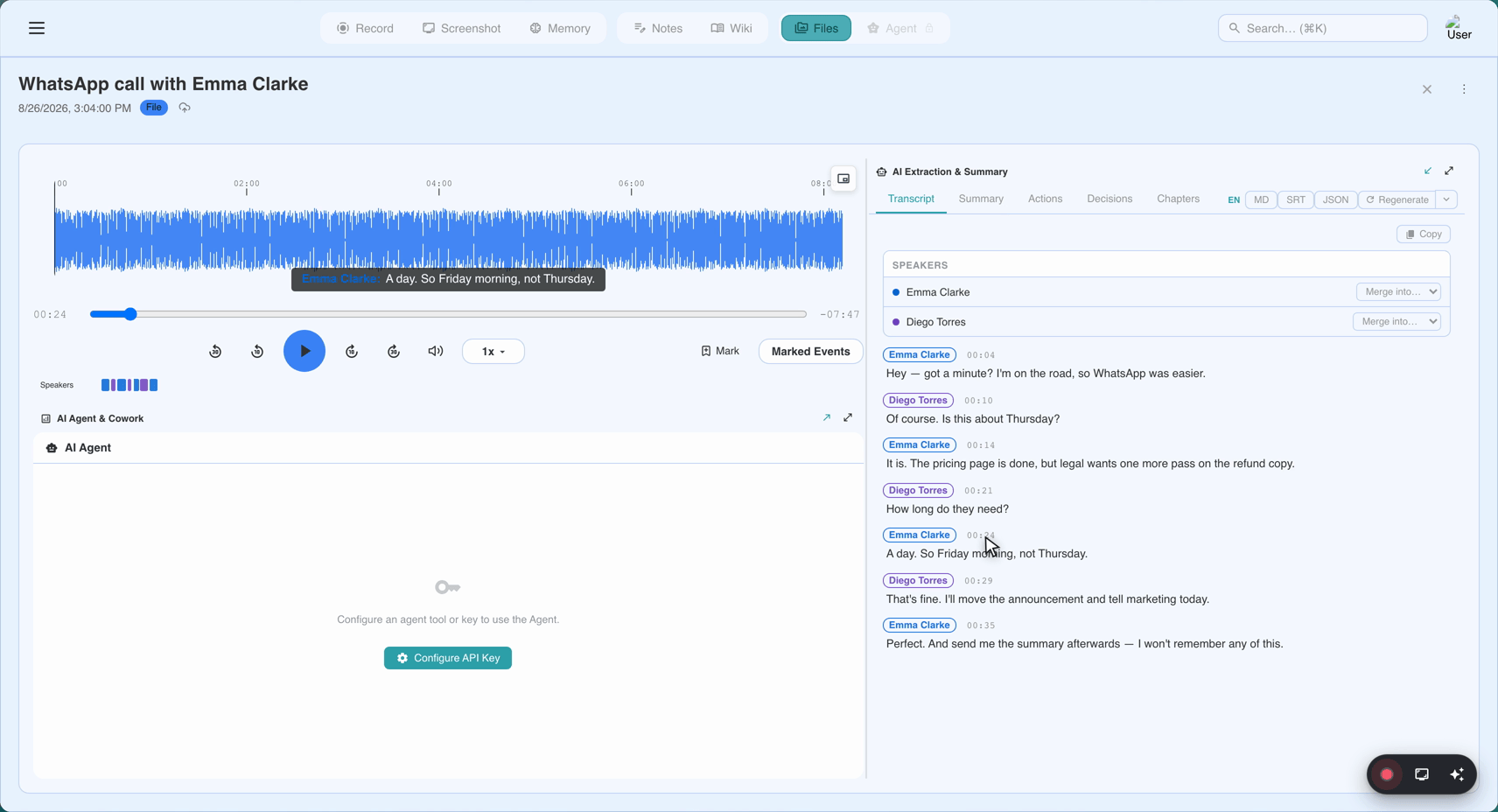
What you'll see:
- Timestamped segments (
[00:03:12]prefixes) at the start of each caption line. - Speaker labels ("Speaker 1", "Speaker 2") — the AI attempts speaker separation once distinct voices are detected, typically after the first minute.
- A short delay between spoken word and printed caption — usually 1–3 seconds, because STT works on rolling windows of audio.
- A "Live transcription paused" pill in all 23 languages if you pause the recording (see below).
Timestamp accuracy — the reason captions stay aligned
Timestamps in the caption pane are the same clock as the audio. Concretely (fixed in v1.21.0):
- Timestamps are derived from sample counting on the audio actually sent, not from wall-clock time.
- Caption clocks no longer re-anchor to wall-clock on every STT reconnect (which used to accumulate 0.5–2 s of drift per roll).
- The first caption now lands at 00:00, not late by the startup window.
- On long recordings, the transcript stays aligned across reconnects, network gaps, and clock adjustments.
This means when you replay a recording later and click a transcript segment, the media seeks to exactly that moment — every time, for the whole recording.
Pause and resume — transcript-safe
Pressing Pause on the recorder suspends both the media recorder and the STT socket. That's a real behaviour change (v1.21.0):
- Anything you say while paused is neither captioned nor recorded.
- The captions pane shows a "Live transcription paused" pill.
- After Resume, the next caption is timestamped at the exact point in the audio where recording picks up — no drift.
- The very first fraction of a second of speech right after Resume, while the STT connection reopens, may go uncaptioned.
Before this fix, pause only stopped the recorder; STT kept running against silence and captions accumulated with the wrong timestamps.
When captions stop coming
- STT service temporarily unavailable. A Retry captions banner appears above the transcript. Click it — the recording itself is unaffected.
- Free transcription pool exhausted. For long recordings on free tier, live captions may end mid-session. The transcript is still generated from the audio on upload; you just lose the live preview.
- You're offline. Live captions are a cloud service; the recording continues locally and the transcript is regenerated from the audio after upload.
Live notes (signed-in only)
Signed-in users get the full WYSIWYG notes editor on the recording screen — the same editor as the post-recording Notes tab, right below the timer and Pause/Stop controls (or in a collapsible "Notes" card on mobile).
What the editor can do:
- Headings, lists, quotes, bold, italic, links.
- Markdown shortcuts as you type (
**bold**,- list, etc.). - Formatting toolbar with buttons for the common cases.
- Full undo / redo.
Timestamp inserts. The ⏱ toolbar button drops a [mm:ss] marker at the cursor using the current recording time, so you can jot "decision on Q3 rollout at ⏱" and get back to the exact moment later. In playback, the timestamp becomes a clickable link that seeks the media.
Crash-safe local draft. Notes mirror to IndexedDB while you type — if the tab dies mid-recording, the draft survives on disk (24-hour retention). Discarding an unfinished recording from the recovery modal shows a warning if unuploaded notes would be lost with it.
What happens on Stop. The draft uploads to the cloud together with the recording (never mid-recording). It continues seamlessly into the recording's Notes tab, and is weighted into the AI summary when the summary is regenerated — the notes are treated as first-class context for the AI, alongside the transcript.
What anonymous sessions get. No live notes editor in the current release. Anonymous recordings capture audio + video + live transcript, but the notes editor requires a signed-in identity to attach the draft to on the server.
Markdown rendering in the wiki and elsewhere
A convention worth knowing: single line breaks in notes render as line breaks (as of v1.21.0) — "comment-style" formatting the mobile app and Chrome extension also use. Blank lines still separate paragraphs. Caveat: text formatting must start and end on the same line — **bold** split across a line break shows the asterisks literally.
Quick Reference
| Task | How |
|---|---|
| Retry captions if they stop | Retry captions banner above the transcript |
| Insert a timestamp linked to the recording | ⏱ toolbar button (or type [mm:ss]) |
| Bold / italic / list | Editor toolbar, or markdown as you type |
| Pause safely (no caption drift) | Pause button in the recorder controls |
| Recover a note after a tab crash | Open /record again — the draft appears in the notes card |
Last updated: 2026-08-28
← Chapter 4: The Per-App Record Pages | Chapter 6: Stopping and Saving →
Published: