Google Drive
Chapter 22: Google Drive
Connect Google Drive, and SeaMeet saves each new meeting to your Drive as a Google Doc. Every doc has the summary, the action items, the chapters, your notes and the transcript with speaker names, so your meeting minutes sit with the rest of your documents and nobody has to copy and paste them.
Only text is saved to Drive. Your recordings stay in SeaMeet.
What you need
- Sync Pro, or a team plan where you're the team owner. On a team, only the owner connects Drive. Free accounts don't see the Google Drive card.
- The SeaMeet web app. Drive is set up in the web app, but every meeting in your SeaMeet cloud library counts, including ones recorded with the extension or the desktop app.
Connect Google Drive
- In the web app, open Account › Integrations and scroll to Google Drive.
- Read What's saved and Who can see it, then click Connect Google Drive.
- Google asks you to allow access. SeaMeet asks only for the files it creates itself; it can't see the rest of your Drive.
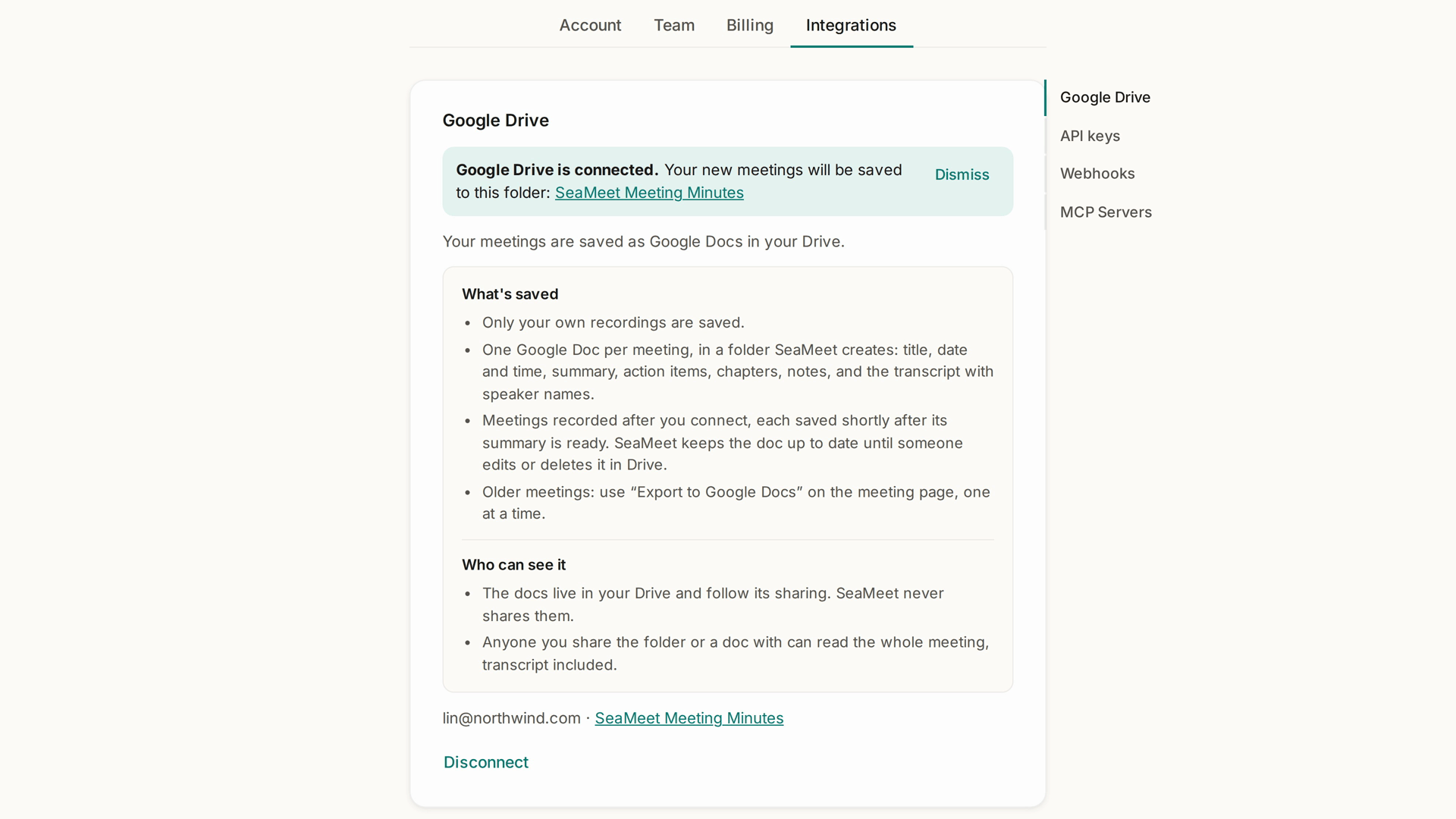
- Back in SeaMeet, the card says Google Drive is connected. and links the folder your meetings will be saved to.
┌ Google Drive ────────────────────────────────────────────┐
│ Google Drive is connected.                                │
│ Your new meetings will be saved to this folder:           │
│ SeaMeet Meeting Minutes                                   │
│                                                           │
│ lin.chen@example.com · SeaMeet Meeting Minutes  Disconnect │
│ Docs stay in your Drive if access changes or you          │
│ disconnect.                                               │
└───────────────────────────────────────────────────────────┘
SeaMeet creates the folder for you. On Sync Pro it's called SeaMeet Meeting Minutes. On a team, the team's name is in it, for example SeaMeet Northwind Meeting Minutes. You can't choose another folder or a Shared Drive.
What gets saved, and when
One Google Doc per meeting, named after the meeting and its date, for example Weekly sync · Acme - 2026-11-12. Each doc has:
- the title, date and time
- the summary and action items
- the chapters
- your notes
- the full transcript, with speaker names
- a link back to the meeting in SeaMeet
When: each meeting recorded after you connect is saved shortly after its summary is ready, usually within a few minutes.
Kept up to date: if the summary is regenerated, or you rename the meeting, rename speakers or edit notes, SeaMeet updates the doc. Once someone edits or deletes the doc in Drive, SeaMeet stops updating it, so it never overwrites your changes. Changes made in Drive aren't copied back into SeaMeet.
Older meetings
Meetings recorded before you connected aren't saved automatically. To save one:
- Open the meeting in the web app.
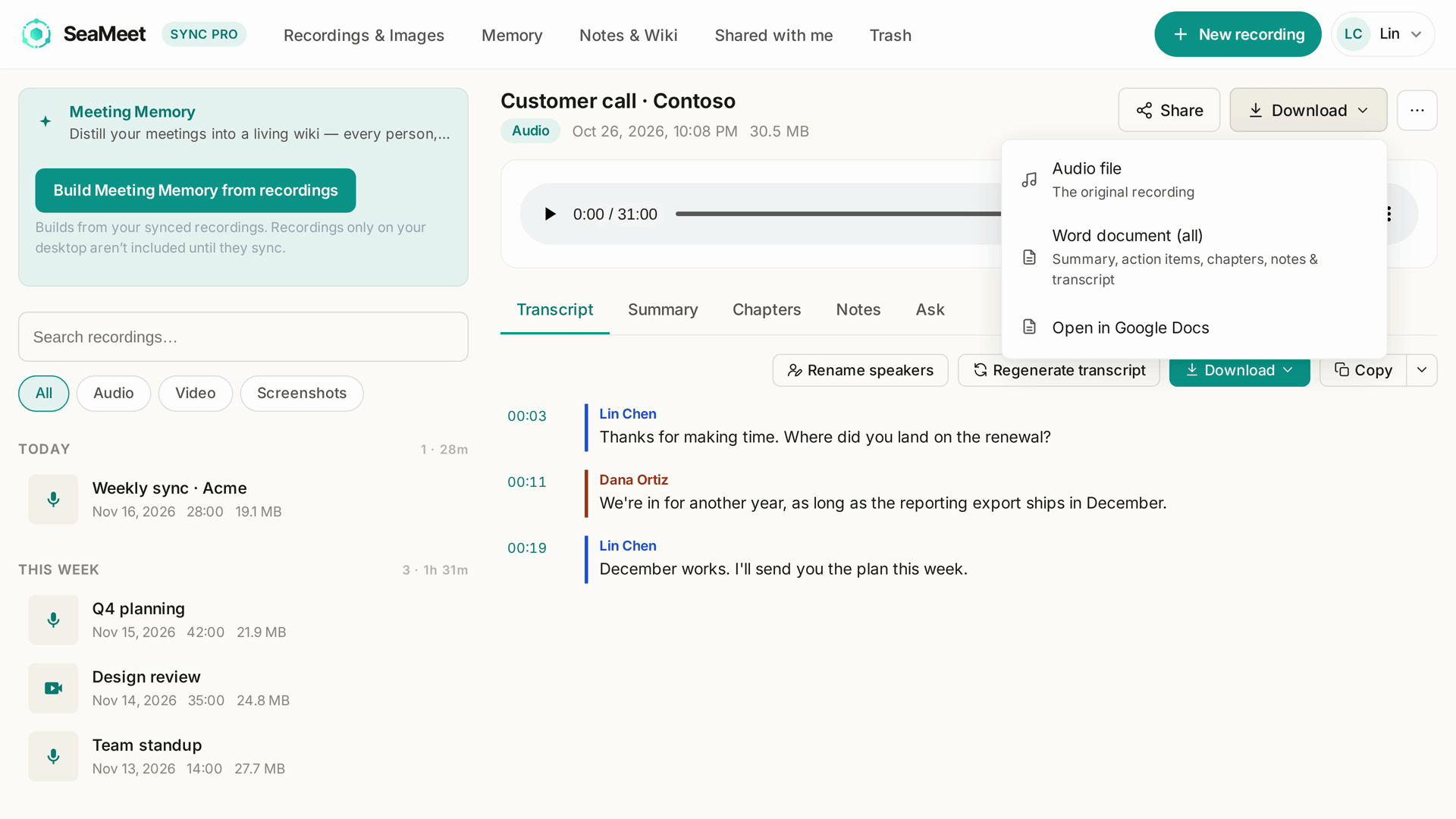
- Click the Download button at the top of the meeting page.
- Choose Export to Google Docs. It shows Exporting…, and a few minutes later the row changes to Open in Google Docs.
Export saves one meeting at a time.
Opening a meeting's doc
- On the meeting's page, choose Open in Google Docs from the download menu.
- In your summary email, click Open in Google Docs. It opens SeaMeet first and takes you straight on to the doc. If the doc is still being saved, SeaMeet says so; try again in a minute.
The link is in the owner's summary email. People you share a meeting with see Open in Google Docs on the meeting page when a doc exists, but can only open the doc if you've shared it with them in Drive.
On a team
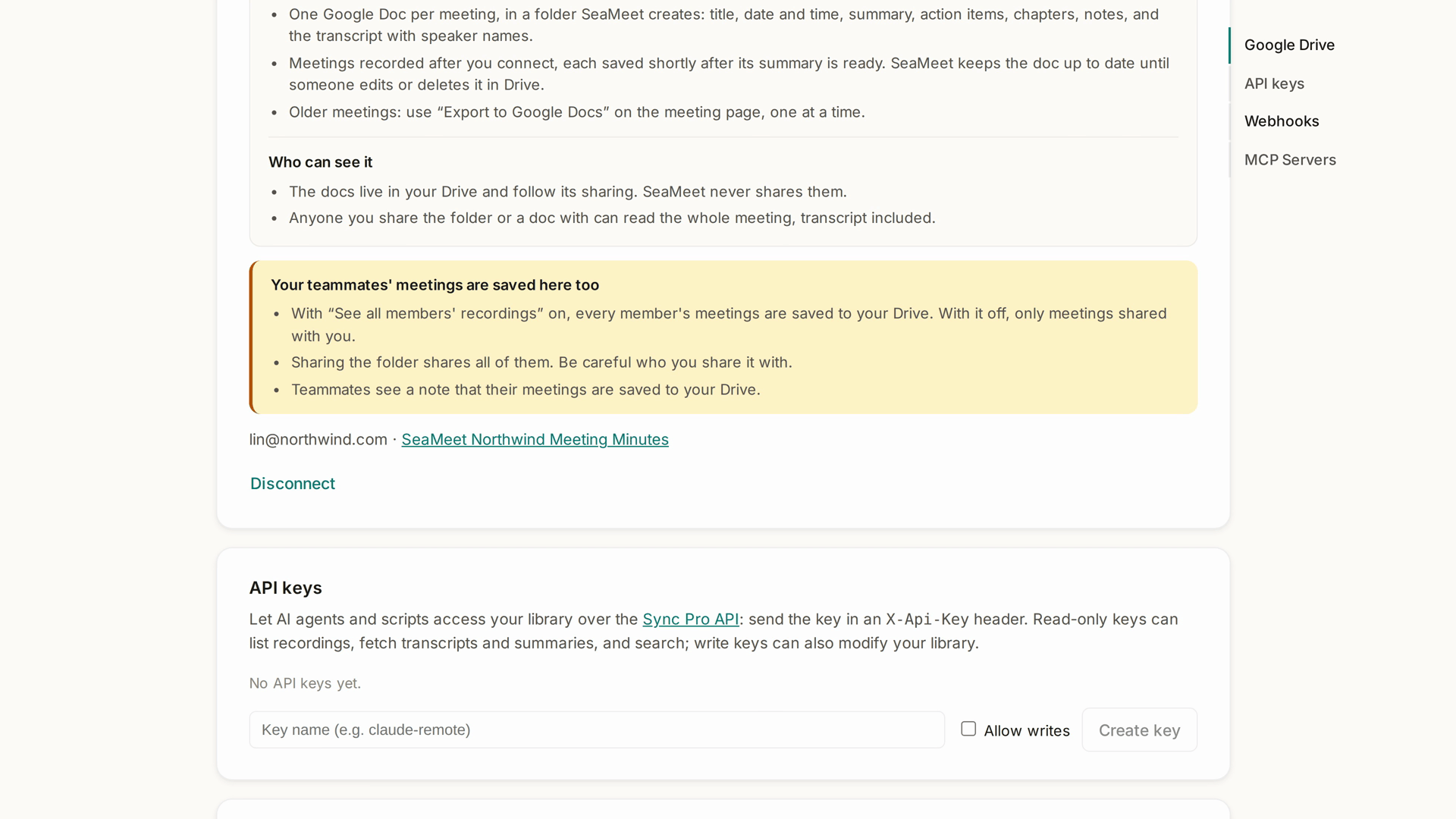
The team owner connects Drive once, and the team's meetings go to one folder in the owner's Drive.
- With See all members' recordings on, every member's meetings are saved there. With it off, only the meetings shared with the owner.
- Members see a note on their Integrations page that their meetings are saved as Google Docs in the team owner's Drive.
- Sharing the folder shares every meeting in it, transcripts included, so be careful who you share it with.
Who can see the docs
The docs live in your Drive and follow Drive's sharing. SeaMeet never shares them. Anyone you share the folder or a doc with can read the whole meeting, including the transcript.
Disconnect
Click Disconnect on the Google Drive card, then confirm. New meetings stop being saved. Docs already in your Drive stay there.
Troubleshooting
| What the card says | What to do |
|---|---|
| Google needs you to sign in again before meetings can be saved. | Click Reconnect Google Drive and allow access again. |
| The SeaMeet folder is gone from your Drive. | The folder was deleted or moved to the trash. Click Retry to create it again. |
| Meetings not saved: N | Some meetings couldn't be saved. Open one and use Retry export to Google Docs from its download menu. |
| Sync Pro isn't active on your account, so new meetings aren't being saved. | Renew Sync Pro. Docs already in Drive stay there. |
SeaMeet also emails you, at most once a day, when it needs you to reconnect or can't find the folder.
Quick reference
| You want to… | Do this |
|---|---|
| Save new meetings to Drive | Account › Integrations › Connect Google Drive |
| Save an older meeting | Meeting page → download menu → Export to Google Docs |
| Open a meeting's doc | Open in Google Docs on the meeting page or in the summary email |
| Find the folder | The folder link on the Google Drive card |
| Stop saving | Disconnect on the Google Drive card |
Last updated: 2026-11-16
Published: