Google Calendar
Chapter 21: Google Calendar
Connect your Google Calendar, and SeaMeet helps you record the meetings on it. The SeaMeet extension for Chrome and Edge reminds you when a meeting starts, on whatever page you're on, so you no longer remember to record halfway through. The side panel shows today's meetings, with a short brief before each one. Each recording is linked to the calendar meeting it came from.
SeaMeet only reads your calendar. It never changes your events and never sends anything to your invitees.
What you need
| Feature | Plan | Where |
|---|---|---|
| Connect a calendar, link recordings to meetings | Every plan | Web app |
| Meeting reminders | Sync Pro | SeaMeet extension for Chrome or Edge |
| Today's meetings and the brief in the side panel | Sync Pro | SeaMeet extension for Chrome or Edge |
Reminders appear only in the extension. The web app and the desktop app don't show meeting reminders.
Connect Google Calendar
- In the web app, open Account › Integrations. Google Calendar is the first section.
- Click Connect Google Calendar.
- Google asks you to allow Seasalt.ai (the company behind SeaMeet) to read your calendar. Allow it.
- You're returned to SeaMeet, and a message says Google Calendar connected.
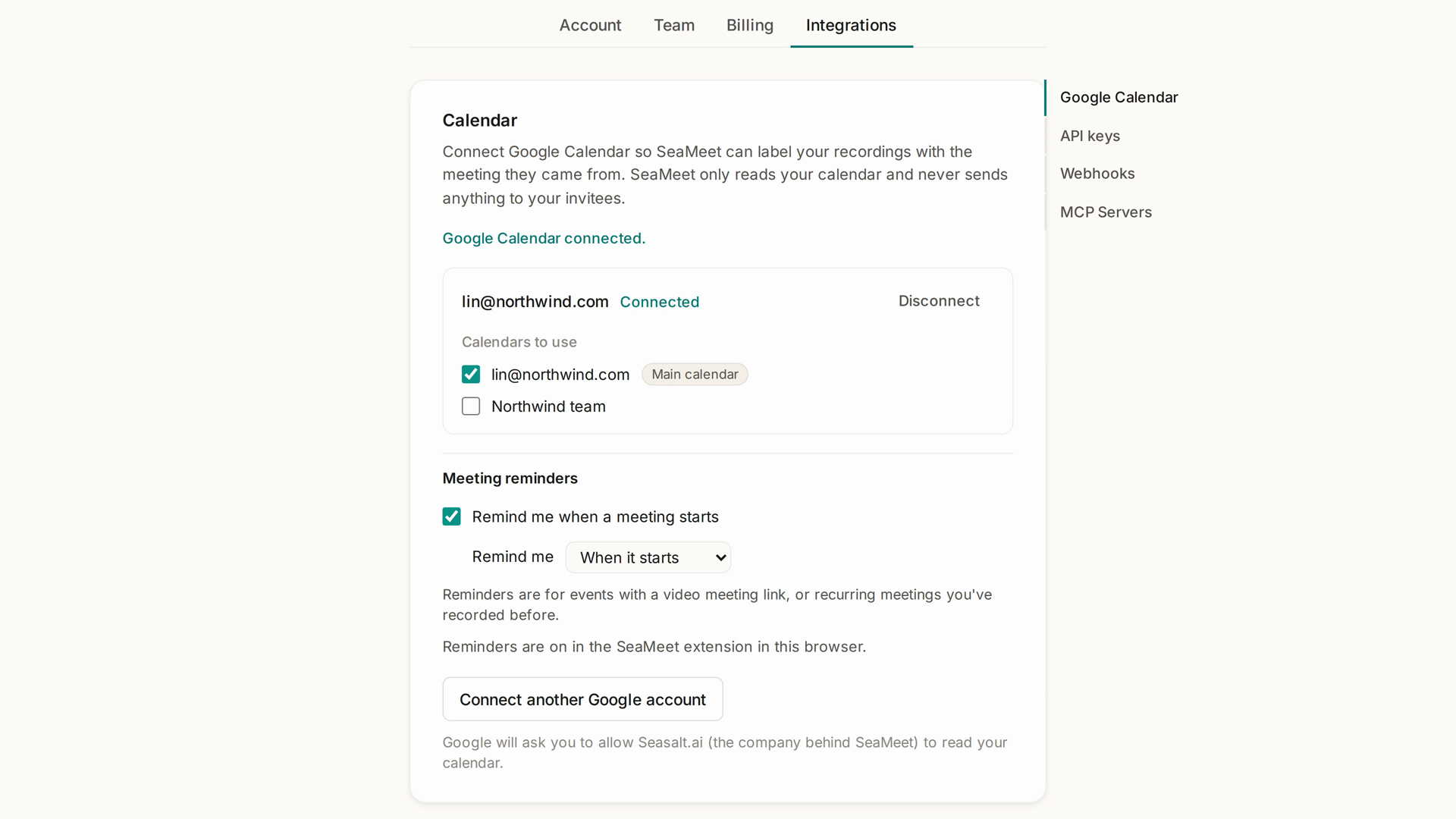
┌ Google Calendar ─────────────────────────────────────────┐
│ lin.chen@example.com                 Connected  Disconnect │
│                                                           │
│ Calendars to use                                          │
│   ☑ Lin Chen                         Main calendar        │
│   ☐ Team holidays                                         │
│                                                           │
│ Meeting reminders                                         │
│   ☑ Remind me when a meeting starts                       │
│   Remind me   [ 1 minute before ▾ ]                       │
│                                                           │
│ [ Connect another Google account ]                        │
└───────────────────────────────────────────────────────────┘
Under Calendars to use, tick the calendars SeaMeet should read. Your main calendar is ticked to start with.
To add a second Google account, for example a work account and a personal one, click Connect another Google account. You can connect up to five.
Meeting reminders
Set them up
- Install the SeaMeet extension for Chrome or Edge, and sign in to it with the same account you use in the web app.
- In Account › Integrations › Google Calendar, under Meeting reminders, keep Remind me when a meeting starts ticked.
- Choose when: When it starts, 1 minute before, 2 minutes before or 5 minutes before.
The status line below the settings tells you whether reminders will reach you. "Reminders are on in the SeaMeet extension in this browser." means everything is set. Otherwise it tells you what's missing: install or update the extension, sign in to it with the right account, or subscribe to Sync Pro.
Which meetings you're reminded about
SeaMeet reminds you about events on the calendars you ticked that:
- have a video meeting link (Google Meet, Zoom, Microsoft Teams, Webex and others), or
- belong to a recurring meeting you've recorded before.
All-day events, events you declined, and events marked as free don't get reminders.
When the reminder appears
At the time you chose, a card appears on top of the page you're on in Chrome or Edge. It shows the meeting's title and time, with Record and Cancel buttons. If you don't click either, Record fills up over 30 seconds and then takes you to the meeting, the same as a click.
┌──────────────────────────────────────────────┐
│  ● SEAMEET                                    │
│  Weekly sync · Acme                           │
│  10:00 AM – 10:30 AM   Recurring              │
│                                               │
│  [ ● Record  Space ]      [ Cancel  Esc ]     │
│  Don't remind me about this recurring meeting │
│  Why am I seeing this?                        │
│  How do I turn all reminders off?             │
└──────────────────────────────────────────────┘
- Record takes you to the meeting and gets SeaMeet ready to record. For a Google Meet call, SeaMeet brings the Meet tab forward and Chrome asks what to share: choose your screen, turn on Also share system audio, and click Share. For other platforms, SeaMeet opens its recorder, where you choose what to share and start. Browsers only let a recording start after you click, so SeaMeet never starts recording on its own.
- Cancel closes the reminder.
- Don't remind me about this meeting mutes that one meeting. For a recurring meeting, you can mute the whole series instead.
If the card can't appear (for example, when no browser window is in front), SeaMeet can show a system notification instead. Turn on System notifications for reminders in the extension's side-panel settings, and allow notifications when Chrome asks.
Unmute a meeting
Muted meetings are listed under Muted meetings in Account › Integrations › Google Calendar. Click Unmute to get its reminders back.
Turn reminders off
Untick Remind me when a meeting starts. Your calendar stays connected, and recordings are still linked to their meetings.
Today's meetings in the side panel
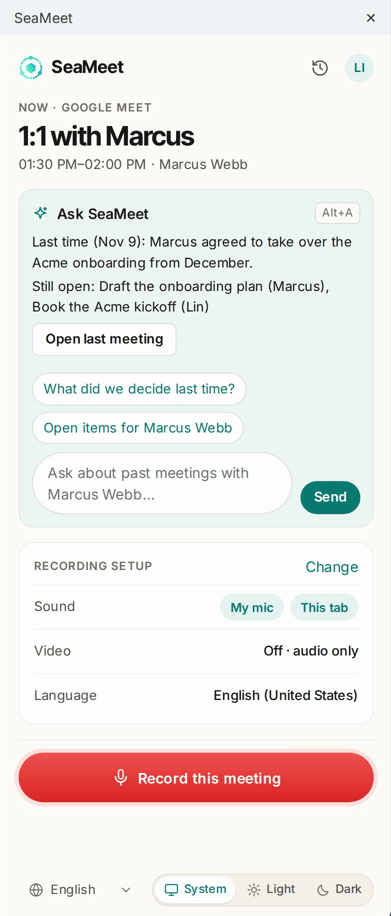
With Sync Pro, the extension's side panel shows your calendar for today:
- Now: the meeting happening at the moment and its platform, with Record this meeting.
- Later today: up to three of today's next meetings, with their start times.
- A brief before the meeting: when you've recorded this meeting before, SeaMeet tells you what was said Last time and what's Still open from it, with a link to open the last meeting.
If your calendar isn't connected yet, the side panel offers Connect Google Calendar, which opens the web app's Integrations page.
Recordings linked to their meeting
After you record, SeaMeet looks for the calendar meeting the recording came from. On the recording's page, the meeting shows above the player:
- Suggested: SeaMeet found a likely match. Click Confirm to keep it, or Change to pick another.
- Which meeting was this? opens a list of the meetings around the time of the recording. Choose one, or Not a calendar meeting.
Linking a meeting never renames your recording.
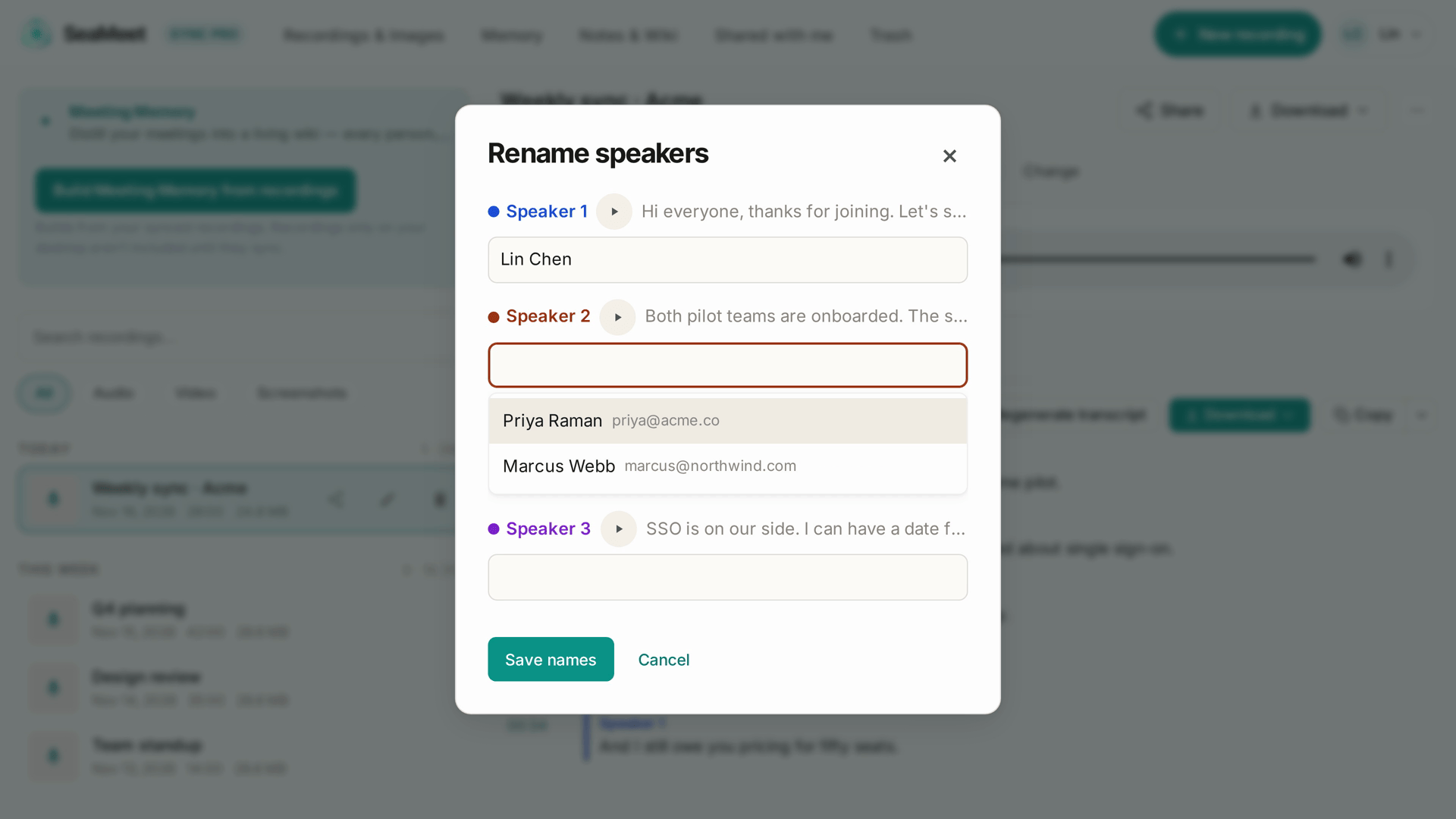
Once a meeting is linked, its invitees are offered as suggestions when you rename speakers in the transcript. The meeting's details call them invitees, because SeaMeet can't verify who actually attended.
Disconnect
In Account › Integrations › Google Calendar, click Disconnect next to the account, then Yes, disconnect. SeaMeet stops reading that calendar. Meetings already linked to recordings stay linked.
To also remove SeaMeet's access on Google's side, open your Google Account's third-party access page and remove Seasalt.ai.
Troubleshooting
| Problem | What to do |
|---|---|
| The section says Reconnect needed | SeaMeet lost access to your calendar, for example because access was removed in your Google Account. Click Reconnect and allow access again. |
| No reminder appeared | Check the status line under Meeting reminders. Make sure the extension is installed and signed in with the same account, that the meeting has a video link or is a recurring meeting you've recorded, and that you haven't muted it. |
| Reminders only appear while Chrome is in front | Turn on System notifications for reminders in the extension's side-panel settings. |
| The wrong meeting is suggested for a recording | Click Change above the player and choose the right one, or Not a calendar meeting. |
Quick reference
| You want to… | Do this |
|---|---|
| Connect your calendar | Account › Integrations › Connect Google Calendar |
| Choose which calendars SeaMeet reads | Tick them under Calendars to use |
| Be reminded earlier | Remind me → 1, 2 or 5 minutes before |
| Stop reminders for one meeting | Don't remind me about this meeting on the reminder |
| Get a muted meeting's reminders back | Muted meetings → Unmute |
| Fix a recording's meeting | Change above the player |
Last updated: 2026-11-16
← Chapter 20: Service Status and Uptime | Chapter 22: Google Drive →
Published: