Playback
Chapter 8: Playback
Clicking a recording in the library opens the player. It's the surface you'll spend most of your time in — where the media, the transcript, the summary, and your notes all render together.
Layout at a glance
Three panels on desktop, stacked on mobile:
- Left (or top): the media panel — audio waveform or video with a play/pause bar, timeline scrubber, speed control, volume.
- Centre: the transcript — timestamped segments with speaker labels, scrolling in sync with the media by default.
- Right (or bottom): the AI summary and notes — the summary, action items, decisions, chapters, and any notes taken during or after the recording.
Dividers between panels are draggable; on desktop any panel can collapse to give more room to the others.
Media controls
- Play / Pause — space bar.
- Timeline scrubber — click to jump, drag to scan; the transcript follows.
- Speed — 0.5× / 1× / 1.25× / 1.5× / 2×.
- Volume — with a mute toggle.
- Skip forward / back — arrow keys jump 5 seconds;
J/Ljump 10 seconds;Ktoggles play/pause. YouTube-adjacent by design. - Fullscreen —
F(video only). - Picture-in-picture —
P(video only, in browsers that support it).
The synced transcript
Every transcript segment carries a start time. As the media plays, the current segment is highlighted; by default the transcript auto-scrolls to keep it in view.
Click a segment to jump. Click any segment's timestamp and the media seeks there. Click the text and the media seeks and continues to auto-scroll from that point.
Scroll away to break auto-follow. If you scroll the transcript to re-read something, auto-follow pauses. A Jump to now pill appears in the corner to resume.
Speaker labels. The AI attempts speaker separation ("Speaker 1", "Speaker 2"). Rename them ("Alice", "Bob") from the transcript panel and the label applies everywhere — the rename is stored server-side and visible on every device.
Live vs post-processed transcript. The live transcript from the recording session and the higher-quality post-processed transcript are both stored. The player shows the post-processed one by default; a menu switches to the live version if you need it.
The AI summary
Generated automatically after upload. Sync Pro subscribers get the full summary; free-tier users get a teaser.
Structured as:
- Headline — one-line title. Also the auto-rename target if the recording is still "Untitled —
<date>". - Overview — a paragraph summarising the meeting.
- Action items — bulleted, with assignees where the AI could infer them.
- Decisions — key decisions made.
- Chapters — timestamped section breaks. Click one to jump the media to that topic.
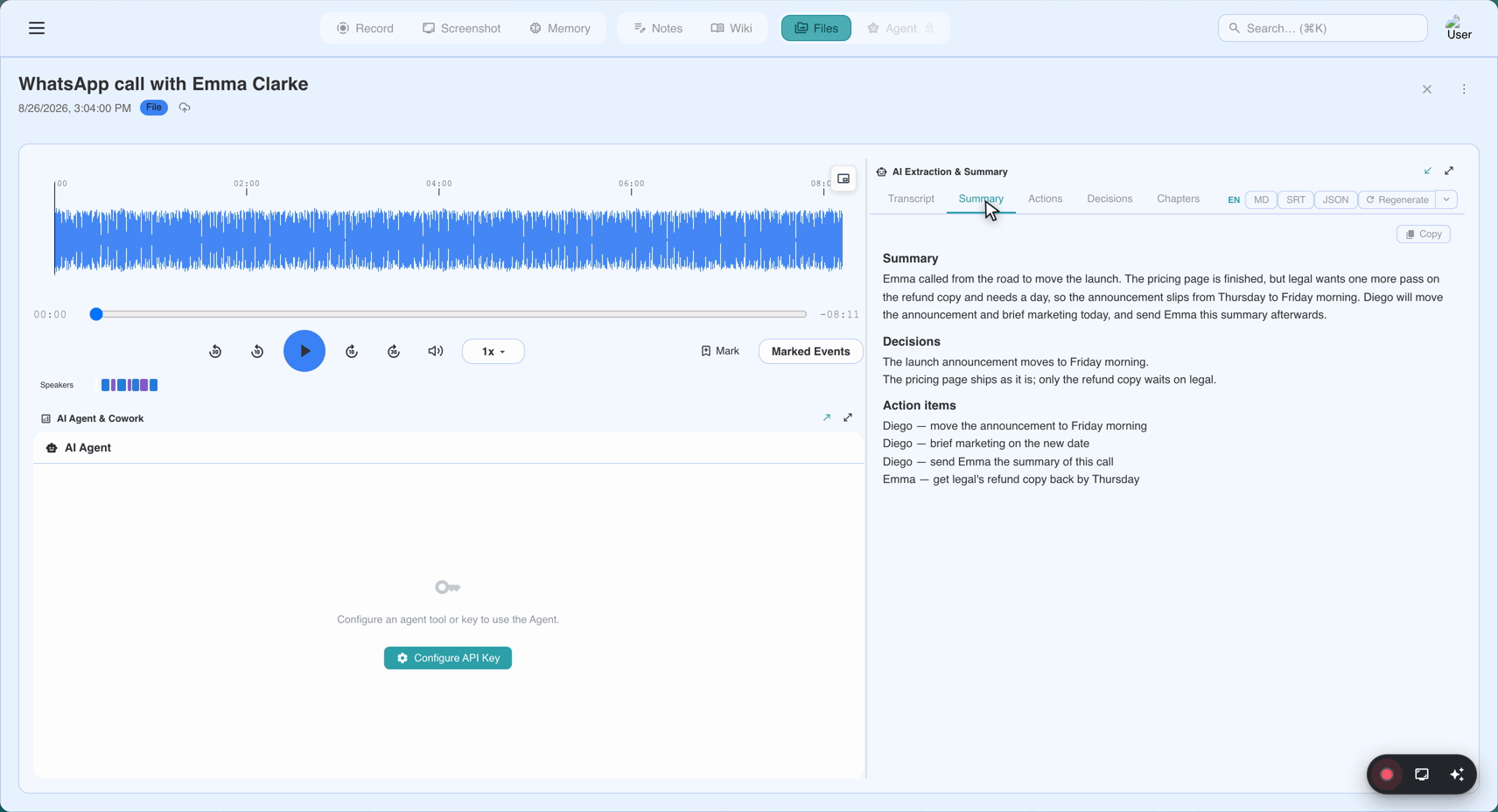
Chapters are the fastest way to navigate a long meeting.
Templates (Sync Pro)
The AI renders the summary in your chosen template — investor call, medical consultation, deposition, podcast quotes, and more. Switch templates from Template in the summary panel. Regenerating with a different template overwrites the current summary; the transcript is untouched.
Notes
Notes taken during recording (from the web recorder's live notes editor, the Chrome extension's live notes, or the desktop app) appear as their own section in the summary panel. Timestamp tokens ([mm:ss]) render as clickable links that seek the media using the same clock as the transcript.
If you're viewing a recording that was made with the full live-notes editor, the formatting (headings, bold, lists) renders here as expected. Single line breaks render as line breaks (per v1.21.0) — "comment-style" formatting matching the mobile app and Chrome extension. Blank lines still separate paragraphs.
Meeting Notes and citations name their meeting. In the wiki (Meeting Memory) surface, citations pointing back into notes and summaries name the source meeting explicitly — "from your 2026-08-12 sales sync" — matching how Memory-derived citations name their source. See Chapter 10.
The free-tier reveal cap
Free tier gets a 15-minute rolling reveal window per meeting. In the player:
- First 15 minutes of the transcript and summary are visible.
- Content past 15 minutes is blurred with an Unlock with Sync Pro call to action.
- The blur is per-meeting — every recording gets its own 15-minute reveal, not "15 minutes across your library".
- The cap is a view cap, not a retention cap. The full transcript and summary exist server-side; the free tier just can't see the tail. Upgrading unlocks retroactively — no re-processing.
A signed-out visitor opening a share link sees no content at all — just the sign-in card (see Chapter 11 for how the reveal cap works on shared recordings).
Downloading
Every player offers:
- Download audio —
.webmor.mp3. - Download transcript — TXT with timestamps, SRT (subtitles), or JSON.
- Download summary — Markdown or JSON.
- Download video (video recordings) — the source
.webmor.mp4.
Downloads are available on all tiers.
Regenerating
The more-menu offers:
- Regenerate summary — rerun the AI on the same transcript. Use when the summary missed something.
- Regenerate transcript — rerun STT on the audio. Use if the original was cut off, garbled, or used the wrong language. Heavy operation on long recordings.
Both write a new version; a version picker appears when multiple exist.
Corrections
The player supports caption corrections — if a transcript segment is wrong (a name misspelled, a technical term misheard), fix it. Corrections carry through to Meeting Memory as well, so a name fixed in one recording is fixed across every mention (see Chapter 10 on corrections propagation).
Common problems
"Transcript is out of sync with the audio." Click any segment near where you want to be — the media seeks to the exact segment timestamp and playback resumes in sync from there. If the entire recording is drifting, that's a v1.21.0-era issue; recordings made after Aug 2026 should be tightly aligned.
"Chapters aren't clickable." Refresh. If still not, file a bug.
"Summary is empty or thin." Two causes: recording is very short (under a couple of minutes) so the AI has too little to work with, or it's mostly non-speech. Regenerating won't fix either.
"I can see 15 minutes and nothing after." You're on free tier. See the reveal cap section above.
Quick Reference
| Key | Action |
|---|---|
Space or K | Play / Pause |
← / → | Skip 5 seconds |
J / L | Skip 10 seconds |
F | Fullscreen (video) |
P | Picture-in-picture (video) |
| Click transcript segment | Jump to that timestamp |
| Click chapter | Jump to that section |
Click [mm:ss] in notes | Jump to that timestamp |
| Drag divider | Resize panels |
Last updated: 2026-08-31
← Chapter 7: Your Library | Chapter 9: Trash and Retention →
Published: