Smart Detection
Auto-Detects 50+ Apps
Automatically starts recording when you join a meeting. Set per-app rules.
Supported applications
SeaMeet monitors running processes and detects when you launch or join a session in any of 50+ supported applications. Detection is local, instant, and uses negligible resources.
Tested & Stable
Experimental
Browser-Based
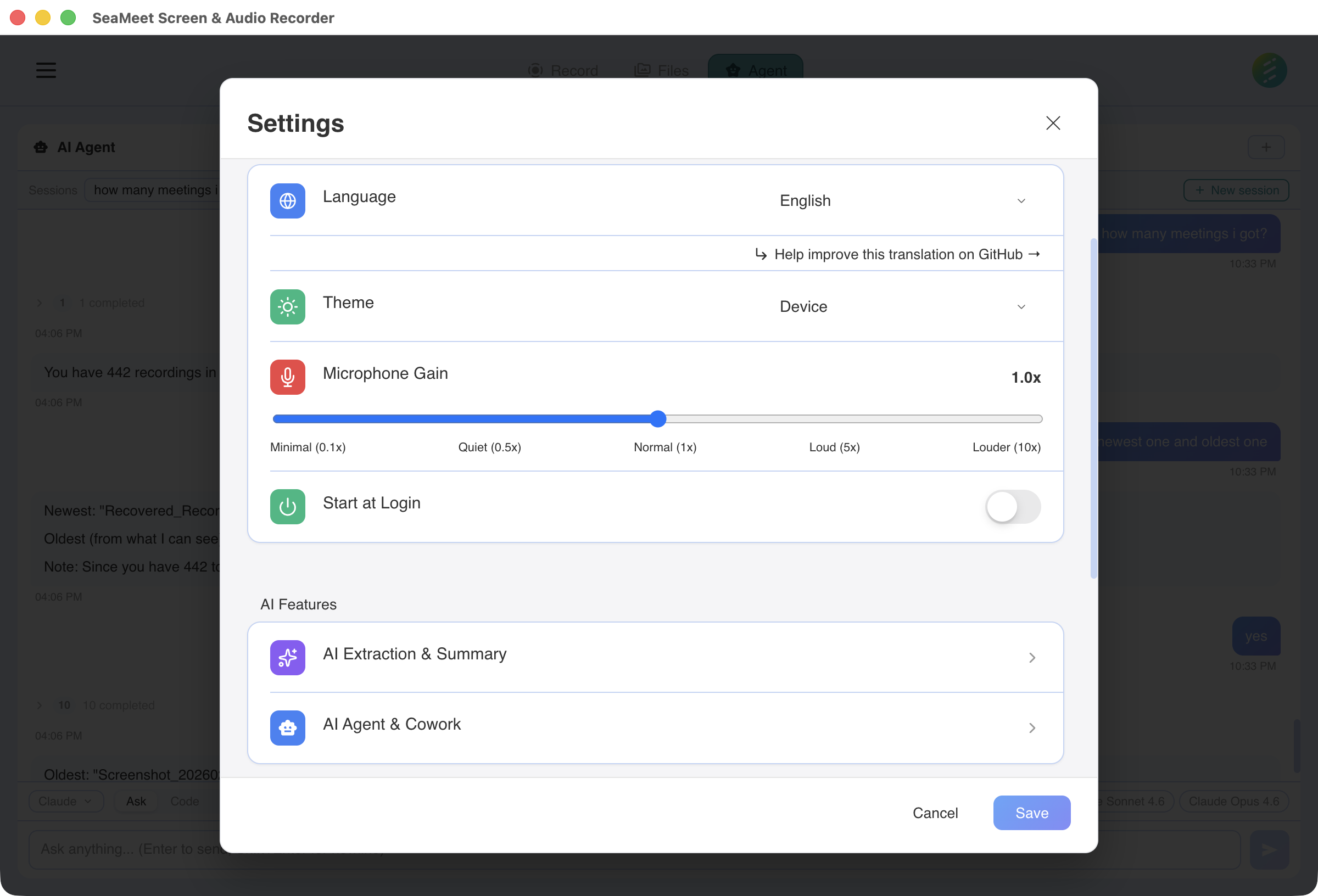
Set recording rules for each app individually
Per-app recording rules
Every detected app can be configured independently. Set your preference once and SeaMeet remembers it. You can change rules at any time from the settings panel.
Always Record
SeaMeet starts recording the moment this app is detected. Fully hands-free — you never need to remember to press record.
Ask Every Time
A notification prompts you when the app is detected. Choose to record, skip, or snooze. The default for most apps.
Never
SeaMeet ignores this app entirely. No prompts, no recording. Use this for apps you never want to capture — personal messaging, games, etc.
How detection works
Process monitoring
SeaMeet periodically checks running processes against its app database. Detection happens locally — no network requests, no cloud lookups. CPU impact is negligible.
Window title matching
For browser-based apps (Google Meet, web-based Teams), SeaMeet reads the active window title to detect meeting sessions. This works across Chrome, Firefox, Edge, and Brave.
Custom app support
Don't see your app? You can add custom process names to the detection list. SeaMeet will monitor for them using the same rules system.
Audio session detection
SeaMeet detects when conferencing apps access the microphone or produce audio output. This enables detection of browser-based meetings and apps that don't have distinctive window titles.