Recording
Recording Modes
Audio, video, window, or region — capture exactly what you need. Plus Flashback for retroactive recording.
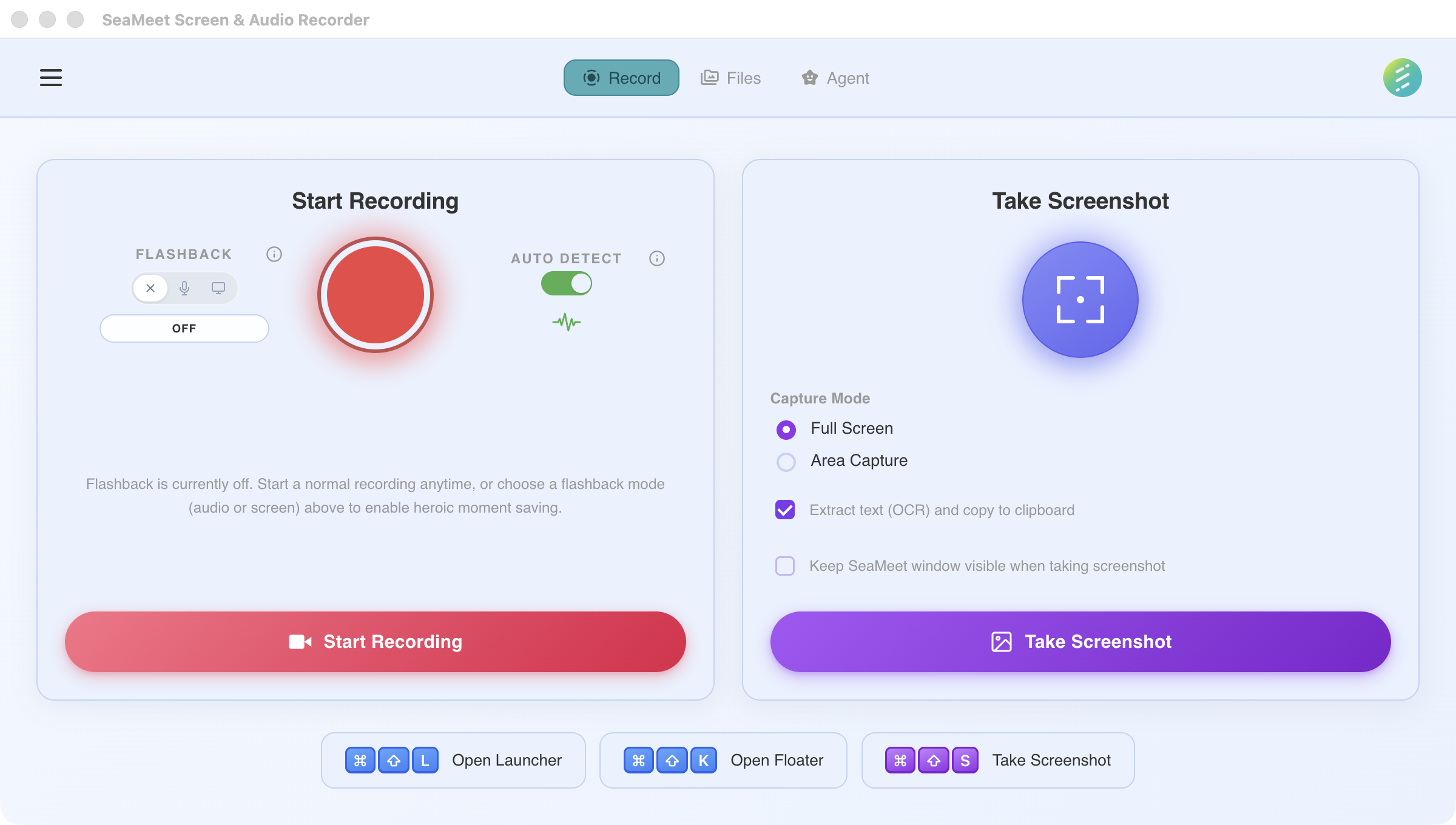
Choose your recording mode, then hit the red button
Every mode you need, built in
SeaMeet gives you six distinct ways to capture content. Choose the right mode for the situation — from lightweight audio-only to full-screen video with flashback. Every mode supports system audio, microphone input, or both.
Audio Recording
Capture system audio and microphone input simultaneously. Perfect for meetings, interviews, and calls where video is unnecessary. Minimal CPU and disk usage.
Fullscreen Video
Record your entire screen with audio. Ideal for presentations, webinars, and demos where viewers need full context of everything on screen.
Window Recording
Lock recording to a specific application window. The recording follows the window even if you resize or move it. Other apps stay private.
Region Recording
Select a custom rectangular area of your screen to record. Great for capturing a specific section — a chat window, a dashboard panel, or a video call tile.
Audio Flashback
Continuously buffers the last 30 seconds of audio in RAM. When you realize you missed something, press the hotkey and the buffer is saved to a file retroactively.
Video Flashback
Like Audio Flashback, but for your screen. Configurable buffer from 10 seconds to 2 minutes. Captures the last N seconds of screen activity — even if you never pressed record.
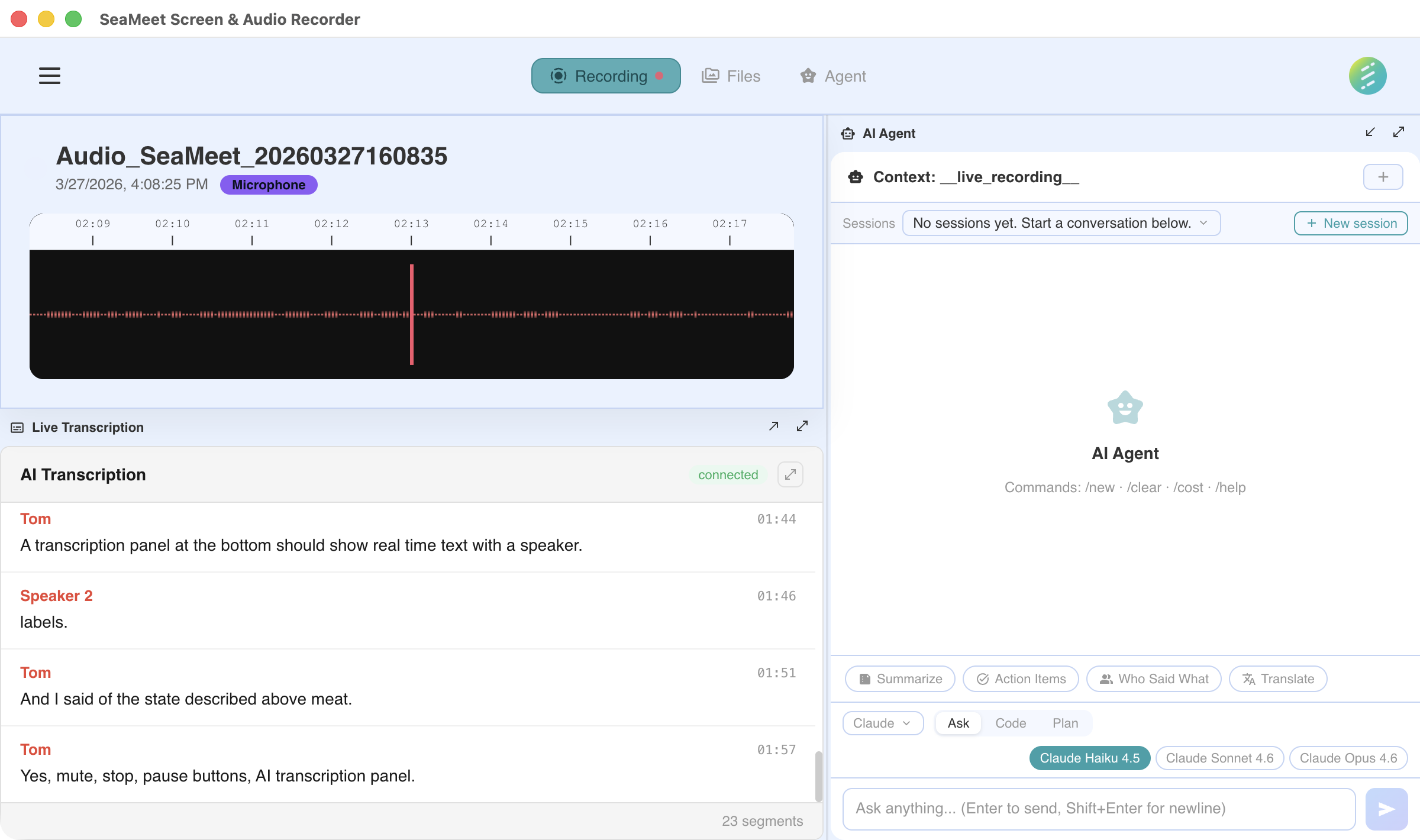
Configure audio sources and video modes before recording
Works with any audio source
SeaMeet captures system audio natively on all platforms — no virtual audio drivers required on macOS or Windows. You can also record your microphone alongside system audio for two-track capture.
System Audio
Captures all audio playing through your speakers or headphones — meeting participants, media playback, notifications.
Microphone Input
Record from any connected microphone. SeaMeet detects Bluetooth, USB, and built-in mics automatically.
Dual-Track Capture
Record system audio and microphone on separate tracks. Useful for post-processing where you need to balance your voice against remote participants.
Mark important moments
Press the mark button or hotkey during recording to insert a timestamp marker. Review all marks in the marks popup with clickable timestamps to jump to that moment.
Multi-monitor support
SeaMeet detects all connected displays with per-monitor thumbnails. Choose which display to record — primary, external, or any combination. Handles resolution differences and scale factors automatically.
Quality presets & frame rate
Choose from Original, High (~1080p), Medium (~720p), or Low (~480p) quality presets. Select 15, 30 (default), or 60 FPS. Real-time file size estimation shows MB/min and GB/hour before you start recording.
Import audio & video files
Import existing audio and video files for AI processing. Supports .webm, .mp3, .m4a, .ogg, .wav, .aac, .flac, .opus, .mp4, .mov, .mkv, and more. Imported files go through the same transcription and extraction pipeline as live recordings.
Failsafe recording & recovery
Audio data is continuously streamed to disk every ~1 second during recording. If the app crashes, SeaMeet automatically recovers unsaved recordings on next launch. Empty files are never produced.
Not on the desktop app? See the web capability → Audio Upload