Knowledge
Notes
Obsidian-style note-taking built right in. Wikilinks, media embeds, split-view — your meeting notes, connected.
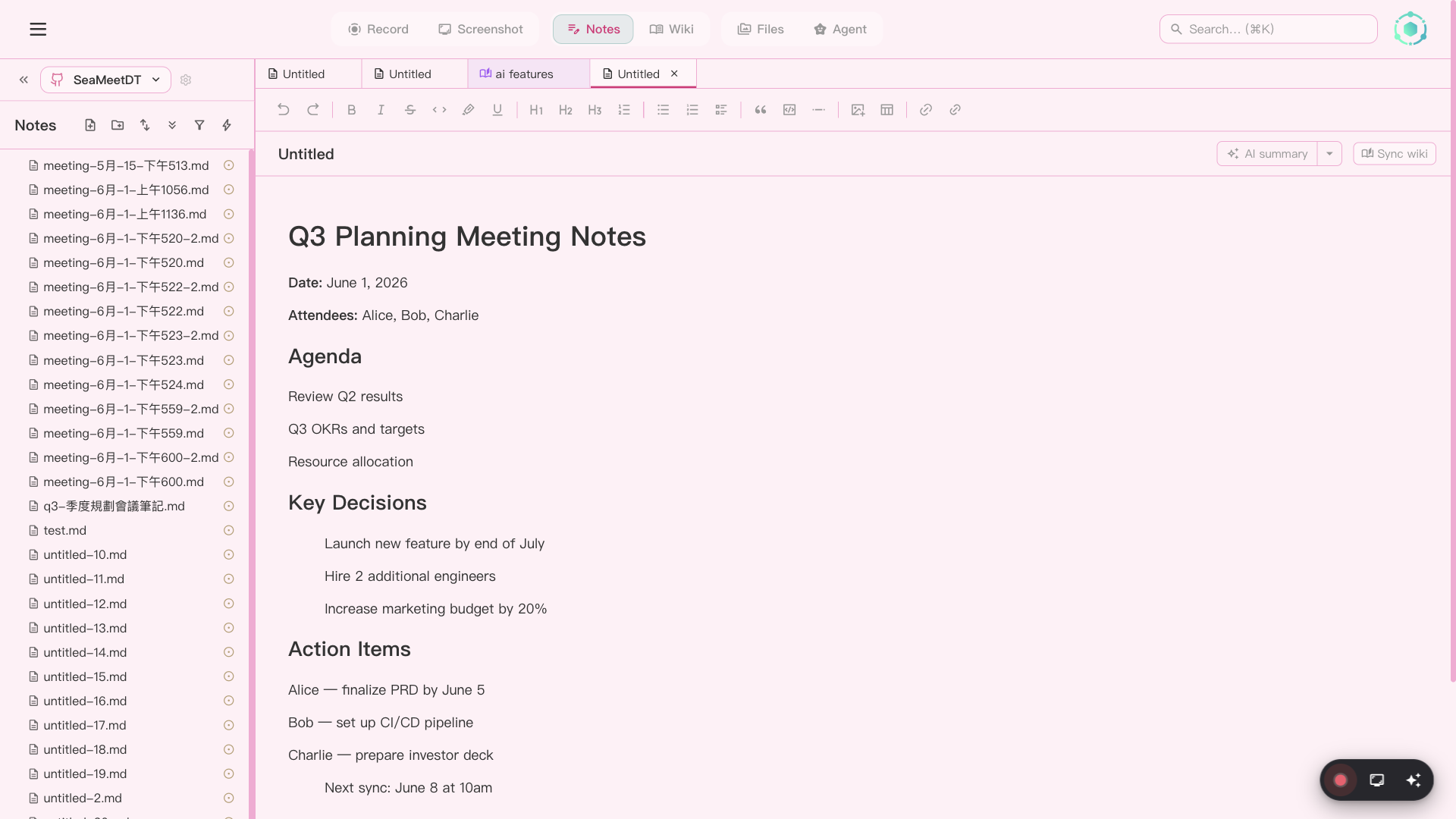
Rich text notes with Wikilinks, media embeds, and split-view
Every meeting produces information that needs to be captured, organized, and connected. SeaMeet's built-in notes system gives you an Obsidian-style editor with Wikilinks, media embeds, and split-view — no separate app needed.
Everything you need for connected notes
Rich text editor
Full-featured rich text editor powered by Tiptap v3. Headings, bold, italic, lists, links, images, code blocks — everything you need for meeting notes, project documentation, and personal knowledge management.
Wikilinks with live resolver
Use [[double bracket]] syntax to link between notes. SeaMeet resolves links in ~500ms, shows a disambiguation popover when multiple matches exist, and offers a suggestion popover as you type. Never lose track of related notes again.
Media embeds
Embed recordings, screenshots, and audio directly in notes with ![[file]] syntax. Click to play audio and video inline — no switching between apps. Drag and drop media from the sidebar into any note.
Split-view & tabs
Open multiple notes side by side in a split pane. Drag tabs between panes to organize your workspace. Each pane operates independently — view a recording in one while taking notes in the other.
Quick Open palette
Press Cmd+O (Mac) or Ctrl+O (Windows) to instantly search and open any note. Fuzzy matching finds what you need in milliseconds — no browsing through folders.
Code blocks & math
Syntax-highlighted code blocks for technical notes. KaTeX math support for equations and formulas. Perfect for engineering teams and technical documentation.
Auto-attach recordings
Start a recording from a note and it automatically attaches when complete. The note and recording stay linked — find the recording from the note, or find the note from the recording.
Full-text search
Search across all notes, wiki pages, transcripts, summaries, and OCR text with a global search palette. Results are grouped by type and include contextual snippets.
Editor features
Slash commands
Type / to access formatting, headings, lists, code blocks, and more
Find & Replace
Search within notes with find and replace functionality
Emoji suggestions
Type : to trigger emoji suggestions with fuzzy matching
Table of Contents
Auto-generated TOC panel for quick navigation within long notes
Paste images
Paste images from clipboard directly into notes with metadata
Smart rename
Rename notes with automatic cross-reference propagation for all [[links]]
Workspace system
Create multiple workspaces — each with its own root directory, notes, recordings, and settings. Switch between workspaces instantly. Perfect for separating work projects from personal notes.