Google Calendar Reminders and the Side Panel
Chapter 7: Google Calendar Reminders and the Side Panel
Once your Google Calendar is connected to SeaMeet, the extension reminds you when a meeting starts, right on the page you're working in, and gets you recording in a couple of clicks. The side panel also shows today's meetings, and before a meeting you've recorded before, a short brief: what was said last time and what's still open.
This chapter covers what the extension does. Connecting your calendar, choosing which calendars to use, choosing when you're reminded, and unmuting meetings all happen in the web app: see the web app manual, Chapter 21: Google Calendar.
SeaMeet never starts a recording on its own. Chrome only lets a recording start after you click, so every path below ends with a click from you.
What you need
| You need | Why |
|---|---|
| The SeaMeet extension in Chrome or Microsoft Edge | Reminders appear only in the extension. The web app and the desktop app don't show them. |
| The extension signed in with the same account you use in the web app | Reminders belong to the account that connected the calendar. A guest (not signed in) gets no reminders. |
| Sync Pro | Reminders, today's meetings and the brief in the side panel are part of Sync Pro. |
| Google Calendar connected, with Remind me when a meeting starts ticked | Set in the web app under Account › Integrations › Google Calendar (web app Chapter 21). |
Which meetings you're reminded about
Events on the calendars you ticked that have a video meeting link (Google Meet, Zoom, Microsoft Teams, Webex and others), or that belong to a recurring meeting you've recorded before. All-day events, events you declined and events marked as free don't get reminders.
The reminder card
At the time you chose (when the meeting starts, or 1, 2 or 5 minutes before), a card appears in the middle of the page you're on, in the Chrome window in front.
┌──────────────────────────────────────────────┐
│  ● SEAMEET                                    │
│  Weekly sync · Acme                           │
│  10:00 AM – 10:30 AM   Recurring              │
│                                               │
│  [ ● Record  Space ]      [ Cancel  Esc ]     │
│  Don't remind me about this recurring meeting │
│  Why am I seeing this?                        │
│  How do I turn all reminders off?             │
└──────────────────────────────────────────────┘
- The card shows the meeting's title and its start and end times. Recurring marks one meeting of a series.
- Record (or Space) starts the recording flow described below.
- Cancel (or Esc) closes the card. Clicking outside the card does nothing.
- Don't remind me about this meeting mutes this one meeting. On a recurring meeting it reads Don't remind me about this recurring meeting and mutes the whole series. The card then says the meeting is muted, with Undo and Close.
- Why am I seeing this? explains that the reminder comes from your connected Google Calendar.
- How do I turn all reminders off? opens the reminder settings in the web app.
The 30-second countdown
If you don't click either button, Record fills up over 30 seconds and then acts as if you had clicked it. Hovering over the card pauses the countdown. Because no real click happened, Chrome won't let SeaMeet open the side panel, so the countdown can only take you part of the way:
- Google Meet: SeaMeet takes you to the meeting's Meet tab, and the card appears again there, this time without a countdown. Click Record on it.
- Other platforms: the SeaMeet web recorder opens, ready for you to start.
The card closes on its own 10 minutes after the meeting's start time.
What Record does
A Google Meet meeting
- The side panel opens, and SeaMeet brings the meeting's Meet tab to the front. If the Meet tab isn't open yet, SeaMeet opens the meeting's link.
- The side panel shows the meeting with SeaMeet will record your computer audio and your microphone.
- If the Meet tab hasn't been allowed to use your microphone yet, the panel says Allow microphone access in the Google Meet tab. Allow it in the Meet tab.
- Chrome's share dialog opens, and the panel says Choose your screen, turn on "Also share system audio", then click Share. That click starts the recording.
A recording started from a reminder is audio only: your computer's sound and your microphone, with no video. From there it works like any other recording (Chapter 3).
Any other platform
Record opens the SeaMeet web recorder in a new tab, with Entire screen, your computer's sound and your microphone already selected. Start the recording there and choose your screen. That recording is made by the web app, not by the extension.
When Record starts nothing
- You're already recording. The side panel opens on the recording in progress.
- More than 10 minutes have passed since the meeting started.
- The side panel couldn't open. The card says Click the SeaMeet icon in the toolbar to start recording. Click the SeaMeet icon, then start from the side panel.
When the card can't appear
The card needs Chrome in front and a page that can show it. It can't appear when another app is in front, when the page is in full screen, or on pages such as a New Tab page, Chrome's own settings pages, the Chrome Web Store or a PDF. SeaMeet then falls back, in this order:
- A system notification, if you've turned them on: "Weekly sync · Acme starts in 1 min", Click to record with SeaMeet, with Record and Reminder settings buttons. Clicking it does the same as Record on the card.
- The toolbar badge: a 1 on the SeaMeet icon, and hovering the icon shows Meeting starting: Weekly sync · Acme — click to record. Click the icon: the side panel opens with the meeting's title and time, and Record / Not now. Nothing starts until you click Record.
Only one reminder shows at a time. A newer reminder replaces the older one.
Reminder settings in the side panel
Two settings in the side panel's Account › Recording tab decide which surfaces SeaMeet can use. Each shows Turn on, or On once allowed.
| Setting | What it does |
|---|---|
| Reminders on any page | Shows the card over whatever site you're on. Needs access to all sites. Without it, the card appears only on sites SeaMeet can already reach, such as Google Meet, Google Calendar, SeaMeet itself and the meeting platforms you've allowed for recording. |
| System notifications for reminders | Gets reminders when Chrome is in the background or on a page that can't show the card. |
After your first recording from a reminder, the side panel also asks once: Show meeting reminders on top of any page, and when Chrome is in the background, with Turn on / Not now. Turn on asks Chrome for both.
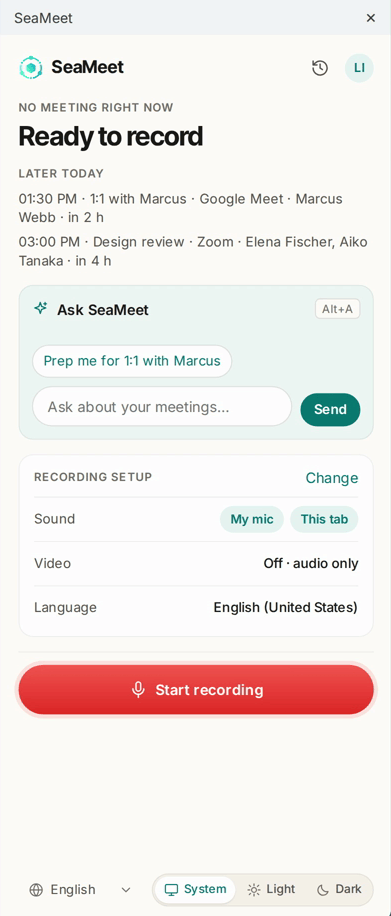
Today's meetings in the side panel
With Sync Pro and a connected calendar, the side panel's start screen follows your calendar.
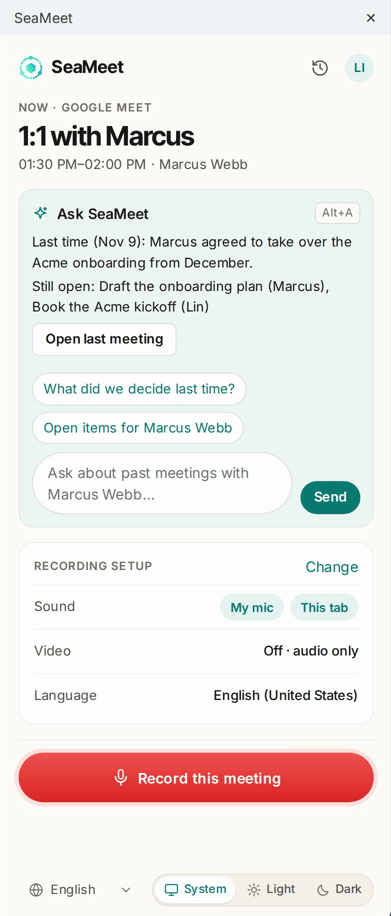
┌ SeaMeet ─────────────────────────────────────┐
│ Now · Google Meet                             │
│ Weekly sync · Acme                            │
│ 10:00–10:30 · Priya, Marcus                   │
│                                               │
│ [ ● Record this meeting ]                     │
│                                               │
│ Ask about past meetings with Priya…           │
│ Last time (Nov 9): Agreed to ship the beta    │
│ Still open: Send the pricing draft (Priya)    │
│ [ Open last meeting ]                         │
└───────────────────────────────────────────────┘
- Now: from 5 minutes before a meeting starts until it ends (or, when the tab you're on is that meeting's Google Meet call, from 15 minutes before to 15 minutes after), the panel shows Now · Google Meet (or the meeting's platform), the meeting's title, its time and up to two invitees. The start button reads Record this meeting.
- Later today: when no meeting is on, the panel says No meeting right now and lists up to three of today's next meetings, each with its start time, platform, invitees and how soon it starts ("in 25 min").
If your calendar isn't connected, the panel shows See your meetings here with Connect Google Calendar, which opens the web app's calendar settings. Hide puts the card away. If the calendar is connected but you don't have Sync Pro, the panel says Your calendar is connected and Seeing your meetings here is part of Sync Pro.
The side panel's Account tab also has a Google Calendar card: Connected · your Google email with Disconnect, or Not connected with Connect.
The before-meeting brief
When the meeting under Now is one you've recorded before, the Ask box under it shows a brief:
- Last time (date): one line on what was said in the last meeting.
- Still open: up to three action items from it that are still open, with their owners.
- Open last meeting opens that recording in the web app.
There's no brief when you haven't recorded the meeting before.
Troubleshooting
| Problem | What to check |
|---|---|
| No reminder appeared | In the web app, open Account › Integrations › Google Calendar and read the status line under Meeting reminders. Reminders are on in the SeaMeet extension in this browser. means everything is set. Otherwise it says what's missing: install or update the extension, sign in to it, or subscribe to Sync Pro. |
| The status line says Sign in to the SeaMeet extension as your email to get reminders. | The extension isn't signed in, or it's signed in with another account. Open the side panel's Account tab, sign out if needed, and sign in with the account you use in the web app. |
| The status line says Reminders are off. | Remind me when a meeting starts is unticked in the web app. Tick it again. |
| The status line says Reminders need the SeaMeet Chrome extension, which works in Chrome and Edge. | You're in another browser. Open the web app in Chrome or Edge, with the extension installed. |
| One meeting never gets a reminder | It may be muted (see Muted meetings in the web app), or it has no video link and isn't a recurring meeting you've recorded. |
| The card is blocked on the page you're on | Without access to all sites, the card can't appear on most pages. Turn on Reminders on any page in the side panel's Account › Recording tab. On pages no extension can reach (a New Tab page, Chrome's settings, the Chrome Web Store), you get the notification or the badge instead. |
| Nothing appears while Chrome is in the background | Turn on System notifications for reminders, and check that your operating system allows notifications from Chrome. Otherwise, look for the 1 on the SeaMeet icon. |
| The card says Click the SeaMeet icon in the toolbar to start recording | Chrome didn't let the side panel open. Click the SeaMeet icon, then start from the side panel. |
| The status line says your microphone is blocked for SeaMeet | Allow the microphone in Chrome's site settings, so recordings started from a reminder include your voice. |
| Record opened a web page instead of recording in the side panel | That meeting isn't a Google Meet call, so it records in the SeaMeet web recorder. Start the recording there and choose your screen. |
| The side panel doesn't show today's meetings | Today's meetings need Sync Pro, a connected calendar and a signed-in extension. A See your meetings here card means the calendar isn't connected. |
Quick reference
| You want to… | Do this |
|---|---|
| Record from a reminder | Record on the card (or Space), then Share in Chrome's share dialog |
| Close a reminder | Cancel (or Esc) |
| Stop reminders for one meeting | Don't remind me about this meeting on the card |
| See reminders on every site | Side panel › Account › Recording › Reminders on any page |
| Get reminders while Chrome is in the background | Side panel › Account › Recording › System notifications for reminders |
| Record the meeting that's on now | Record this meeting in the side panel |
| Change when you're reminded, or turn reminders off | Web app › Account › Integrations › Google Calendar |
Last updated: 2026-11-17
Published: