Record and Transcribe a WhatsApp Call
Table of Contents
For a few billion people, WhatsApp is the phone. The supplier in Guangzhou, the buyer in São Paulo, the relatives organising a wedding across three time zones — when a conversation matters, half the world holds it as a WhatsApp call. And the moment you hang up, it evaporates. No recording lands in the chat. No notes anyone trusts. Just a follow-up message that says “ok, as we discussed” about details nobody can reconstruct a week later.
Recording fixes that, and the clean way to do it in 2026 runs through your computer. Take the call on the machine in front of you, capture the audio that machine is already playing, and let a transcript build itself while you talk. This guide walks both desktop paths — WhatsApp Web in the browser, and the WhatsApp Desktop app — using SeaMeet’s WhatsApp recorder, which captures the call locally and never sends a bot into it.
Why WhatsApp calls resist recording
Ask how to record a call and you will collect three standard answers. On WhatsApp, all three come back broken.
The app itself won’t do it. WhatsApp ships no call recording anywhere — not on the phone, not in the browser, not in the desktop app. That position is deliberate rather than an oversight: end-to-end encryption is the product’s core promise, and a built-in recorder would undercut it. Whatever recording happens has to happen outside the app.
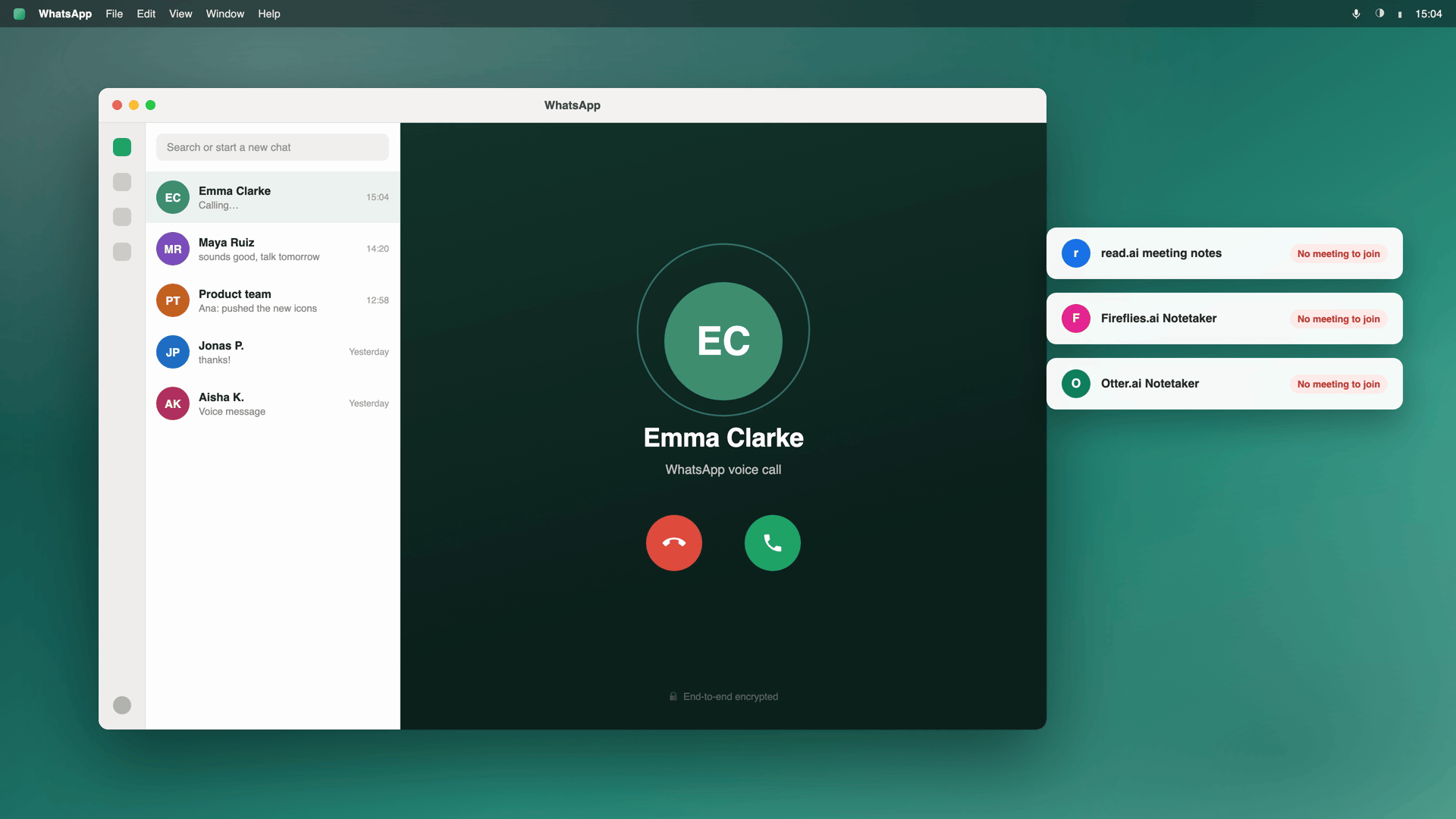
AI notetakers have no door. Otter, Fireflies and the rest of that category are built to join calendar meetings as an extra participant — an invite or a meeting link is how they get in, and they transcribe from the inside. A WhatsApp call has neither. It starts straight from a chat, one-to-one or in a group, so there is nowhere for a bot to stand. The whole notetaker genre is locked out by design.
Phone screen recorders miss the other voice. This is the fallback everyone tries first, and it half works. On iPhone and Android alike, the built-in screen recorder usually grabs your microphone but not the incoming audio — WhatsApp routes the far-end voice through paths the recorder cannot reach, and results swing wildly between devices. A video of a call where only one side has sound is not a record of anything.
Three dead ends, one common exit: move the call to a computer, where it becomes ordinary audio your machine is playing. And audio your machine plays is audio you can capture — locally, without touching the encryption at all.
What the desktop changes
WhatsApp officially offers two ways to take a call on a computer:
- WhatsApp Web — web.whatsapp.com in Chrome, Edge or desktop Safari. You pair it with your phone by scanning a QR code (Settings → Linked Devices), and the phone needs to stay online to relay the session. Voice and video calls both run inside the browser tab.
- WhatsApp Desktop — the native app for macOS and Windows, with calling built in.
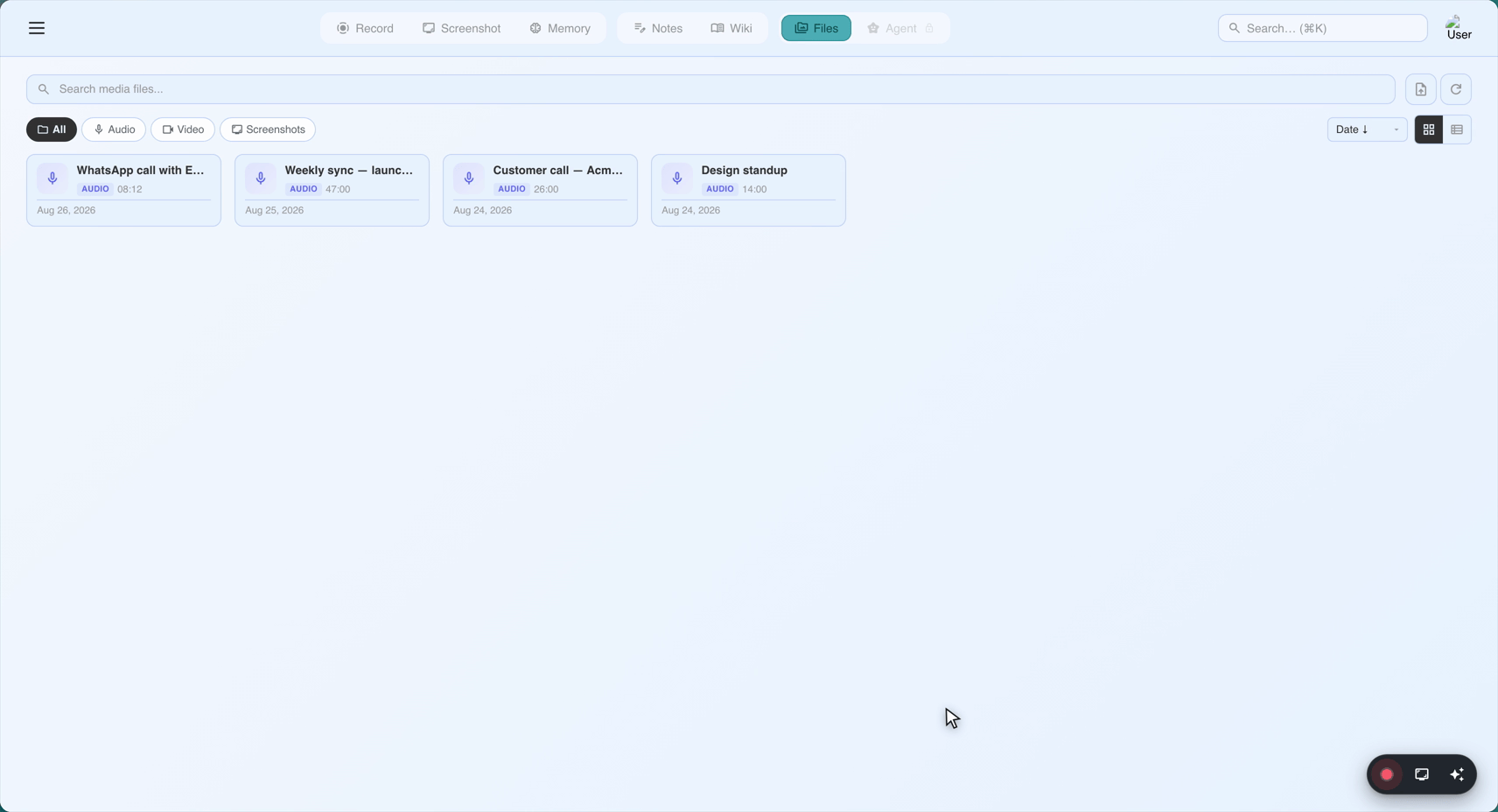
Neither one records anything by itself. What they do is put the call somewhere a recorder can see it — and from there, SeaMeet gives you two surfaces that turn it into a transcript.
Method 1: the browser recorder — nothing to install
The fastest path, and the one the record a WhatsApp call page hands you:
- Open web.whatsapp.com and pair your phone. Scan the QR code from Settings → Linked Devices in the WhatsApp mobile app; your phone stays online for the session.
- Start or answer the call in the browser. Voice or video, one-to-one or group — the call lives in the WhatsApp Web tab.
- Open app.seameet.ai in a second tab. Same browser. Nothing to download.
- Choose “A browser tab” and pick the WhatsApp Web tab — then tick “Share tab audio.” That checkbox is what carries the other side of the conversation. Miss it and you end up with a silent video of a chat window.
- Hit Start. The transcript streams in while the call runs — 20+ languages, auto-detected. Stop when you hang up.
No download, no signup to start with: the first 15 minutes of a recording open without an account, and the free tier carries 6 hours of transcription for life.
A variation for people who live in Chrome: the same tab capture also ships as a Chrome extension. A WhatsApp Web call is an ordinary browser tab, and the extension records any tab — audio and video together — straight from its side panel, so there is no second app tab to keep around. Install it once and the recorder sits in your toolbar, ready the moment a call starts. The transcript comes out identical either way.
For the calls that happen every week, Method 2 removes the tab choreography entirely.
Method 2: the desktop app — for the calls that happen every week
If WhatsApp calling is a weekly rhythm — a standing client call, a supplier who prefers voice to email — install SeaMeet’s desktop app for Mac or Windows once, and the share picker disappears entirely:
- Install and launch it. Grant the screen and microphone permissions it asks for on first run.
- Leave it running. It watches system audio and records nothing until you say so.
- Take the WhatsApp call — WhatsApp Desktop or browser, your choice. SeaMeet notices that a WhatsApp call is in progress and offers to record: one click, rolling.
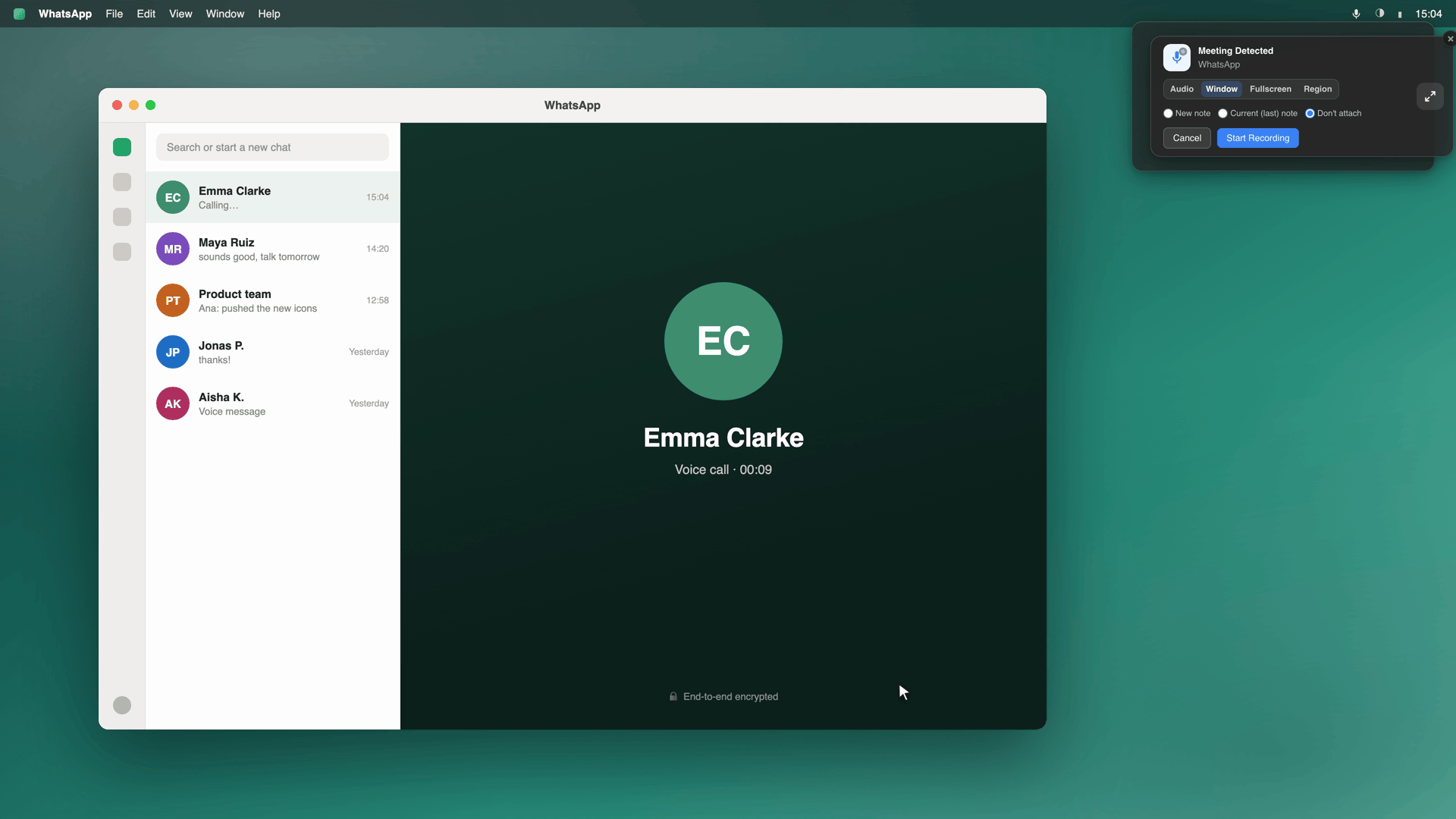
Capture happens at the system-audio level, so both sides of the conversation arrive without a share dialog interrupting anything, nothing joins the call as a participant, and the recording winds down when the call does. It also brings Flashback: the last two minutes before you pressed record are kept retroactively, which is exactly what you want for the call you only realised was worth keeping ninety seconds in.
What actually lands afterwards
The recording is the means. What you keep is this:
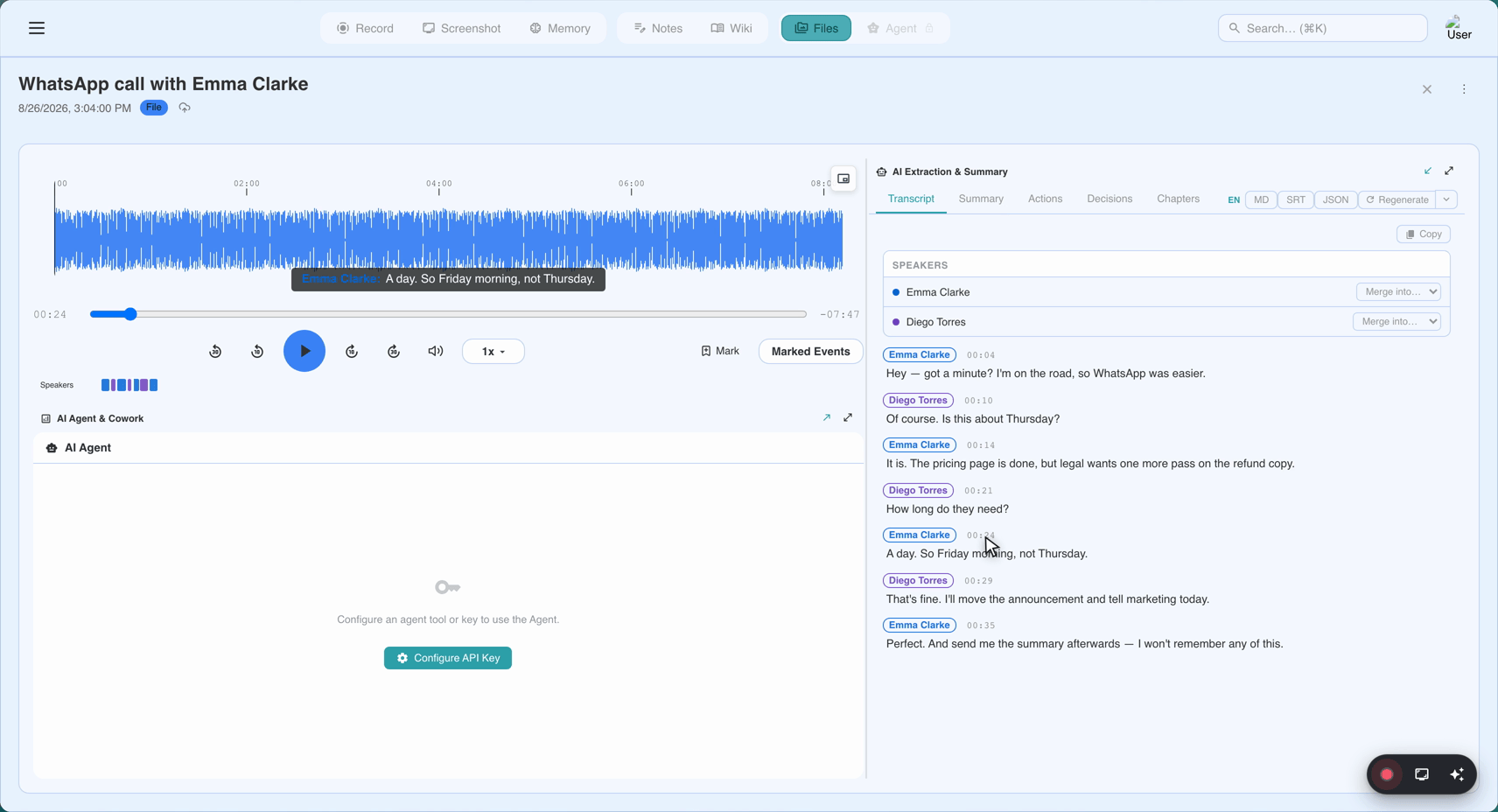
A live transcript with the speakers separated. It builds while the call is still running — timestamps, speaker labels, all of it correctable afterwards. WhatsApp runs through 180+ countries, and the transcription is built for that reality: 20+ languages auto-detected, including calls where two people drift between Spanish and Portuguese, or Hindi and English, in the same sentence.
A summary you can paste. What was decided, what actions came out of it, who owes whom — ready a minute after hangup and formatted to drop straight into an email or a CRM note.
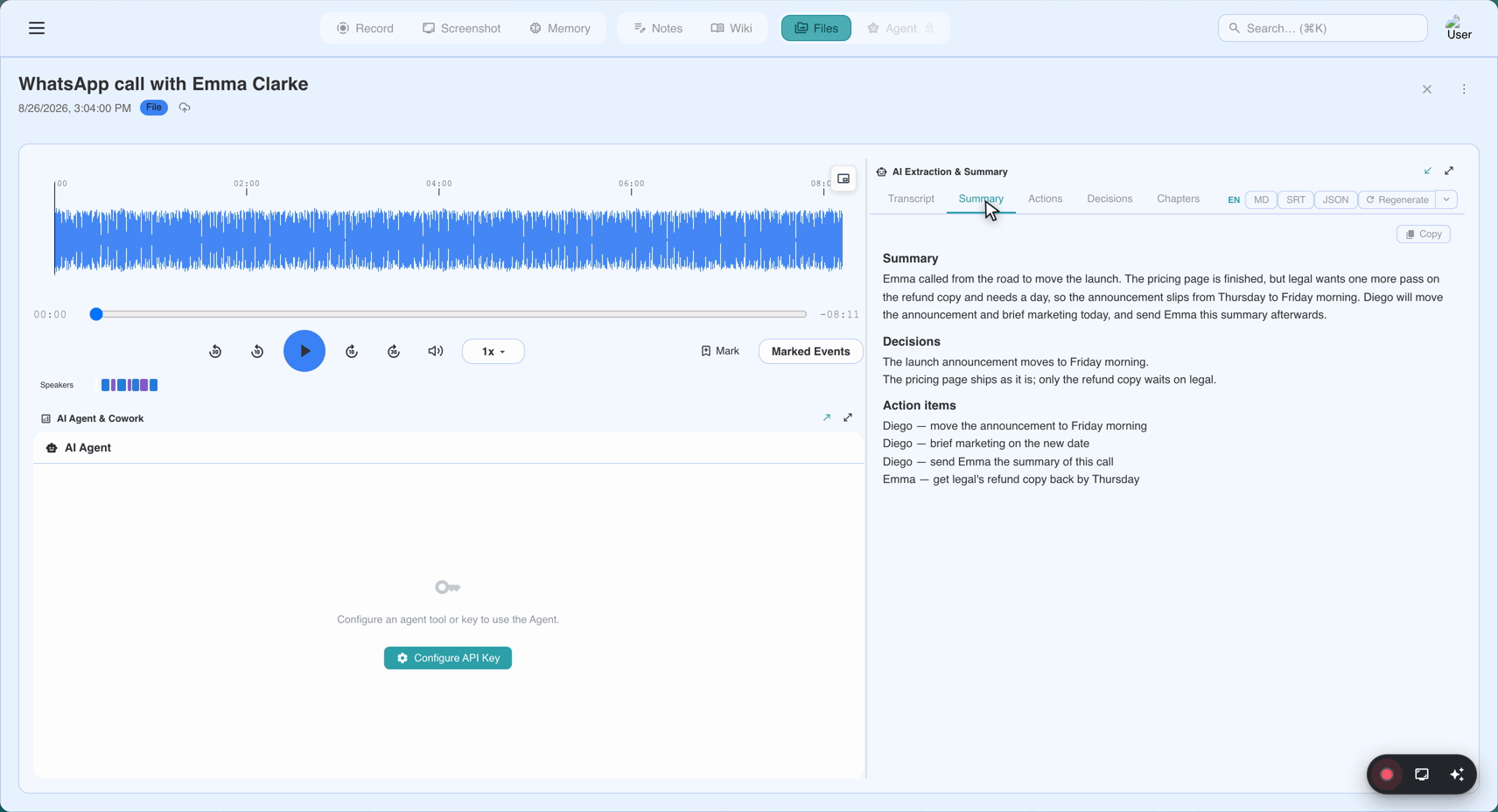
A Memory entry. The call attaches itself to the people and the company on it, so call number ten with the same supplier stops being file number ten and becomes one searchable thread.
Group calls come along for the ride — up to 32 participants in WhatsApp Web — with speakers separated best-effort by voice, and renameable in the library once the call is over.
And all of it lands as plain local markdown on your machine. Your files, your keys, your computer — not shelf space you’re renting in somebody’s walled garden. If the free 6 hours run dry, Sync Pro is $15.99/month, or $12.99/month billed annually.
Encryption and consent: the two questions worth settling
Does recording break the encryption? No. End-to-end encryption is a property of the wire: the call is scrambled between your device and theirs. SeaMeet records what your own machine has already decrypted and is playing through your speakers — the same audio you were hearing anyway. Nothing is intercepted in transit, and nothing about the call changes for the person on the other end.
Will they know? No — which makes telling them your job. WhatsApp shows no recording indicator, because as far as WhatsApp is concerned, no recording is happening. That silence is precisely why announcing is on you. One-party-consent jurisdictions generally let you record a call you take part in; plenty of places — a number of US states among them — expect every participant to agree before anything is captured. The sentence that travels well across both, said in the first ten seconds: “I’m recording this so the details don’t get lost — shout if that’s a problem.”
FAQ
Does WhatsApp have built-in call recording?
No, on any platform — iOS, Android, desktop or web — and by design: encryption is the promise, so a native recorder is deliberately absent. Every workable method captures the call from outside, which is exactly what makes the desktop path the practical one.
Can I record a WhatsApp call from my phone?
The live recorder needs a desktop browser, so a computer has to be in the loop somewhere. If what you already hold is a phone screen recording, import the file into SeaMeet afterwards — where both voices made it onto the file, you get the full transcript anyway. The complete phone-side walkthrough covers what mobile recorders can and cannot capture.
Do video calls and group calls work?
Both. Video is captured at the resolution of the call feed, and group calls up to 32 people run in WhatsApp Web. On the transcript, speakers are separated by voice as a best effort, and you can rename anyone in the library after the call.
Doesn’t WhatsApp transcribe voice notes by itself now?
It does — natively, in a growing set of languages — but that feature stops at voice messages. Live calls still have no built-in transcript, which is the gap this guide fills. And if you want your voice notes in the same searchable place as your calls, importing the files into SeaMeet still takes a single click.
Does recording break WhatsApp’s end-to-end encryption?
No. The encryption protects the call while it travels, between your device and theirs, and nothing in this flow touches it. SeaMeet captures the playback after your computer has already decrypted it — plain audio reaching your own speakers, with nothing intercepted along the way.
Is it legal to record a WhatsApp call?
It depends on where the participants sit. One-party consent places allow you to record a call you are part of; all-party consent places require everyone’s agreement, and “nobody noticed” is not a defence in them. Saying it out loud at the start satisfies both, and is plain good manners regardless.
See it in 60 seconds
Related articles
Tags
Ready to try SeaMeet?
Join thousands of teams using AI to make their meetings more productive and actionable.
Free: 6 h lifetime transcription · first 15 min revealed