How to Record a KakaoTalk Call and Transcribe It
Table of Contents
A certain kind of Korean business call runs in two languages at once. The 개수 and the 일정 are discussed in Korean, the deadline and the marketing budget land in English, and nobody in the room notices the switching — until someone tries to write it down afterwards. Half the terms were never said in a language one person can type fast enough. The call itself is where the details lived, and KakaoTalk, for all the work it does inside Korean companies, does not keep that part: voice and video calls end, and there is nothing to scroll back through.
This guide is the working path for 2026: recording KakaoTalk calls on the computer you already use for them, with SeaMeet’s KakaoTalk recorder turning the audio into a live, speaker-labelled transcript while the call runs — Korean, English, and the mixtures in between, with no bot and no notice to anyone.
What stands between you and a KakaoTalk recording
KakaoTalk has never shipped call recording. Not on the phone, not on the desktop app, not in KakaoWork. Chat is archived; calls are not. When you hang up, the only record of what was agreed is whatever a participant can reconstruct.
The chat log cannot backfill the call. KakaoTalk is diligent about text — but its backups stay tied to your Kakao account and your phone, and a conversation that happened by voice left no text behind to back up in the first place. The important sentence in a negotiation is often the one nobody typed.
Notetakers have no door to knock on. An AI notetaker attends meetings by being invited — a calendar link, a dial-in, a participant slot. A KakaoTalk call happens inside a chat between people, and the guest list never opens. Group Calls and open-chat audio rooms work the same way: people, not invite links.
The exit, as with every messenger, is to catch the call where it is already ordinary audio — the sound coming out of your computer. KakaoTalk puts that in exactly one place.
The one door: KakaoTalk on the desktop
KakaoTalk has no browser client. Calls — one-to-one voice and video, Group Calls, the audio streams inside open chats — run on the phone and in the native macOS and Windows app, and nowhere else. On a computer, that desktop app is the single place a KakaoTalk call exists.
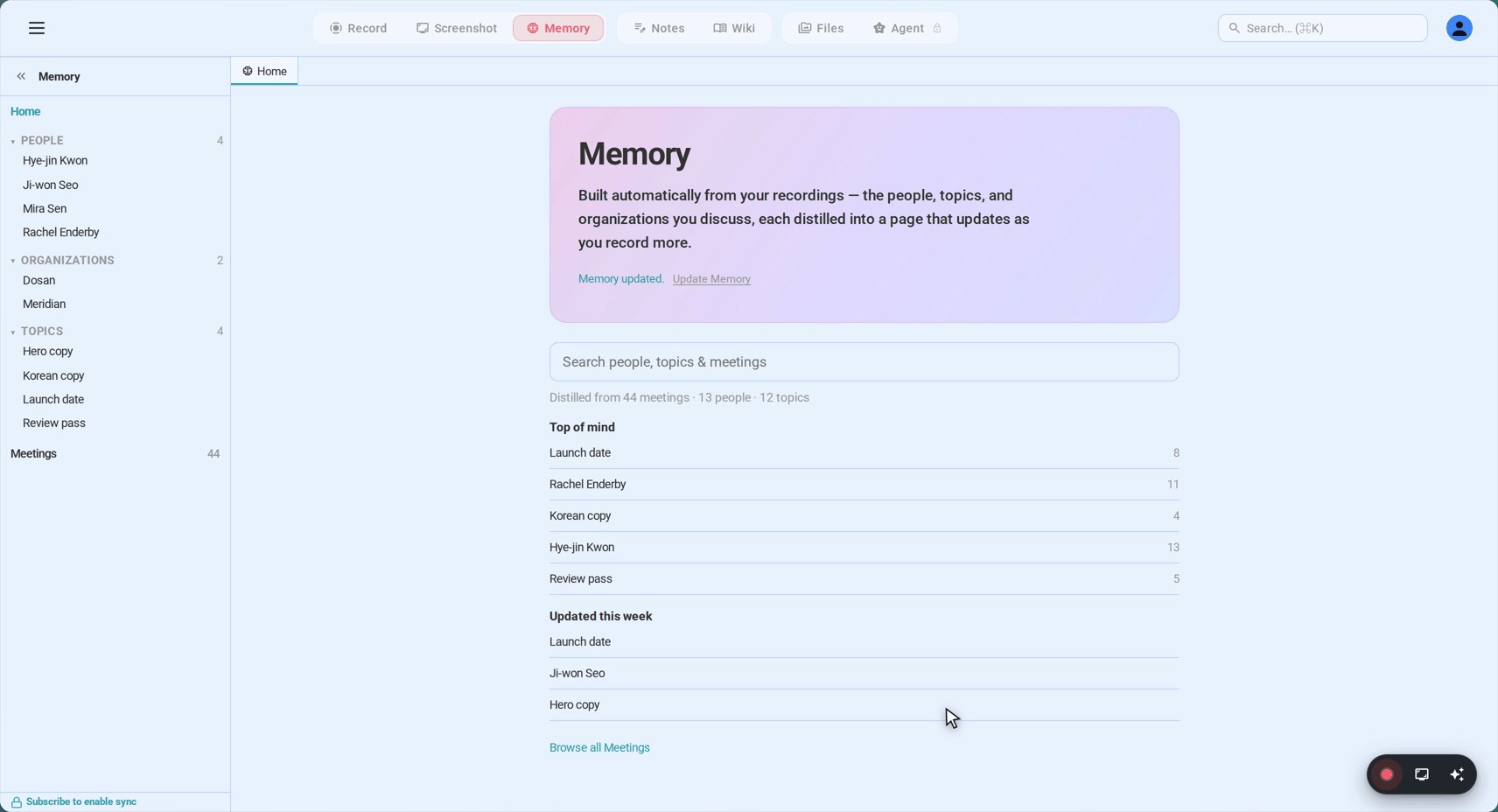
One door is still enough. A recorder can reach the call’s audio from two directions: a desktop app listening at the system-audio level, or a browser sharing the KakaoTalk window with its sound switched on.
Method 1: auto-detect with the desktop app
The recommended path, and the flow behind the record a KakaoTalk call page:
- Install SeaMeet’s desktop app for Mac or Windows. The first launch asks once for screen and microphone access; after that it sits quietly.
- Take or make the call in KakaoTalk Desktop as usual. Voice, video, Group Call, a Live Talk stream in an open chat — all of it plays through the same audio, and all of it is detected.
- Hit Record on the notification that appears. A transcript starts building in the SeaMeet window while the conversation is still going.
- Hang up whenever the call ends. The audio, the transcript and a written summary are already filed in your library. Capture happened locally on your machine — nothing left it during the call.
Because the pickup point is the system audio itself, the other side of the call arrives without any effort on your part: no share sheet pops up over the conversation, and no unfamiliar participant appears anywhere. If you only realise mid-call that this one mattered, Flashback has been keeping the buffer warm — press Record and the previous two minutes are already in the file.
Method 2: the browser recorder, nothing to install
Prefer not to install anything? The web app picks up the same call from a browser tab — screen recording in the plain sense, with the KakaoTalk window, its sound and your mic going into one file:
- Open the KakaoTalk recording page in Chrome or Edge. It walks you through the share picker for exactly this scenario.
- Choose the KakaoTalk Desktop window (or the entire screen) and leave “Share system audio” ticked — that single checkbox is what carries the other person’s voice into the recording.
- Keep the microphone on so your own words reach the transcript too.
- Record, talk, stop. Transcript and summary land in the library with the audio.
One Mac footnote: the system-audio switch needs a reasonably current Chrome. Windows, ChromeOS and recent Chrome on macOS all show it; if your picker does not, the desktop app in Method 1 handles Mac audio natively, and the older QuickTime-plus-BlackHole route stays documented in the Mac and Windows guides.
Group Calls, Live Talk, KakaoWork — the same audio, all captured
KakaoTalk’s voice features are wider than one-to-one calls, and they all flow through the desktop app’s audio:
- Group Calls take up to 30 people. The recorder keeps the full mixed audio regardless of headcount, and the transcript separates speakers by voice — tidy a mislabelled name afterwards in seconds, right in the library.
- Live Talk, the audio broadcasts inside open chats, renders as ordinary call audio in the desktop app. It is captured exactly like any private call — useful when an open-community session is worth keeping minutes of.
- KakaoWork runs on the same call infrastructure. If your company lives in Kakao’s office suite rather than the consumer app, the system-level pickup does not care which Kakao logo is in the corner.
What you keep after hanging up
The audio is only half of it.
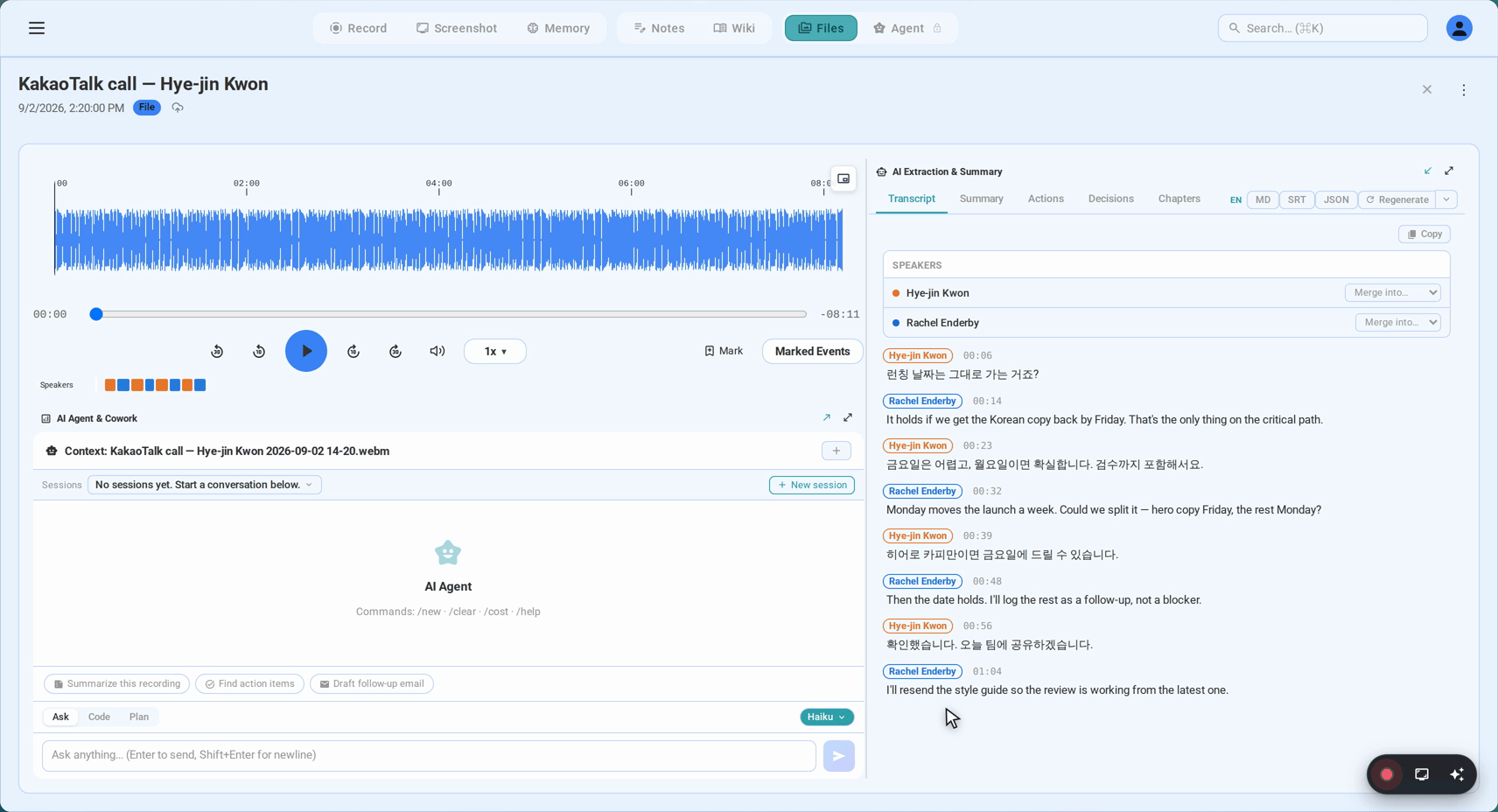
A transcript that survives the code-switching. Korean honorifics, casual 반말, business Korean sliding into English mid-sentence — the transcription is built for exactly that, with automatic detection across 20+ languages when the room is more multilingual still. Every line is timestamped, and clicking a timestamp seeks the audio to that word, which is how you re-hear the sentence that turned out to matter.
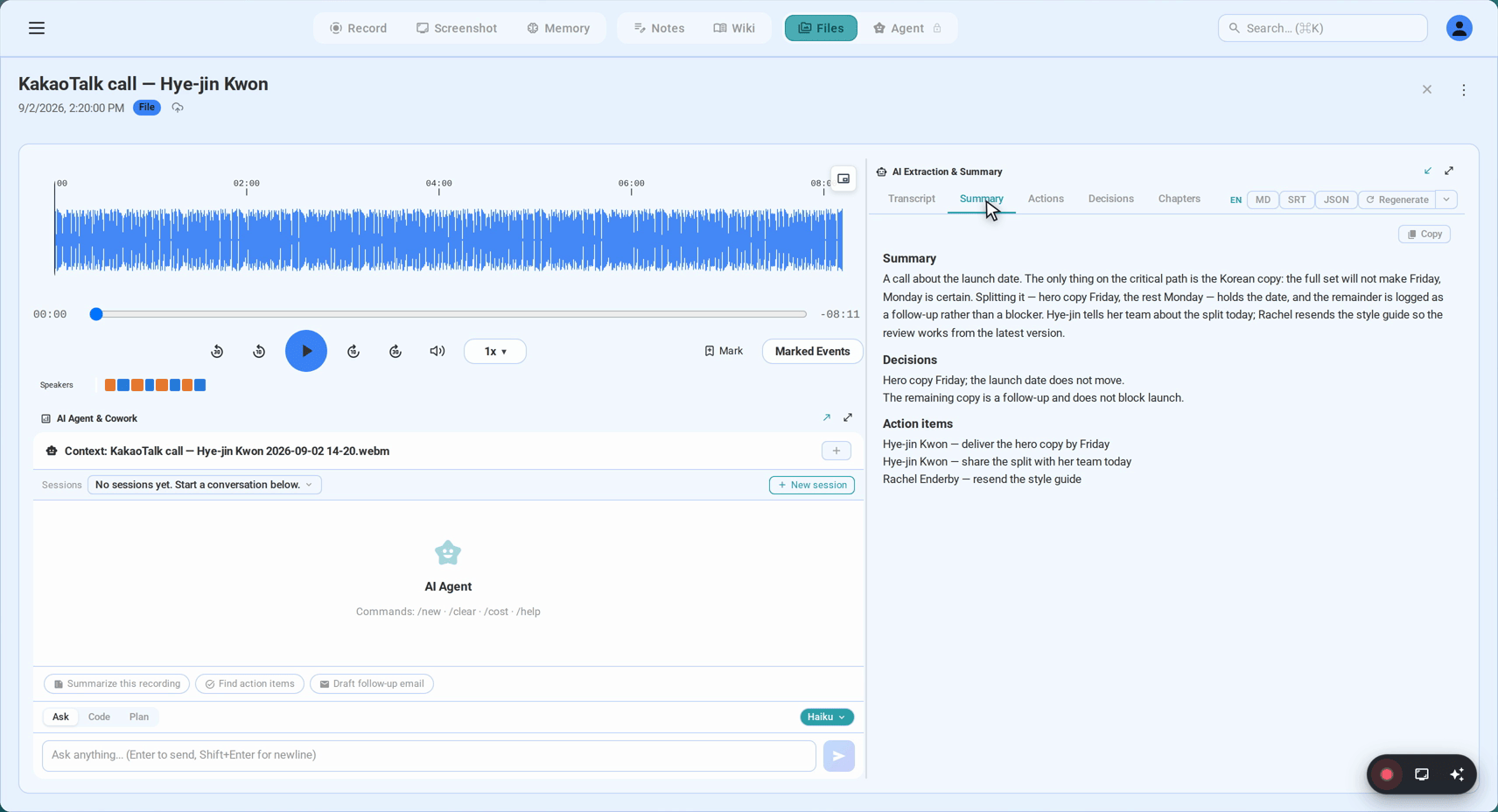
A summary you can paste back into the chat. About a minute after the call, decisions and action items arrive as a written summary in the language the call ran on. The natural next move is KakaoTalk itself: the summary drops straight into the chat the call came from, so the whole thread ends up holding its own record. For people who weren’t on the call, the recording itself shares onward by email or link from the same place.
A library, not a phone-shaped silo. KakaoTalk’s backups live and die with your account and device. These recordings do not: files export to standard formats you can keep anywhere, and each call files itself under the people and organisations it involved — by the fifth call with the same supplier, you are reading one accumulated thread.
Costs, briefly: a recording’s first 15 minutes need no signup at all, the free plan includes six hours of transcription that never expire, and unlimited length arrives with Sync Pro at $15.99 month-to-month or $12.99/month billed yearly.
Consent, the Korean-business way
KakaoTalk will not tell anyone a recorder exists — no banner, no participant, no trace in the chat. In Korean business practice, silence is the wrong call anyway: recording without saying so reads as impolite at best and, in a workplace setting, can collide with policy or the Personal Information Protection Act even where the law itself tolerates one-party recording. One sentence at the top — 회의 녹음하겠습니다 — and the room, the etiquette and the paper trail all stay intact.
FAQ
Does KakaoTalk have built-in call recording?
No, and it never has — the consumer app, KakaoWork and the desktop client all end a call with nothing kept. Text chats have history; calls do not. Anything you want to keep has to be captured from outside the app, which is what makes the desktop-audio route the natural shape of a solution.
Will the other person know I’m recording?
KakaoTalk shows no indicator and adds no participant, so from the app’s side nothing is visible. Whether to say so is left entirely to you — and the consent section above argues for saying it out loud, in Korean business especially.
Can I record a KakaoTalk Group Call?
Yes, up to the 30-participant ceiling, with the full mixed audio captured on the desktop path. Speaker labels are assigned by voice and are renameable in the library afterwards, which on a busy group call is usually a one-pass fix.
What about Live Talk in open chats?
It counts as ordinary call audio where the desktop app is concerned — the same recording, the same live transcript. Community sessions and open-channel broadcasts end up with the same afterlife as a private call.
Can KakaoTalk voice messages be transcribed?
Voice messages (음성 메시지) are files rather than calls, so nothing transcribes them live — but the file saves out of any chat and drops into SeaMeet’s import flow, where it returns as a transcript filed beside your calls in one searchable place.
I have a fan video call coming up on KakaoTalk — can I record it?
Fan-call events run inside the phone app, so the desktop path does not apply. The honest fallback: capture the screen with the iPhone or Android screen recorder, then bring the file into SeaMeet — the Korean transcript comes back just the same, and the moment is keepable as text as well as video.
Does this work for KakaoWork calls too?
Yes. KakaoWork calls use the same underlying audio on a machine running the desktop app, so the pickup at the system level does not distinguish between Kakao’s consumer and office apps — one setup covers both.
Is it legal to record a KakaoTalk call?
South Korean law generally tolerates a participant recording their own conversation, but a business context layers workplace policy and the Personal Information Protection Act on top, and both can bite even when the statute would not. Announcing the recording at the start is the practice that satisfies every layer at once.
Can I record a KakaoTalk call on my phone?
There is no mobile SeaMeet path for calls, and KakaoTalk’s own apps offer nothing either. The iPhone or Android screen recorder captures your side reliably and the far side depending on the OS; whatever it produces can be imported for the transcript, which is the standard rescue route until you are back at a desk.
See it in 60 seconds
Related articles
Tags
Ready to try SeaMeet?
Join thousands of teams using AI to make their meetings more productive and actionable.
Free: 6 h lifetime transcription · first 15 min revealed