How to Record a Signal Call with a Transcript
Table of Contents
Some conversations happen on Signal precisely because nothing is supposed to survive them. The negotiation that cannot go in writing yet, the source who cannot be exposed, the HR conversation, the first call between two companies still sizing each other up — people move these to Signal because it is the messenger that keeps the least. Messages vanish on command. Calls leave no trace anywhere. Privacy is not a feature bolted onto Signal; it is the reason the app exists.
But nothing getting written down is not the same as nothing worth remembering. The call still happened. Terms were floated, a concession slipped out, a date got agreed to — and the only storage medium in the room was human memory, the least reliable one anyone has ever used. Keeping a record of a conversation you took part in does not contradict Signal’s privacy one bit. The record can sit on your own machine, announced openly to the room, touching nobody else’s device.
This guide walks the working path: how to record Signal voice and video calls on your computer — group calls included — using SeaMeet’s Signal recorder, which captures the audio your machine is already playing, joins nothing, alerts nobody, and turns the call into a live, speaker-labelled transcript while you talk.
Why a Signal call refuses to be recorded
The standard answers fail here faster than on any other messenger.
There is no recorder inside the app — deliberately. No Signal client has ever shipped call recording, on any platform, and that is design rather than neglect. End-to-end encryption is the product; a native recorder would argue with the very thing people choose it for. So nothing on your phone records the call and nothing on Signal Desktop does either. Any capture has to come from outside.
There is not even a bot to blame. Other messengers at least run a bot platform you can point at; Signal declines to run one at all. No third-party accounts exist inside a Signal call, no integration can be invited, and an AI notetaker — which attends meetings through invites and dial-in links — finds neither a meeting nor a door. A Signal call starts inside a chat, between people, and that is the entire guest list.
Encryption answers a different question. Every Signal call is end-to-end encrypted, which keeps it private from everyone between the two devices — Signal’s servers very much included. It has never done anything about the endpoints: both ends of the call hold the conversation in decoded form the moment it arrives, because that is what hearing it means. That is the quiet fact under every “can Signal calls be recorded?” query — either end always could — and it is also why recording at your own machine works at all.
The exit is the familiar one: take the call where it becomes ordinary audio your computer is playing. With Signal, that happens in exactly one place.
One door, and it is Signal Desktop
Some messengers offer two routes onto a computer. Signal offers precisely one:
- Signal Desktop — the native macOS and Windows app, linked to your phone with a QR code. Voice and video calls, one-to-one and group, run fully there.
There is no browser client, so no Signal call ever runs in a tab — the tab-capture route that other messengers’ web versions allow does not exist here. But that only closes one door. The call is still audio your machine is playing, and a recorder can reach it two ways: a desktop app listening at the system-audio level (Method 1), or a browser sharing the Signal Desktop window with sound switched on (Method 2).
Method 1: auto-detect on Signal Desktop
The main path, and the flow behind the record a Signal call page:
- Install SeaMeet’s desktop app for Mac or Windows. One permission prompt on first launch — screen and microphone — and setup is done.
- Let it sit in the background. No call, no capture; it only watches for system audio.
- Start or answer the call in Signal Desktop. Install it from signal.org if you have not; voice or video, one-to-one or group — the detection covers all of them.
- Click Record when SeaMeet’s notification appears. A live transcript starts lining up while the call is still running.
- Hang up. The recording, transcript and summary are already in your library — captured locally, with nothing uploaded while the call was live.
Because capture sits at the system-audio level, the far end arrives by itself: no share dialog interrupts anyone mid-call, and no unfamiliar face turns up in the participant list. And for the call you only realised should have been recorded ninety seconds in — Flashback quietly banked those two minutes. They are in the file already.
Method 2: the browser recorder — no SeaMeet install
The web app downloads nothing, and for a Signal call the source to pick is the Signal Desktop window itself:
- Open the record a Signal call page in Chrome or Edge. The page walks Chrome’s share picker for this exact app — which window, which checkbox.
- Start recording and choose a window. Take the Signal Desktop window in the picker (Entire Screen works too) and keep “Share system audio” on — that checkbox is what carries the other side’s voice into the file.
- Leave your microphone on in the recorder, so your own words reach the transcript as well.
- Record. The live transcript runs while you talk; recording, summary and library entry land when the call does.
One footnote for Macs: the system-audio toggle rides on a recent Chrome — Windows, ChromeOS and current Chrome on macOS all show it. If your picker doesn’t, Method 1’s desktop app handles Mac system audio natively; the QuickTime-plus-BlackHole detour stays documented in the Mac and Windows guides for machines on older browsers.
Group calls: the same call with more voices
Signal group calls run to fifty participants, and from the recorder’s chair nothing changes: the audio your machine plays is the audio that gets kept, whether two people are talking or twenty. The transcript separates speakers by voice on its own; in a crowded call a few labels may need tidying in the library afterwards, seconds per name. Standup-style check-ins, a dispersed team that refuses conferencing software, a conversation deliberately kept off Zoom — they all come out as one tidy, searchable document.
What you keep when the call ends
The recording is raw material. What you will actually use:
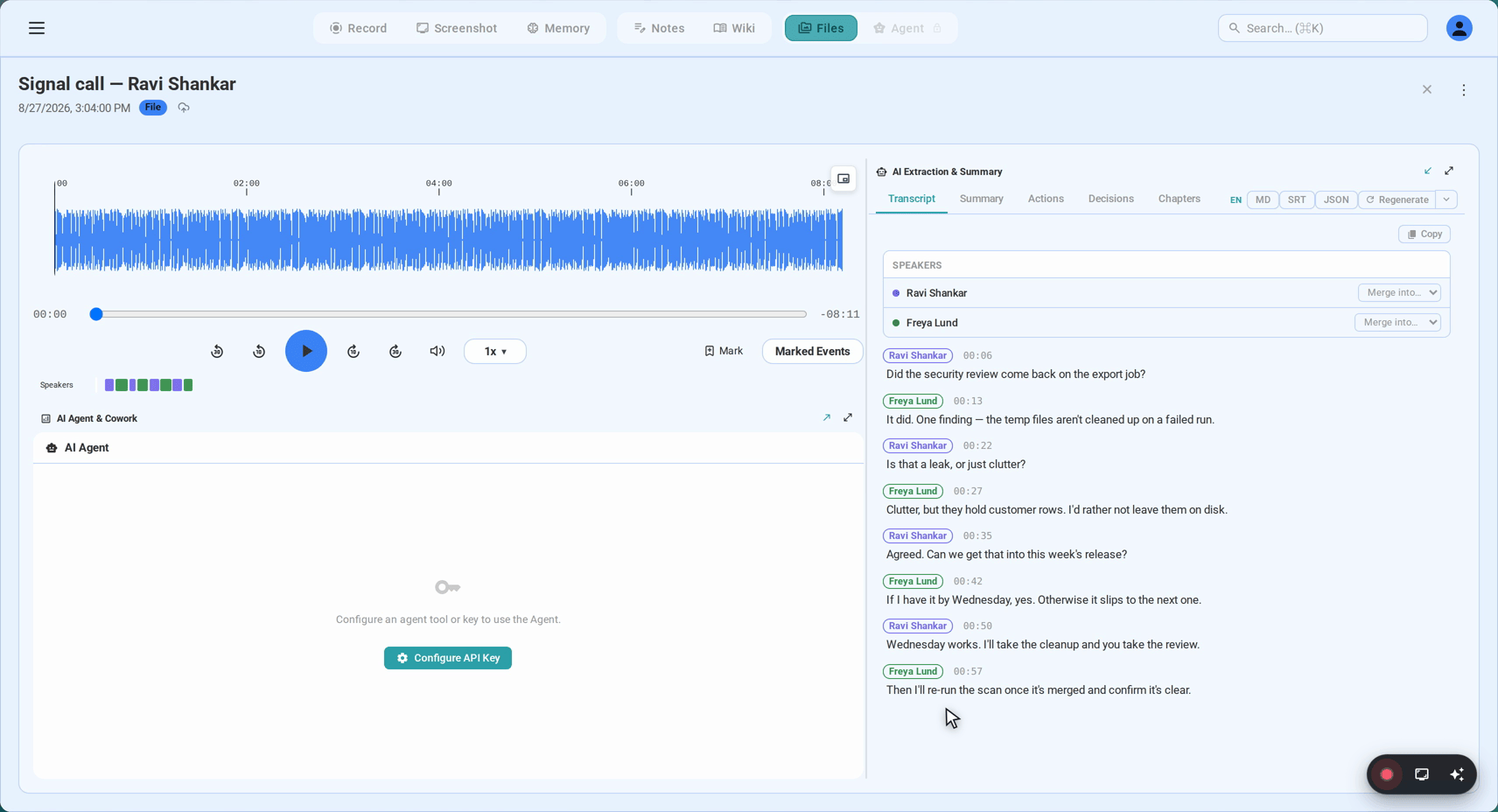
A transcript that built itself during the call. Timestamped, speaker-labelled, correctable afterwards, and auto-detected across 20+ languages — which suits how far Signal’s audience is spread: European languages, Russian, Arabic, Persian, Hindi, Mandarin, Cantonese, Japanese, Korean, Vietnamese and more, holding up even when one sentence slides between two of them.
Every timestamp doubles as a seek control — click it and the player lands on that word, which is how you re-hear the sentence that actually mattered.
A summary written to be forwarded. Decisions, action items, who owns what — generated about a minute after hangup, in the language the call ran on, ready to paste wherever the follow-up lives.
A place in your library. Each call files itself under the people and the organisation it involved, so by the fifth conversation with the same counterpart you are reading one accumulated thread instead of excavating five recordings.
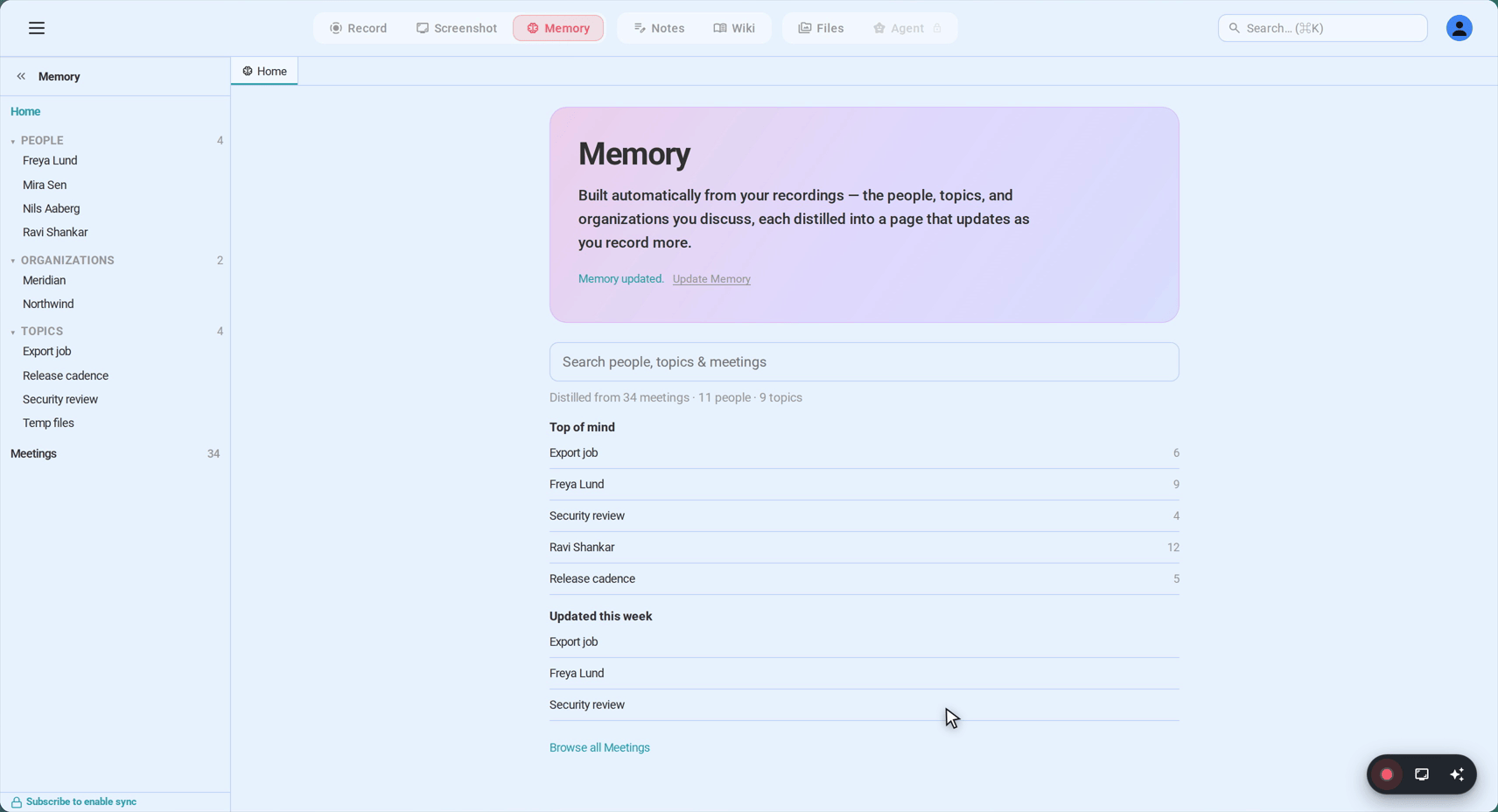
And the files stay yours — recording and transcript export to plain formats and sit on your own disk, which on Signal of all apps is the only ending that fits.
The money part is short: the first 15 minutes of any recording open with no signup, the free plan carries six hours of transcription that never expire, and past that Sync Pro runs $15.99 month-to-month or $12.99/month billed annually.
Privacy is the point — handle consent accordingly
Recording does not touch the encryption. The scrambling protects the call in transit, device to device; this flow picks up the audio after your machine has already decoded it — the same sound your speakers were about to play. The stream itself is never touched, and nobody else on the call experiences any difference.
Signal will never announce it. You should. No indicator lights up anywhere and no participant appears — as far as Signal can tell, no recording exists. An audience that chose this app because it is private deserves the sentence said out loud. Consent law draws the lines by jurisdiction: one-party places let a participant record, all-party places want every voice to agree, and employers stack their own rules on top. One line at the start — “I’m keeping a recording of this so nothing gets lost; say the word if that’s a problem.” — satisfies every version at once. On Signal, that disclosure is more than a legal nicety: it is the difference between keeping a personal record and doing the thing the app exists to prevent.
FAQ
Does Signal have built-in call recording?
No — never has, on any platform, and by design rather than omission. End-to-end encryption is Signal’s reason for existing, and a native recorder would work against it. Every workable method captures from outside the app, which is what makes desktop capture the natural shape of the solution.
Will the other person know I’m recording?
No. There is no indicator to light up and no participant to appear — Signal has no idea a recorder is running, so the disclosure falls to you. The consent section above is the whole playbook, and with a Signal audience it is the part that matters most.
Does recording break Signal’s encryption?
Not at all. Encryption is a property of the connection while the call travels between devices; what gets captured is your own machine’s playback — audio already decoded, already on its way to your speakers. The protocol is never bypassed and the far end is never touched.
Can I record a Signal group call?
Yes — exactly the same way. Group calls run to fifty participants and the capture takes the full mixed audio regardless of headcount; speaker labels are assigned by voice and can be renamed afterwards in the library.
What about disappearing messages — do they delete my recording?
They never get involved. Disappearing timers apply to messages in the chat; a call is not stored anywhere to begin with, inside Signal or out of it. A recording made on your computer is your file on your disk, beyond Signal’s reach in both directions.
Can Signal voice messages be transcribed?
Not by Signal — the app ships no voice-message transcription at all. But the files import cleanly into SeaMeet, where calls and voice notes end up searchable in the same library. Given how much of Signal’s daily traffic is voice notes, that tends to matter as much as the call transcription does.
Can I record a Signal call on my phone?
Screen recording is the fallback: iOS Control Center or the Android quick tile captures the video and your own side reliably, while the far end depends on the phone. If a phone recording is what you ended up with, import the file into SeaMeet and the transcript comes back complete.
Is it legal to record a Signal call?
Geography decides — some jurisdictions accept one-party consent, others require everyone’s agreement, and employers frequently add stricter rules of their own. Signal users skew towards the professions where this question has teeth, which is reason enough to say the recording out loud at the start. Five seconds of disclosure covers every statute at once.
See it in 60 seconds
Related articles
Tags
Ready to try SeaMeet?
Join thousands of teams using AI to make their meetings more productive and actionable.
Free: 6 h lifetime transcription · first 15 min revealed