How to Record a LINE Call with a Transcript
Table of Contents
If you run any part of your life on LINE — a sales pipeline in Taiwan, a project group spanning Tokyo and Taipei, family logistics that somehow turn into decisions — you already know the pattern. The call happens, everyone agrees on something, and forty minutes later the details have evaporated. Nobody was taking notes because everyone was talking. The chat thread gets a vague “as discussed” and moves on.
Recording the call would fix this, and yet almost nobody does. Not because the tools don’t exist, but because LINE sits in a blind spot they all share. This guide walks through why that is, and how to record LINE voice and video calls on your computer with a real, speaker-labelled transcript at the end — using SeaMeet’s LINE recorder, which captures the call without any bot joining it.
Why LINE calls are awkward to record
There are two standard answers to “how do I record a call,” and both fail on LINE structurally.
The app itself doesn’t record. LINE has never shipped built-in call recording, on mobile or desktop. There is no button to press, on either end of the call.
Meeting notetakers can’t get in. Tools like Otter, Fireflies and Read join meetings as a participant — they sit on the calendar invite or the meeting link, dial in, and transcribe from inside. LINE calls have no invite and no link. They start from a one-to-one chat or a group, which means there is simply nowhere for a bot to stand. The entire category of AI notetaker is structurally locked out.
So the honest answer has always been: record at the computer, capture the audio your machine is already playing, and transcribe from there. SeaMeet gives you two surfaces for that — the web recorder and the desktop app — and LINE Desktop, which is where serious calls happen anyway, makes both practical.
What you need before you start
One thing you already have, and one click you haven’t made yet:
- LINE Desktop — the call has to live somewhere a recorder can see it. LINE’s web client is text-chat only, so for calls this means the desktop app, on the same computer as your browser.
- A desktop browser — Chrome, Edge, or Safari. Open SeaMeet’s web recorder and you are one share-picker away from recording. Nothing to install, no account for the first 15 minutes.
The free tier is 6 hours of lifetime transcription, with the first 15 minutes of every recording revealed immediately. There is no trial countdown — the free tier is the trial, and it never expires.
If you end up recording LINE calls every week, the SeaMeet desktop app upgrades the whole flow — that’s Method 2.
Method 1: the browser recorder — no download, recording in about a minute
The fastest path, and the one the record LINE call page hands you:
- Open app.seameet.ai/record/line in your desktop browser — on the same computer where LINE Desktop runs.
- Start or answer the LINE call — voice or video, one-to-one or group.
- In the browser’s share picker, choose the LINE window and tick “share audio.” That checkbox is what captures the other participants. Miss it and you get a silent video of a chat window.
- Click Start. The transcript starts streaming while the call continues; stop when it wraps.
No SeaMeet download, no signup to begin, and when the call ends the transcript, summary, and Memory entry are already waiting. To be clear about the one download that does remain: LINE Desktop itself — LINE keeps calls out of its web client, so the call lives there. The “no install” part is about SeaMeet.
Method 2: the desktop app, for the calls you record every week
Install SeaMeet for Mac or Windows once and the share picker disappears:
- Install and launch — grant the screen and microphone permissions it asks for on first run (on macOS: System Settings → Privacy & Security → Screen & System Audio Recording).
- Leave it running. It watches system audio; it records nothing until you say so.
- Start or answer a LINE call. SeaMeet recognises that a LINE call is happening and offers to record — one click, rolling.
Because it listens at the system-audio level, both sides of the call are captured with no share dialog mid-conversation, nothing joins the call, and recording stops with the call. It also adds Flashback — the last two minutes before you hit record are saved retroactively, for the calls you start recording late.
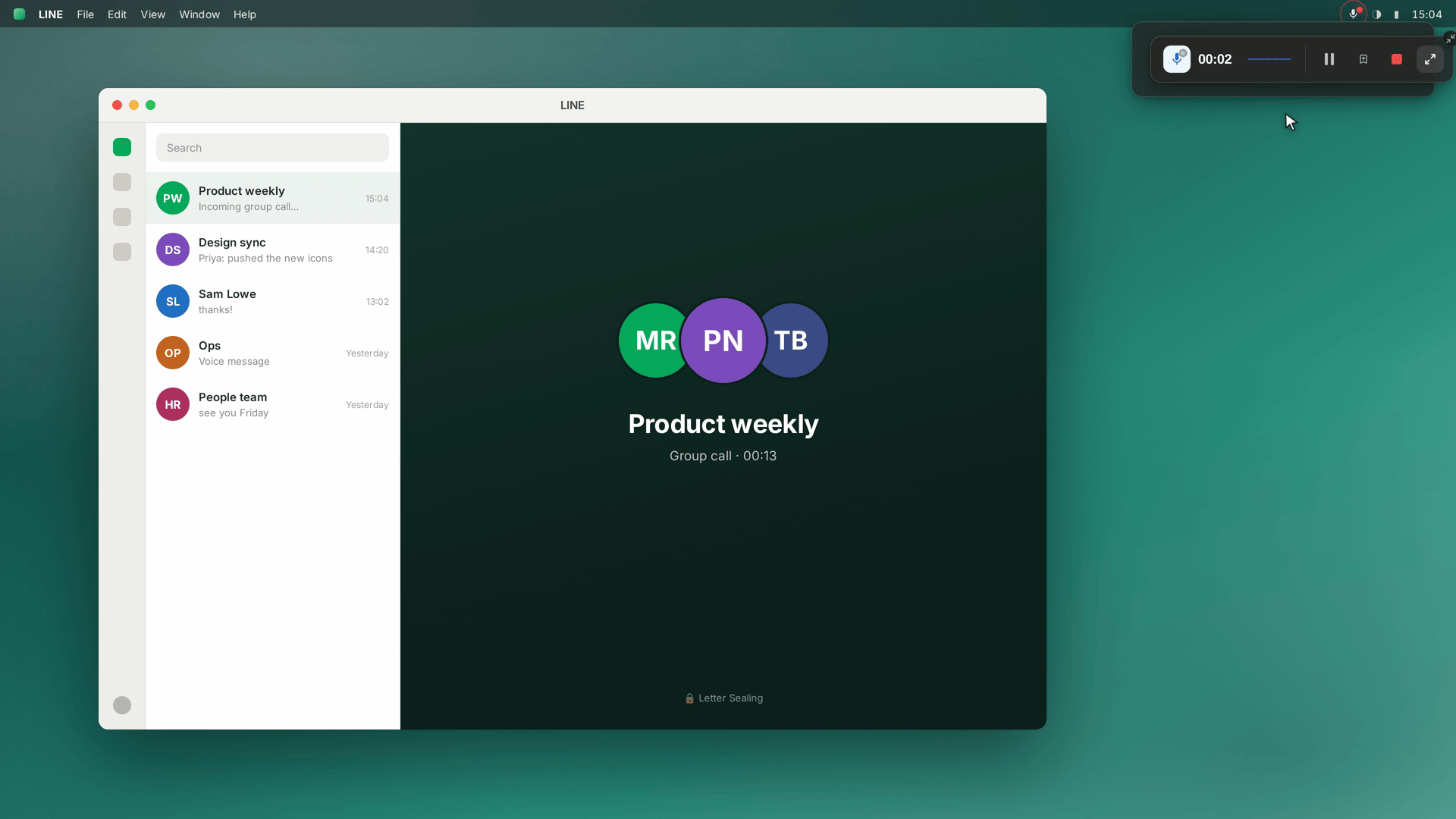
A detail that matters for group calls: this covers LINE Meeting too — LINE’s multi-participant mode, up to 500 people. From your computer’s perspective it’s the same thing: audio your machine is playing.
What you actually get afterwards
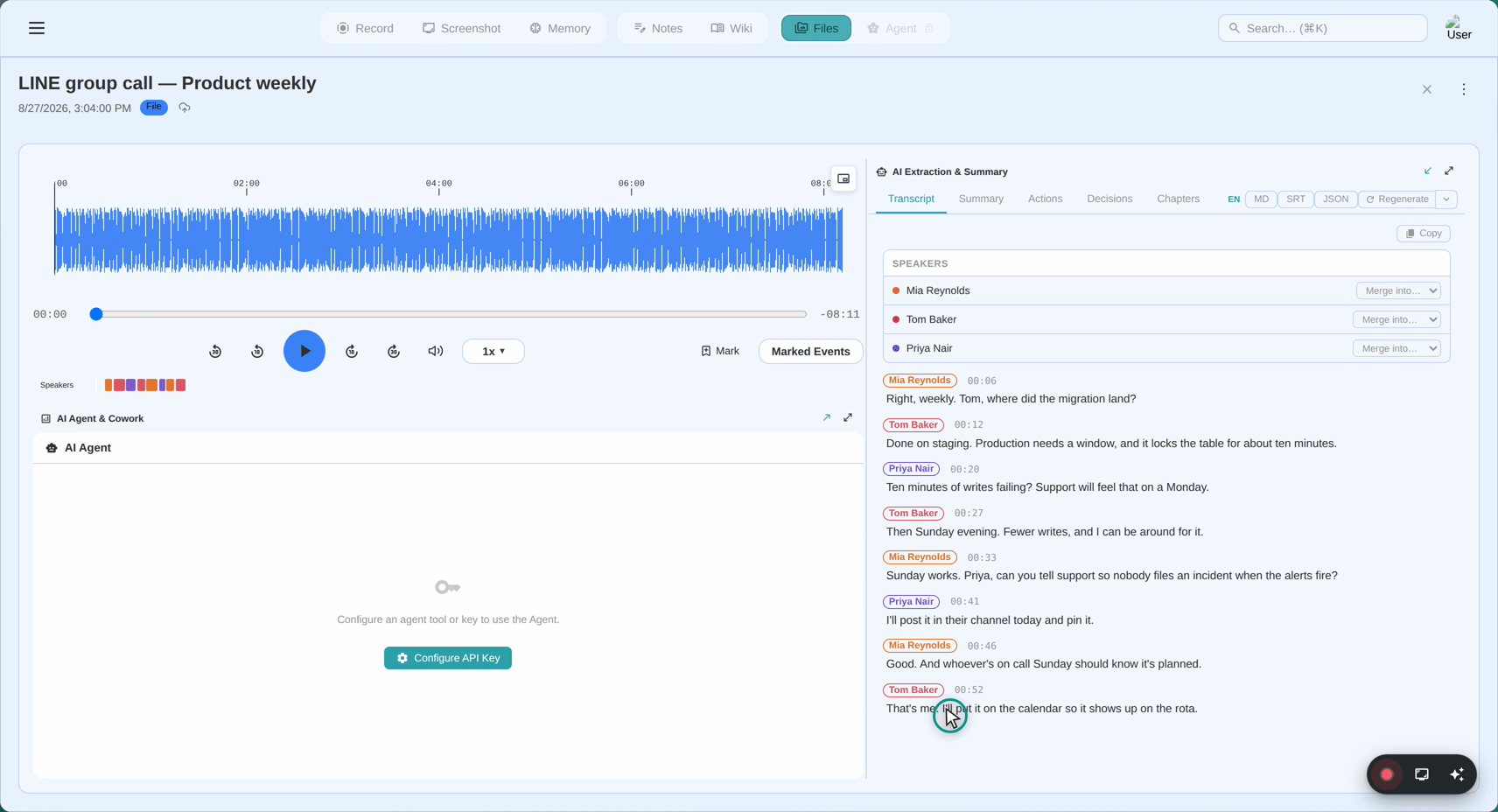
The recording is half the product. The other half is what SeaMeet turns it into:
A live transcript with speaker labels and timestamps, running while the call happens — not a file you upload and wait on. LINE’s heartland is Japanese, Traditional Chinese, Korean and English, and the transcription is built for exactly that mix, including calls that drift between two languages mid-sentence. Anyone who has worked across Tokyo and Taipei knows that call is not rare.
An AI summary — decisions, action items, and the gist of each segment — ready a minute after hangup.
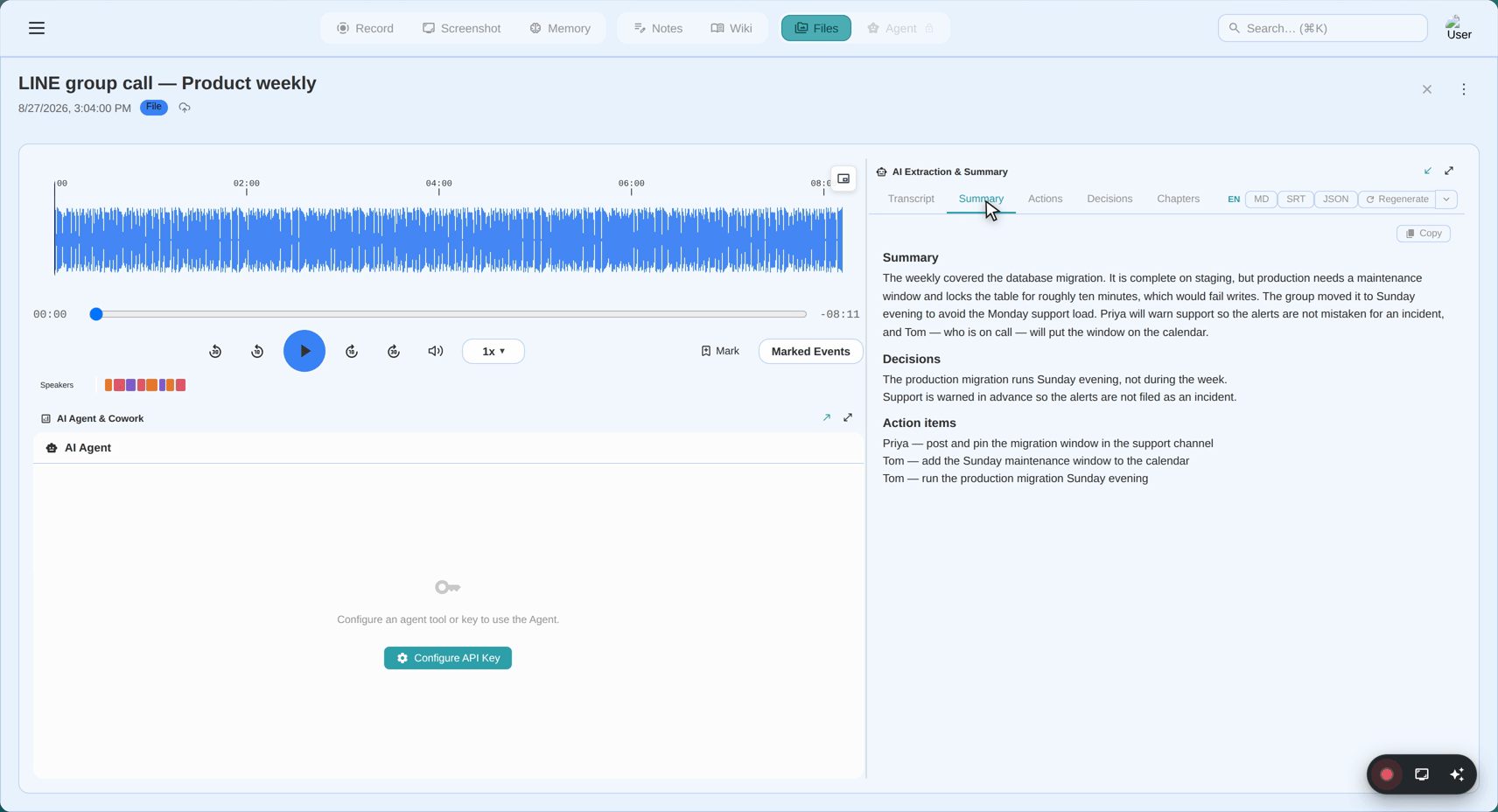
And a Meeting Memory entry: the call links itself to the people and company on it, so the next time you talk to the same group, the history is already assembled.
This is where the whole thing pays for itself. The deal that runs on LINE for three weeks — the requirements call, the price call, the “sorry, one more revision” call — is exactly the conversation nobody has time to minute and everybody needs to remember. Recording it means the deadline, the agreed scope, and the client’s exact words survive past the hangup. Ten calls with the same client stop being ten scattered files and become one thread you can search.
Everything lands as plain local markdown on your machine — your files, not a walled garden. If you record enough that the free 6 hours runs dry, Sync Pro is $15.99/month, or $12.99/month billed annually.
Consent: the part worth getting right
SeaMeet’s capture is invisible to the network — LINE shows nothing, participants see nothing. That is precisely why the decision to announce is yours to make, and you should make it the same way every time.
In Taiwan and Japan, recording a conversation you are part of is broadly accepted for ordinary business purposes, and announcing it is standard professional etiquette. Some jurisdictions — a number of US states, parts of the EU — require all parties’ consent, and “I’m in the call” is not a defence. The rule that travels well: say it out loud at the start, in the first ten seconds. “Just so everyone knows, I’m recording this so I don’t misremember the details.” In practice nobody objects, and the one time in fifty that someone does, you want to have heard it before the recording mattered.
FAQ
Does LINE have built-in call recording?
No — on neither mobile nor desktop, for either side of the call. Any recording has to happen outside the app, which is what makes system-level capture the natural approach.
Will anyone on the call know I’m recording?
LINE displays nothing, and no participant joins, so technically no. That silence makes announcing it your job — see the consent section above.
How well does transcription handle Japanese or Chinese calls?
Japanese, Traditional Chinese, Korean and English are first-class, including mixed-language calls where speakers switch. Language auto-detect handles the switching; you only pin a language for calls you know are monolingual.
Can I record a group call or LINE Meeting?
Yes. One-to-one calls, group calls, and LINE Meeting (up to 500 participants) are all captured the same way — the call’s audio is arriving through your speakers either way.
What about LINE voice messages?
Voice messages are handled separately from live calls. Within SeaMeet you can transcribe recorded audio you already have — the audio-file import path covers common formats if what you’re holding is a saved voice clip rather than a live call.
Is it legal to record a LINE call?
It depends on where you and the other participants are. One-party-consent jurisdictions allow recording calls you take part in; all-party jurisdictions require everyone’s agreement. Announcing the recording at the start satisfies both, and is good manners regardless.
See it in 60 seconds
Related articles
Tags
Ready to try SeaMeet?
Join thousands of teams using AI to make their meetings more productive and actionable.
Free: 6 h lifetime transcription · first 15 min revealed