Notes Overview
Chapter 16: Notes Overview
Recordings capture what was said. Notes capture what you were thinking. SeaMeet puts both in the same app on purpose: the moment you write something down, you can attach a recording to it, drop in a screenshot, and let the AI summarize the whole thing into a tidy block at the top of the page. Notes are plain Markdown files on disk — yours forever, even if SeaMeet vanishes tomorrow — but the surface around them is built for the way meetings actually feel.
This chapter is the bird's-eye view: the notes tree on the left, the editor in the middle, and the anchor pill that ties a note to a recording. Chapter 17 dives into the editor itself — slash menus, wikilinks, drag-drop media, the synthesis split button.
Opening the Notes View
The Notes view lives behind the Notes tab in the top navigation. Click it once and the recording library on the left makes way for your notes tree; the center pane becomes a writing surface.
If you've never opened a note before, you'll land on the empty showcase instead of a blank editor (more on that in a moment). The Notes view always has three jobs: show you all your notes (the tree), let you edit one (the editor), and connect notes to recordings (the anchor pill plus the red dot in the tree).
The sidebar collapses if you want more room to write. Click the « chevron at the top of the notes tree to hide it, » to bring it back. SeaMeet remembers your choice between sessions.
The Notes Tree
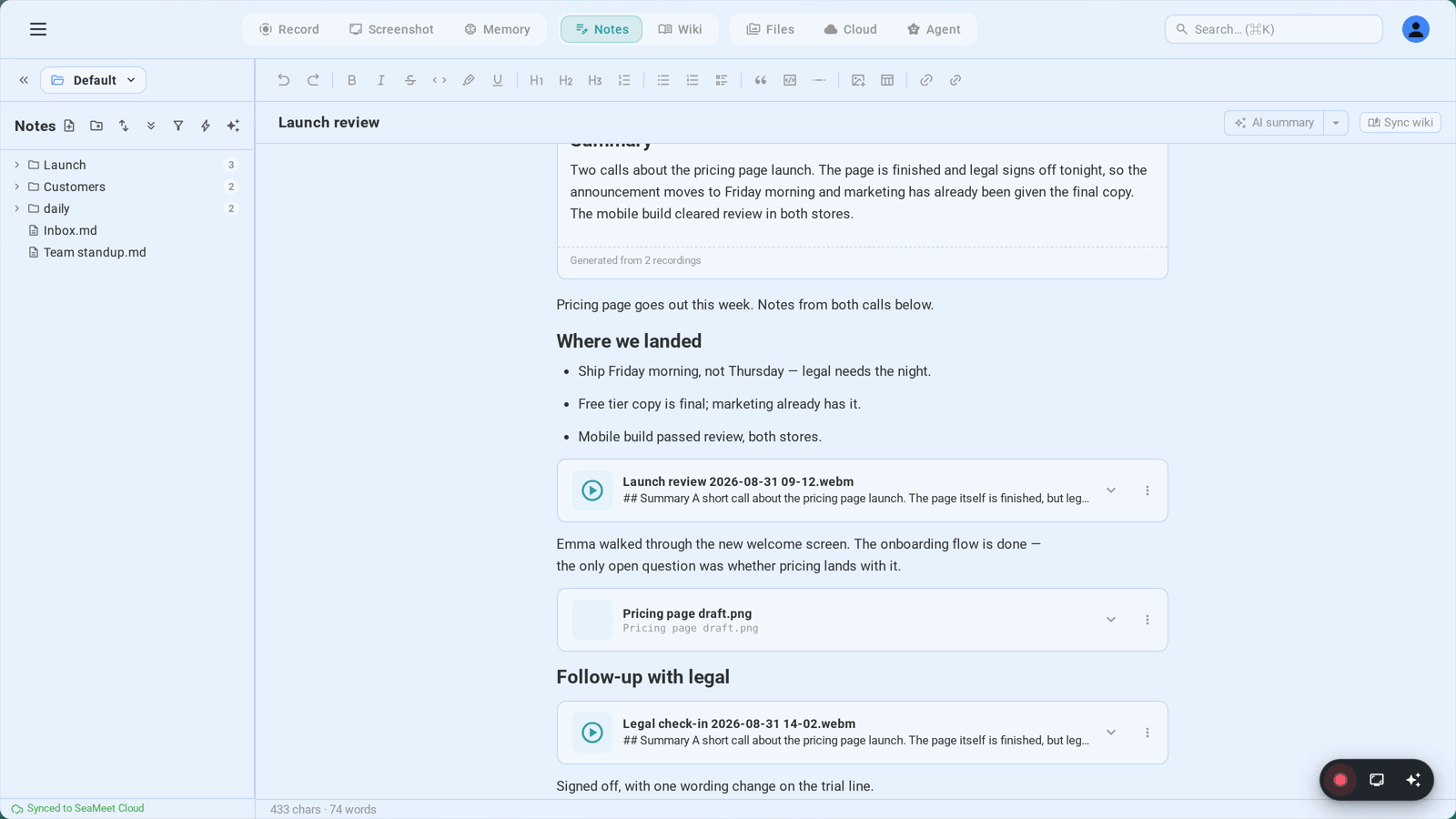
The notes tree is a folder view of your workspace — the same workspace folder you set up under Sync (Part 11). Every .md file under that folder is a note. Folders are folders. SeaMeet doesn't impose a database; what you see in the tree is what's on disk.
What each row tells you:
- A folder icon with a chevron — click to expand or collapse, drag a note onto it to move
- A page icon with the note's title — click to open in the editor
- A red dot ● — only appears when you're currently recording into this note (or into something inside this folder)
- A count badge next to folders — how many notes live beneath them
- A sync chip — small status indicator if the note is queued for cloud sync, conflicted, or just finished an AI wiki sync
Reordering and moving:
The tree is fully drag-and-drop. Grab any note or folder and drop it onto another folder to move it there. Drop it onto the empty space at the top labeled "← Drop to move to root" to pull it out of its current folder. You can nest folders as deep as you like; SeaMeet doesn't care.
Renaming:
Right-click a note (or press F2 with it focused) and pick Rename. Type the new name and press Enter. Here's the magic part: if any other note links to this one via a [[wikilink]], those links update automatically. After a successful rename, a small undo toast appears in the corner — one click and the rename is reversed everywhere, including the wikilinks. You get the safety net of "wait, that was the wrong name" without ever leaving the keyboard.
Keyboard navigation:
- ↑ / ↓ — move the focus up and down the visible tree
- → / ← — expand and collapse folders (or jump to the parent)
- Enter — open the focused note
- F2 — rename
- Delete / Backspace — delete (folders prompt first)
The Context Menu
Right-click anywhere on the tree and a context menu appears. The full set of actions depends on whether you're clicking a note or a folder:
- Open — open the note in the editor
- Rename — same as F2
- Move to root — pull this note or folder out of its current parent
- Copy wikilink — copies
[[NoteName]]to your clipboard so you can paste it into another note - Copy relative path — workspace-relative path, useful for scripts
- Copy full path — absolute path on disk, useful for external editors
- Update wiki from this note — kicks off an AI sync that extracts entities (people, projects, topics) into the
_wiki/knowledge base - Delete — gone. Folders prompt for confirmation; notes do not. Be intentional.
Creating, Deleting, Renaming
Create. The notes tree toolbar has a + button. Click it (or press ⌘N anywhere in the Notes view) and a new note appears with a default title, ready to type into. SeaMeet picks a sensible filename from the title and saves it to your workspace root.
Delete. Right-click → Delete, or focus the row and press Delete. The file is removed from disk. Folders ask first; notes don't. If your workspace is synced (Part 11), cloud history may save you — but don't count on it.
Rename. Right-click → Rename, or press F2. Type the new title, press Enter. The file on disk gets renamed too, and any [[wikilinks]] pointing at this note are rewritten across the whole workspace. The undo toast in the corner reverses the whole thing — file and wikilinks — in one click.
Binding a Note to a Recording
Here's where Notes stops being a generic editor and starts being SeaMeet.
When you start a recording from the Notes view — via the FAB, the floating launcher, or any of the usual hotkeys — SeaMeet asks itself: which note should this recording live in? The rule is simple:
- If a note is open in the editor, the recording binds to that note
- If nothing is open, SeaMeet auto-creates a new note titled something like "Meeting · Jun 4, 2:30 PM" and binds to that
Once the recording stops and saves, an ![[Recording_2026-06-04.webm]] embed is appended to the bound note's body. The recording shows up as a playable card right inside your note — scrub, play, and watch the transcript update without leaving the page.
What the binding gives you: a playable embed in the body, a red dot on the note's row in the tree so you know it's recording, the anchor pill at the top of the editor when AI synthesis runs, and a 3-second undo toast at the moment of attachment. Click Undo and SeaMeet creates a fresh dated note, moves the embed there, and switches your active tab. The original note goes back to how it was.
The AI Synthesis Flow at a High Level
This is the part that turns "I have a recording" into "I have notes about the recording."
After a recording stops, SeaMeet transcribes it (Chapter 31). Once the transcript exists, AI synthesis reads it and writes a structured summary directly into the body of the bound note. Not a sidebar. Not a separate panel. Into the note. Synthesis runs automatically when you have it enabled, or manually from the recording's actions menu, or from the synthesis card's own Regenerate split button.
The output lands as a single Note Summary card at the top of the note — an inset block with a sparkle icon, a header, and AI-generated content rendered as Markdown. The block is a structured element, not raw text, which is why SeaMeet can replace it on regeneration without touching anything else you've written. One synthesis block per note is a hard rule: regenerate and the old block is replaced in place. You never end up with three "Note Summary" cards stacked on top of each other.
Templates shape the output. Every synthesis runs against a template — Meeting Notes, Action Items, Decision Log, Daily Standup, or one you've authored. The split-button menu next to Regenerate lets you pick a different template and re-run. Templates are covered in depth in Chapter 33: AI Summary Templates.
The stale chip. If you keep writing after synthesis ran, SeaMeet counts the new characters. After about 150 of them, a small Stale · refresh chip appears on the card — a polite "hey, you've added a lot. Want me to redo it?" Click once to regenerate against the current note content.
The Anchor Pill
When the AI summary scrolls out of view, a small sticky pill appears at the top of the editor pane. Click it and the editor scrolls back to the summary card, pulsing it briefly to draw your eye.
The pill has two flavors. Quiet means the summary exists but you've already seen the current version — a discrete reminder it's there. Updated means a fresh synthesis ran since you last looked, and the pill brightens. "Seen" means the card has been in your viewport for at least 0.8 seconds. SeaMeet stores the last-seen version per note in local storage, so the Updated state persists across sessions — you'll always know when there's something new to read.
The Empty State
When no note is open, you see the empty showcase instead of a blank editor. It's a one-page pitch: Markdown + wikilinks, folder tree your way, recordings inline, AI that summarizes and connects. At the bottom, a single Create your first note button. No setup forms, no template picker — just write.
The showcase reappears whenever you close all open notes. That's intentional: a constant reminder of what's possible, not a one-time onboarding screen.
The Notes View Layout
┌──────────────────────────────────────────────────────────────────┐
│  [Recordings]  [Notes ●]  [Tasks]                       [⚙]    │ ← Top nav
├───────────────────┬──────────────────────────────────────────────┤
│ « Workspace ▼  ⚙ │  ┌──────────────────────────────────────┐    │
├───────────────────┤  │  ✨ Summary updated · …a3f4b8c2  ↑   │←── │ Anchor pill
│ + New     🔍 Find│  └──────────────────────────────────────┘    │   (only when
├───────────────────┤                                              │   synthesis
│ ▼ Q2 Reviews   3 │  # Acme Q2 Review                            │   is offscreen)
│   📄 Acme Q2     │                                              │
│   📄 Beta Q2     │  ┌────────────────────────────────────────┐  │
│   ● Gamma Q2 ←── │  │ ✨ Note summary   2 recordings · …    │  │
│ ▼ Daily        7 │  │ ─────────────────────────────────────  │  │
│   📄 2026-06-03  │  │ Key decisions: …                       │  │
│   📄 2026-06-04  │  │ Action items: …                        │  │
│ 📄 inbox         │  │ [Copy to edit] [Regenerate ▾]          │  │
│                   │  └────────────────────────────────────────┘  │
│                   │                                              │
│                   │  Agenda: budget, timeline, headcount         │
│                   │                                              │
│                   │  ![[Recording_2026-06-04.webm]]              │
│                   │  ┌─────────[ ▶ playable recording ]──────┐  │
│                   │  │  ▰▰▰▰▱▱▱▱  00:12 / 47:32              │  │
│                   │  └────────────────────────────────────────┘  │
│                   │                                              │
│                   │  My follow-ups:                              │
│                   │  - [ ] Email finance with revised numbers    │
│                   │  - [ ] Schedule kickoff with [[Acme Corp]]   │
├───────────────────┤                                              │
│ ☁ Synced 30s ago │                                              │
└───────────────────┴──────────────────────────────────────────────┘
   ↑                ↑                              ↑
   Notes tree       AI synthesis card              Inline recording
   (red dot = recording)  (top of body)            embed
Troubleshooting
"I lost my note — it's not in the tree anymore"
Your notes are plain .md files in your workspace folder. If a note disappeared, one of these is usually true: you renamed it outside SeaMeet (cross-references will have broken — rename inside SeaMeet next time); you moved it outside the workspace folder (switch workspaces, or move it back); a search filter is active (clear the field above the tree); or it's inside a hidden folder (.git, .obsidian, _wiki/ are all hidden from the tree). If none of those explain it, check the workspace folder in Finder or Explorer — the file is almost always still there.
"I started a recording but it didn't attach to my note"
Recordings bind to whatever note is active when you click ●. If you were on the Recordings view, SeaMeet auto-created a new "Meeting · …" note instead. Two fixes: going forward, open the target note in the Notes view before recording (the FAB shows the bound note's title so you can confirm). For the recording you just made, click Undo in the toast that appeared right after it saved — that moves the embed to a fresh dated note.
"AI synthesis didn't run"
Synthesis needs three things: a finished recording, a transcript (Chapter 31), and a trigger. Check that transcription is enabled — no transcript means no synthesis. Check that your account has credit or a BYOK key configured — without one, the synthesis card shows a lock chip instead of running. And if a generation errored silently, the card will say "Generation failed: …" in the footer — click Regenerate to try again.
Quick Reference
| Action | How |
|---|---|
| Open the Notes view | Click Notes in the top nav |
| Create a new note | ⌘N (or the + button in the tree toolbar) |
| Rename a note | Right-click → Rename, or F2 |
| Delete a note | Right-click → Delete, or Delete key |
| Move a note | Drag it onto a folder, or onto the root drop target |
| Copy a wikilink to this note | Right-click → Copy wikilink |
| Collapse the notes tree | Click « at the top of the tree |
| Bind a recording to the current note | Start recording while the note is open in the editor |
| Undo a recording binding | Click Undo in the toast that appears after the recording saves |
| Trigger AI synthesis | Synthesis runs automatically; or click Regenerate on the card |
| Pick a different synthesis template | Click the ▾ caret next to Regenerate |
| Jump to the AI summary | Click the anchor pill at the top of the editor |
| Open the wiki sync for a note | Right-click → Update wiki from this note |
That's the lay of the land. Notes are Markdown on disk, organized as a tree, with recordings bound in as playable embeds and AI summaries written into the top of the body. Once that mental model clicks, the rest is just learning the editor's tricks — which is exactly where Chapter 17 picks up.
← Chapter 15: Keyboard Shortcuts | Chapter 17: Note Editor — Wikilinks, Slash Menu, AI Synthesis →
Published: