Note Editor — Wikilinks, Slash Menu, AI Synthesis
Chapter 17: Note Editor — Wikilinks, Slash Menu, AI Synthesis
Overview
Chapter 16 introduced the notes tree and how notes attach themselves to recordings. This chapter zooms into the editor itself — the surface where you type, paste, and shape what becomes the long-lived artifact of a meeting. The editor is a rich-text canvas with Markdown shortcuts under the hood, so you can write the way you already do (start a line with ## for a heading, - for a bullet, > for a quote) and still get pretty styling, drag-droppable media blocks, and inline AI summary cards.
What makes the SeaMeet editor different from a plain Markdown app is the connective tissue: wikilinks tie notes into a network you can navigate; the slash menu gives you structure with one keystroke; drag-drop media turns a recording into an embedded, playable card with a transcript hanging off it; and the split-button AI synthesis lets you regenerate the summary with a fresh template without leaving the page.
Editor basics
The body of every note is rendered through a WYSIWYG rich editor that reads and writes Markdown to disk. You get standard formatting (bold, italic, strikethrough, code, links, headings, bullet/numbered/task lists, blockquotes, tables, code blocks with syntax highlighting, and inline math), but you almost never need a toolbar — Markdown shortcuts work everywhere:
- Type
#,##,###at the start of a line for headings 1–3. - Type
-or*for a bullet list,1.for numbered,- [ ]for a task with a checkbox. - Type
>for a blockquote and triple backticks for a fenced code block. - Wrap text in
**bold**,_italic_,\`code\,~~strike~~, or==highlight==. - Type
:smile:to open the emoji shortcode picker — arrow keys to scroll, Enter to commit.
A compact formatting toolbar sits at the top for the times when reaching for a mouse is faster — undo, redo, bold, italic, headings, link, image, table, code block. Select any text and a bubble menu pops up above the selection with the most common marks. The toolbar is horizontally scrollable on narrow windows, and chevrons appear at either edge so you never lose access to a button.
Two affordances worth knowing about up front:
- Auto-save. Edits debounce to disk after about a second of quiet typing. The status pill at the bottom-right reads "Editing…", then "Saving…", then "Saved". If the underlying file changes outside SeaMeet (a sync agent, an external editor), a banner appears above the editor offering Reload from disk or Keep my changes — SeaMeet never silently merges two divergent versions.
- Character / word count. The bottom status bar shows live counts, derived from grapheme- and word-aware Unicode segmenters so emoji and CJK characters are counted correctly.
The Slash Menu — / for structure
The slash menu is the keyboard-driven way to insert a block. Place your caret on an empty line, press /, and a popover opens listing every block type the editor understands. Arrow up/down to move the cursor, Enter to insert, Escape to dismiss. The menu also opens via the small + button that hovers in the left gutter when your cursor is on an empty line — handy when you want it but can't remember the shortcut.
Available items:
- Heading 1 / 2 / 3 — section titles. H1 is reserved for the note title (the editor focuses you on subsections).
- Bullet list — disc bullets, indent with Tab.
- Numbered list — auto-numbered, also indentable.
- Task list — checkboxes you can tick from the editor.
- Blockquote — for callouts, quoted speech, or "decisions made" sections.
- Code block — fenced block with syntax highlighting (drop in any language; the highlighter picks from a built-in set).
- Horizontal rule — a thin divider for separating sections.
Example flow: you're capturing a meeting and want a section heading, then a checklist. Press /, pick Heading 2, Enter — heading inserted. Type "Action items", Enter, then / again, pick Task list, and start typing checkboxes.
┌─────────────────────────────────────────┐
│ Empty line with caret · type /          │
│ ─────────────────────────────────────── │
│                                         │
│ /| ←  caret                             │
│ ┌───────────────────────────┐           │
│ │ H1  Heading 1             │           │
│ │ H2  Heading 2        ◄─── │ cursor    │
│ │ H3  Heading 3             │           │
│ │ •   Bullet list           │           │
│ │ 1.  Numbered list         │           │
│ │ ☐   Task list             │           │
│ │ "   Blockquote            │           │
│ │ <>  Code block            │           │
│ │ ─   Horizontal rule       │           │
│ └───────────────────────────┘           │
│  Arrow ↑/↓ · Enter to pick · Esc to close│
└─────────────────────────────────────────┘
The popover auto-flips above your line when there isn't enough room below, and the list scrolls when you reach the top or bottom.
Wikilinks — [[title]] to connect notes
Wikilinks are the glue between notes. You write a wikilink by typing [[, and as you keep typing, a floating picker shows every note and wiki page whose filename or title matches your query. Arrow keys to choose, Enter or Tab to commit, Escape to bail out. What gets inserted is [[<basename>]], rendered inline as a teal pill that you can click to jump to the linked note.
A typical example: you're in a 1:1 note and want to reference last week's standup. Type [[stand — the picker filters to anything containing "stand". Pick "Standup 2026-05-29" — you now have a clickable pill in your note that opens that file in a new tab when you click it.
Wikilinks come in four visual states, driven by a live resolver that runs in the background as the workspace changes:
- Resolved — standard teal pill. The link resolves cleanly to one note or wiki page.
- Collision — teal pill with a small warning marker. Two or more notes share the same basename. Clicking it opens a disambiguation popover listing each candidate with its folder hint; pick the one you meant and it opens.
- Broken — dotted-underline muted pill. No matching note exists yet. Right-click for a context menu offering Sync wiki to generate this page — when the wiki is enabled, this fires a wiki update so the AI fills in the missing page. The pill flips to resolved automatically when the page lands.
- Pending — teal pill at reduced opacity. The resolver is still figuring out where this link points; usually flips within ~500 ms.
┌──────────────────────────────────────────────────────┐
│  …discussed in [[stand|                              │
│                                                      │
│  ┌────────────────────────────────────────────────┐  │
│  │ 🔍  Wikilink suggestions                       │  │
│  ├────────────────────────────────────────────────┤  │
│  │ 📄 Standup 2026-05-29              ◄─ cursor  │  │
│  │    standups/Standup 2026-05-29                 │  │
│  │ 📄 Standup 2026-05-22                          │  │
│  │    standups/Standup 2026-05-22                 │  │
│  │ 📖 Standup format                              │  │
│  │    wiki/team/Standup format · wiki             │  │
│  └────────────────────────────────────────────────┘  │
│   ↑/↓ select · Enter to commit · Esc to dismiss      │
└──────────────────────────────────────────────────────┘
Notes show a description icon; wiki pages show an open-book icon plus a "· wiki" suffix so you always know which surface you're linking to. The picker is bounded at 50 results — a wide net for fuzzy typing without overwhelming the popover.
The header of the note also has a Sync wiki button (when the wiki feature is on). Clicking it pushes the current note through the AI wiki pipeline immediately instead of waiting for the auto-trigger, with a live status badge (Queued → Syncing → Synced / Sync failed).
Quick Open — Ctrl/Cmd+P
Quick Open is the fastest way to jump to any note or wiki page by name. Press Ctrl+P (Windows/Linux) or Cmd+P (macOS), type a fragment of the title or filename, and the palette filters in real time. Results are grouped — Notes first, then Wiki — with the same icons you saw in the wikilink picker.
Arrow keys move the cursor, Enter opens the selected item in a new tab, Escape closes the palette. Hovering with the mouse moves the cursor too. Quick Open never waits on the full-text index — it matches filename and title only, so it stays snappy on workspaces with thousands of notes. For content search, reach for the next palette.
Global Search — Ctrl/Cmd+K
Global Search runs full text across notes, wiki pages, recording transcripts, recording summaries, and screenshot OCR. Press Ctrl+K / Cmd+K, type a query, and results stream in (debounced ~150 ms between keystrokes so you're not firing a fresh search on every key). Each row shows the title, the path, and a short excerpt around the match so you can recognize the hit at a glance.
Results are grouped: Notes, Wiki, Recording transcripts, Recording summaries, Screenshot text (OCR). Notes and Wiki results route through the tab system; transcripts, summaries, and OCR results open the underlying recording in the recordings view. If you trigger the palette before the search index has finished building (cold start, fresh workspace switch), a hint at the top reads "Indexing — showing filename matches only", with a running count of indexed items. The palette degrades gracefully to filename match in that window, so you're never blocked.
Find & Replace within a note
Press Ctrl+F / Cmd+F while the editor is focused (or even right after switching to it from Quick Open — there's no focus gate) and a sticky find/replace bar slides in between the toolbar and the content:
┌────────────────────────────────────────────────────────────────────┐
│ 🔍 [Find: meeting       ] [Aa] [×]  [‹][›]  3 / 7  │ [Replace: ses│
│ sion       ] [Replace] [Replace all]                            [×]│
└────────────────────────────────────────────────────────────────────┘
The left side is the find input, with a Aa toggle for case sensitivity and a clear button. The middle group is the navigation pair (Previous / Next) and the match counter ("3 / 7" or "No results"). The right side is the replace input plus Replace (current match) and Replace all buttons. Press Enter inside the find input to jump to the next match; Shift+Enter for the previous one. Escape closes the bar and returns focus to the editor caret.
Replace All asks for confirmation when the match count is five or more, so a stray query can't quietly rewrite half your note. Re-pressing Ctrl/Cmd+F while the bar is open re-focuses the search input and pre-selects the previous term, ready to retype.
Drag-drop media embeds
This is where the editor stops being a Markdown writer and starts being a meeting cockpit. Every recording card and screenshot in the sidebar is draggable. Drag one over the note body, drop, and a media block appears at the drop position — represented in Markdown as ![[path/to/file.webm]], rendered inline as a rich card.
The card has two states:
- Collapsed — icon (play circle for recordings, thumbnail for screenshots), filename, a one-line summary preview, and a status badge (Processing… / Summary ready / Failed) tied to the live AI pipeline status. The chevron on the right expands it.
- Expanded — the actual playable audio element (or full image for screenshots), plus a tab strip across the bottom listing every AI artifact that's available:
- Recordings: Summary, Transcript (with clickable timestamps that seek the inline player), Actions, Decisions, Chapters (also click-to-seek).
- Screenshots: Description, OCR text.
Empty tabs are hidden, so you only see what's actually populated. A Copy button next to the tab strip puts the current tab's content on the clipboard formatted as plain text.
The ⋯ action menu on each card offers:
- Show in folder — opens the file's containing folder in your OS file manager.
- Copy embed syntax — copies
![[path]]for pasting into another note. - Re-run AI — re-runs the meeting or screenshot pipeline if the first pass missed something or the model has been updated.
- Open media — opens the recording or screenshot in its dedicated view.
- Detach from note — removes the embed from the note (the underlying file stays on disk).
The drop target is generous. If your drop lands on the toolbar, the title row, or the padding around the editor — areas that the rich editor's drop handler doesn't own — a DOM-level fallback catches it and inserts the embed at the end of the document. You'll never get the "drop didn't do anything" mystery.
AI Synthesis — generating and regenerating summaries
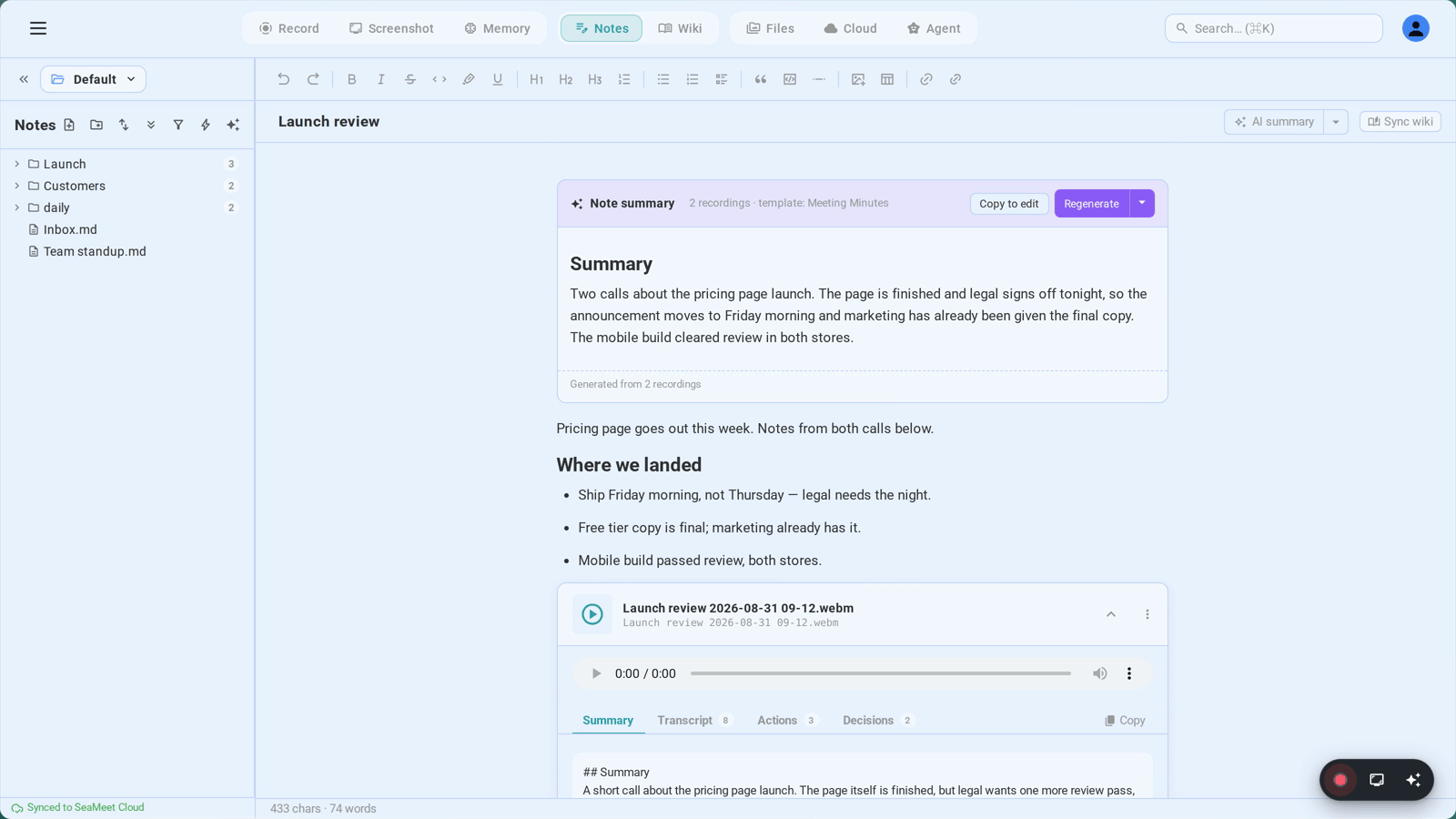
The AI summary is the centerpiece of the note when you've recorded a meeting into it. It lives as a dedicated block inside the note (an inline card with header, body, and footer), so it's part of the note's text — meaning it round-trips to disk as Markdown, you can search it, and it shows up in exports.
Two places drive synthesis:
The header AI summary split-button
Top right of the title row, the AI summary button (auto-awesome icon) generates a fresh synthesis using your default template. While a synthesis is in flight, the icon spins and the label flips to "Synthesizing…". The button is disabled until the previous run finishes.
Right next to it is a small caret — that's the split-button menu. It opens a popover with three controls:
- Choose template… — opens the Regenerate modal (described below) so you can pick a different template or write a custom prompt.
- Auto-update on typing — per-note checkbox. When on, the synthesis re-runs after substantial edits to this note, debounced to avoid eating your AI quota on every keystroke.
- Auto-suggest template — global toggle (mirrors Settings → AI Features → AI Summary Templates). When on, SeaMeet classifies the transcript and picks the best-fitting template for each synthesis instead of always using Meeting Minutes. When off, Meeting Minutes is the default and any auto-detection is suppressed.
The Regenerate modal
Opens whenever you pick "Choose template…" or click the caret on an existing synthesis card. The modal shows:
- A Search templates field at the top.
- A Suggested zone, pre-selected, when the current synthesis already had a template applied or when auto-detection has surfaced a high-confidence pick.
- The full template grid, grouped by category — Team & Management, Project & Agile, Sales & Client, HR & Recruitment, Education & Training, Medical & Healthcare, Legal & Compliance, Events & Media, Other (which includes your custom templates).
- A Custom instructions textarea below the grid — overrides the template body. Use it for one-off framings like "Focus on commitments to Customer X, output as a one-page exec memo."
- A Save as a custom template checkbox — tick it, fill in a name, and the prompt becomes reusable under "Other".
Picking a template and hitting Regenerate queues the synthesis and closes the modal. The header button shows "Synthesizing…" until the new card lands. If the run errors out, the card surfaces the error and the button becomes available again.
The synthesis card itself
Once produced, the card sits inside the note body with this anatomy:
- Header: "✨ Note summary · N recordings · template: ", plus action buttons.
- Stale chip — appears when you've added ~150 or more characters of your own typing after the synthesis was generated. Click it to refresh with the same template (one click, no modal).
- Copy to edit — copies the rendered Markdown into a fresh block in the note below the card, so you can edit it without losing the original.
- Regenerate (split-button) — primary action re-runs with the same template; the caret opens the same split-button menu the header uses.
- Footer: "Generated from N recordings" plus a "✨ Updated by AI" hint if the synthesis was refined post-meeting from the full transcript.
When a meeting first records into a fresh note, SeaMeet may also propose a better filename based on the transcript. A one-shot pill appears under the title bar — "AI suggests 'Q3 Planning'" — with Apply and Dismiss buttons. Apply runs the rename through notes:rename (also updating filename references on disk); Dismiss persists per-note so the pill won't reappear.
Tips & best practices
- Lean on Markdown shortcuts. Reaching for the toolbar slows you down.
##for H2,-for a bullet,>for a quote — your typing rhythm stays intact and so does your attention on the meeting. - Wikilink liberally during a meeting, fix collisions later. It costs nothing to type
[[Project Atlas]]even before the page exists. Broken links become a to-do list: right-click each one and Sync wiki when you're done. - Expand a media card to seek by transcript. Don't scrub by ear — expand the recording embed, click a transcript line, and the inline player jumps to that second.
- Use custom prompts for one-off framings. Skip "Save as a custom template" unless you'll use the prompt again. The custom prompt textarea is fine for a single regenerate.
- Open two notes in split view to write while you reference. Pair Quick Open (Ctrl/Cmd+P) with the tab system to put your meeting note and a reference note side-by-side; both editors auto-save independently.
Troubleshooting
Wikilink stays broken even after I create the target.
The live resolver re-scans the workspace as files are added. If a pill stays muted with a dotted underline, the underlying file likely has a different basename — wikilinks resolve on the filename without the .md extension. Right-click the pill and pick Sync wiki to generate this page if the target is a wiki page; for a regular note, check the title in the sidebar matches what's inside the brackets.
Slash menu won't open.
The / shortcut only opens the menu when the editor itself has focus and the caret is on an empty line. If the caret is inside text, typing / just types a slash character. Move to a fresh line or press the + button that appears in the left gutter to open the menu unambiguously.
Find/replace says "No results" but I can see the text. Toggle the Aa (Match case) button — case sensitivity is off by default but stays sticky if you turned it on in a previous session. Also remember that the find runs against the note body only; the rendered AI summary card is searchable, but text inside collapsed media-block tabs (Summary, Transcript, etc.) is not — expand the card to make it searchable.
Quick reference
| Action | Shortcut / Gesture | Result |
|---|---|---|
| Insert block | / on an empty line | Opens the slash menu |
| Open slash menu (mouse) | Click + in the left gutter | Same as / |
| Insert wikilink | Type [[ | Opens the wikilink picker |
| Commit picker selection | Enter or Tab | Inserts [[<basename>]] |
| Insert emoji | Type :word: | Opens the emoji shortcode picker |
| Quick Open | Ctrl/Cmd + P | Filename + title fuzzy find |
| Global Search | Ctrl/Cmd + K | Full text across notes / wiki / recordings |
| Find & Replace | Ctrl/Cmd + F | Toggles the find/replace bar |
| Next / Previous match | Enter / Shift+Enter | Steps through matches in the bar |
| Match case | Aa button in the bar | Toggles case sensitivity |
| Replace all confirm | Auto-prompt at ≥5 matches | Prevents accidental mass-rewrites |
| Embed media | Drag from sidebar → editor body | Inserts ![[path]] as a rich block |
| Expand media block | Click the card | Reveals player + AI artifact tabs |
| Seek by transcript | Click a transcript line | Jumps the inline player to that timestamp |
| Detach embed | ⋯ menu → Detach from note | Removes the embed (file stays on disk) |
| Generate AI summary | AI summary button | Synthesis with default / suggested template |
| Pick template | Split-button caret → Choose template… | Opens the Regenerate modal |
| Auto-update toggle | Split-button menu | Per-note re-run on substantial edits |
| Auto-suggest template | Split-button menu | Global classifier-driven template pick |
| Regenerate with same template | Card's Regenerate button | Re-runs the synthesis in place |
| Copy summary to edit | Card's Copy to edit button | Inserts editable Markdown below the card |
| Refresh stale summary | Card's Stale · refresh chip | Re-runs after ~150+ chars added |
| Sync wiki now | Header Sync wiki button | Fires the wiki pipeline immediately |
| Rename note title | Click the title text | Inline editor; Enter commits, Esc cancels |
| Apply AI title suggestion | Apply in the rename pill | Renames the file + rewrites references |
← Chapter 16: Notes Overview | Chapter 18: Settings Overview →
Published: