AI Agent
AI Agent
ถามคำถามเกี่ยวกับไฟล์บันทึก รับคำตอบทันทีจากผู้ช่วย AI แบบโต้ตอบ
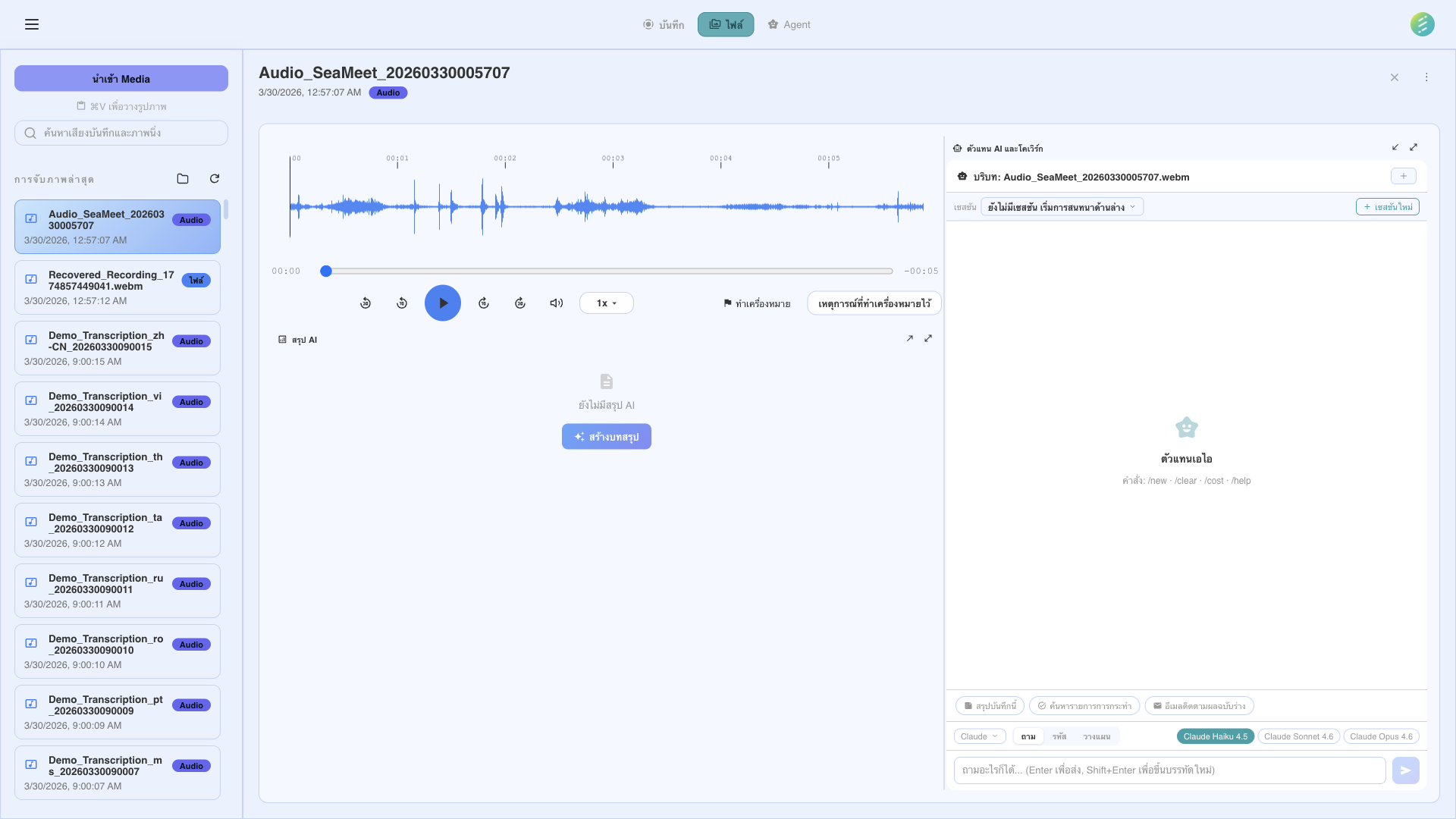
ถามคำถามภาษาธรรมชาติเกี่ยวกับไฟล์บันทึก
Built right into the app
The In-app AI Agent runs inside SeaMeet — no terminal, no browser tabs, no context switching. Open the Agent panel and start asking questions about your recordings immediately. Responses stream in real time via SSE so you see answers as they're generated.
Three panel modes
Floating
Free-floating panel you can position anywhere on screen. Stays out of your way while you work.
Docked
Snapped to the side of the app window. Resizes with the main content area.
Maximized
Full-width panel for detailed conversations, long responses, and multi-step workflows.
Context-aware conversations
The agent automatically references the content you're working with. It can see your open recording, full transcript, extracted summaries, and every screenshot captured during the session — no need to copy and paste.
Open recording
The agent knows which recording is currently selected and can reference its metadata, duration, and format.
Full transcript
The complete transcript with speaker labels and timestamps is available for the agent to search and quote.
Screenshots
Ask about visual content — charts, slides, code, or any UI captured during the recording. The agent can analyze images directly.
Extracted artifacts
Summaries, action items, key decisions, and chapters are all accessible to the agent for follow-up questions.
You stay in control
The agent asks before taking action. When it wants to perform a task that modifies data or accesses external resources, you see a permission dialog. For multi-step workflows, the agent presents a plan for your approval before executing.
Permission dialog
Before the agent writes files, modifies recordings, or takes screenshots, a dialog shows exactly what it wants to do. Approve or deny each action.
Plan approval
For complex multi-step tasks, the agent presents its plan first. Review each step, then approve execution. You can modify or cancel at any point.
สองวิธีในการสนทนากับไฟล์บันทึก
AI Agent ของ SeaMeet ทำงานผ่านเครื่องมือ AI บน CLI เลือกผู้ให้บริการที่เหมาะกับการตั้งค่าของคุณ ทั้งสองสามารถเข้าถึงไฟล์บันทึก บทถอดเสียง และข้อมูลที่สกัดผ่านที่เก็บข้อมูลในเครื่องของ SeaMeet
Gemini
Google Gemini models via API key.
OpenAI
GPT-4o and other OpenAI models.
Claude
Anthropic Claude models via API.
DeepSeek
DeepSeek models for cost-effective reasoning.
OpenRouter
Access 100+ models through OpenRouter.
Amazon Bedrock
Use Claude and other models via AWS Bedrock.
Groq
Ultra-fast inference with Groq hardware.
Mistral
Mistral AI models for multilingual tasks.
Ollama
Run local models with Ollama. Fully offline.
Together AI
Open-source models via Together AI.
xAI (Grok)
xAI Grok models.
Cerebras
Fast inference with Cerebras hardware.
Key Server — managed access alternative
Don't want to manage API keys? The Key Server option provides managed access to selected models. No API keys to configure — just enable Key Server in settings and start chatting. Usage is subject to fair-use limits.
Advanced: CLI providers
For power users who prefer terminal-based tools, SeaMeet also supports CLI-based AI agents. These are auto-detected when their binaries are installed on your system — no manual configuration needed.
Claude Code CLI
ต้องใช้ Claude Pro หรือ Maxใช้ Claude Code ของ Anthropic เพื่อโต้ตอบกับไฟล์บันทึกผ่านเทอร์มินัล รองรับการวิเคราะห์เชิงลึก การใช้เหตุผลหลายขั้นตอน และสามารถใช้ MCP server ของ SeaMeet สำหรับการเข้าถึงแบบโปรแกรม
Codex CLI
OpenAIOpenAI's Codex CLI for terminal-based interactions. Auto-detected binary.
GitHub Copilot CLI
แชทฟรี 50 ครั้ง/เดือนใช้ GitHub Copilot ในเทอร์มินัลเพื่อถามคำถามเกี่ยวกับไฟล์บันทึก รวมอยู่ในบัญชี GitHub ที่มี Copilot แพ็กเกจฟรีรวม 50 แชทต่อเดือน
Gemini CLI
GoogleGoogle's Gemini CLI tool. Auto-detected when installed on your system.
สิ่งที่คุณถามได้
AI Agent เข้าใจบทถอดเสียง ภาพหน้าจอ และข้อมูลที่สกัดของคุณ นี่คือกรณีใช้งานทั่วไปบางส่วน
ถาม-ตอบเกี่ยวกับเนื้อหาประชุม
ถามคำถามภาษาธรรมชาติเกี่ยวกับสิ่งที่หารือในไฟล์บันทึก "ลูกค้าพูดเรื่องไทม์ไลน์ว่าอย่างไร?" หรือ "สรุปรายการสิ่งที่ต้องทำจากสแตนด์อัปวันนี้"
วิเคราะห์ภาพหน้าจอ
AI Agent สามารถวิเคราะห์ภาพหน้าจอที่จับระหว่างบันทึก ถามเกี่ยวกับแผนภูมิ ไดอะแกรม หรือองค์ประกอบ UI ที่ปรากฏบนหน้าจอระหว่างประชุม
ค้นหาข้ามไฟล์บันทึก
ค้นหาข้ามไฟล์บันทึกหลายไฟล์พร้อมกัน "ประชุมไหนสัปดาห์นี้พูดถึงงบประมาณ Q3?" หรือ "หาไฟล์บันทึกทั้งหมดที่หารือเรื่องการ Deploy"
สกัดข้อมูลที่กำหนดเอง
ทำได้มากกว่าเทมเพลตสกัดในตัว ขอให้ Agent ดึงข้อมูลเฉพาะ: การกล่าวถึงคู่แข่ง การตัดสินใจทางเทคนิค หรือสิ่งที่เกี่ยวข้องกับเวิร์กโฟลว์ของคุณ
Real-time streaming: All in-app providers use SSE (Server-Sent Events) for streaming responses. You see the answer appear token by token — no waiting for the full response to complete before you can start reading.
Not on the desktop app? See the web capability → AI Assistant