AI Feature
Screenshot OCR
Take a screenshot, get the text. SeaMeet auto-extracts all visible text and copies it to your clipboard — in seconds.
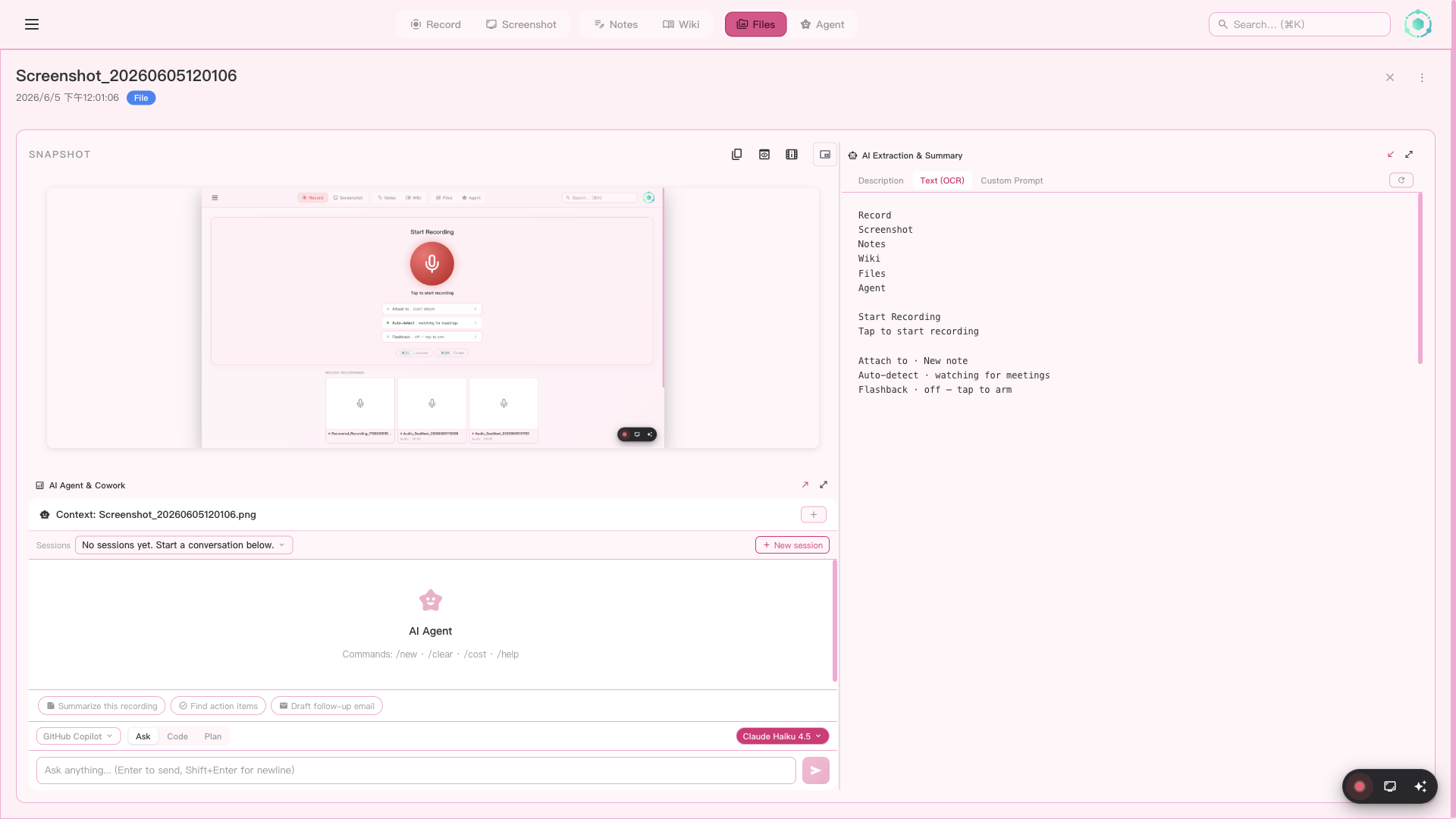
Take a screenshot, and SeaMeet extracts all visible text to your clipboard
How it works
No more retyping text from images. Take a screenshot, and SeaMeet's AI extracts every word — UI labels, error messages, documents, code — and puts it straight in your clipboard.
Enable OCR before capture
Check the "Extract text (OCR) and copy to clipboard" checkbox in the Capture Hub or the Region Selector overlay. The setting stays in sync across both locations.
Take a screenshot
Capture Full Screen or select a specific Area. The screenshot is saved instantly while OCR processing begins in the background.
AI extracts all visible text
Powered by Gemini, the OCR pipeline processes the image in 15-30 seconds. You can continue working — no need to wait.
Text is copied to your clipboard
A notification confirms "Extracted text copied to clipboard." Just Cmd+V / Ctrl+V to paste anywhere — documents, chat, code editors.
What gets extracted
The OCR pipeline extracts all visible text from the screenshot — anything you can read, the AI can read too.
UI labels & menus
Button text, menu items, dialog content from any application
Documents & web pages
Articles, PDFs, web content — any text visible on screen
Error messages
Stack traces, dialog boxes, notification text for debugging
Code & terminal output
Source code, terminal logs, command output
Handwritten text
Whiteboard notes, handwritten annotations (if legible)
Multi-language text
Text in any language — CJK, Arabic, Cyrillic, and more
Where to find the setting
The OCR toggle appears in three places — all stay in sync:
Capture Hub — Screenshot panel
Per-capture checkbox below the capture mode selector
Region Selector overlay
Per-capture checkbox near "Capture Screen or Press Enter"
Settings → AI Extraction & Summary
Default on/off toggle — "Auto-extract text (OCR) on screenshot"
Use cases
Copy error messages instantly
Screenshot a crash dialog or stack trace → paste into a bug report or search engine. No more retyping error codes.
Extract text from non-selectable UI
Some apps render text as images (PDFs, legacy software, remote desktops). Screenshot → OCR → clipboard. Done.
Grab content from video calls
Someone shares their screen with a document or slide? Screenshot it → get the text immediately.
Translate foreign-language text
Screenshot text in any language → OCR extracts it → paste into a translator. Works with CJK, Arabic, Cyrillic, and more.
Saved for later: The extracted text is also saved in the screenshot's AI Extraction panel under the Text (OCR) tab. You can review or re-copy it anytime — nothing is lost.
OCR auto-copy
Automatically extract text from screenshots and copy to clipboard. No manual selection needed — SeaMeet identifies text regions and copies the content instantly.
AI-generated descriptions
Get AI-generated descriptions of your screenshots. Useful for accessibility, documentation, and quickly understanding captured content without viewing it.
Custom prompt analysis
Ask AI custom questions about your screenshots. Extract specific data, analyze charts, describe UI elements, or anything else — just type your prompt.