AI Agent
AI Agent
A built-in AI assistant that understands your recordings, transcripts, and screenshots.
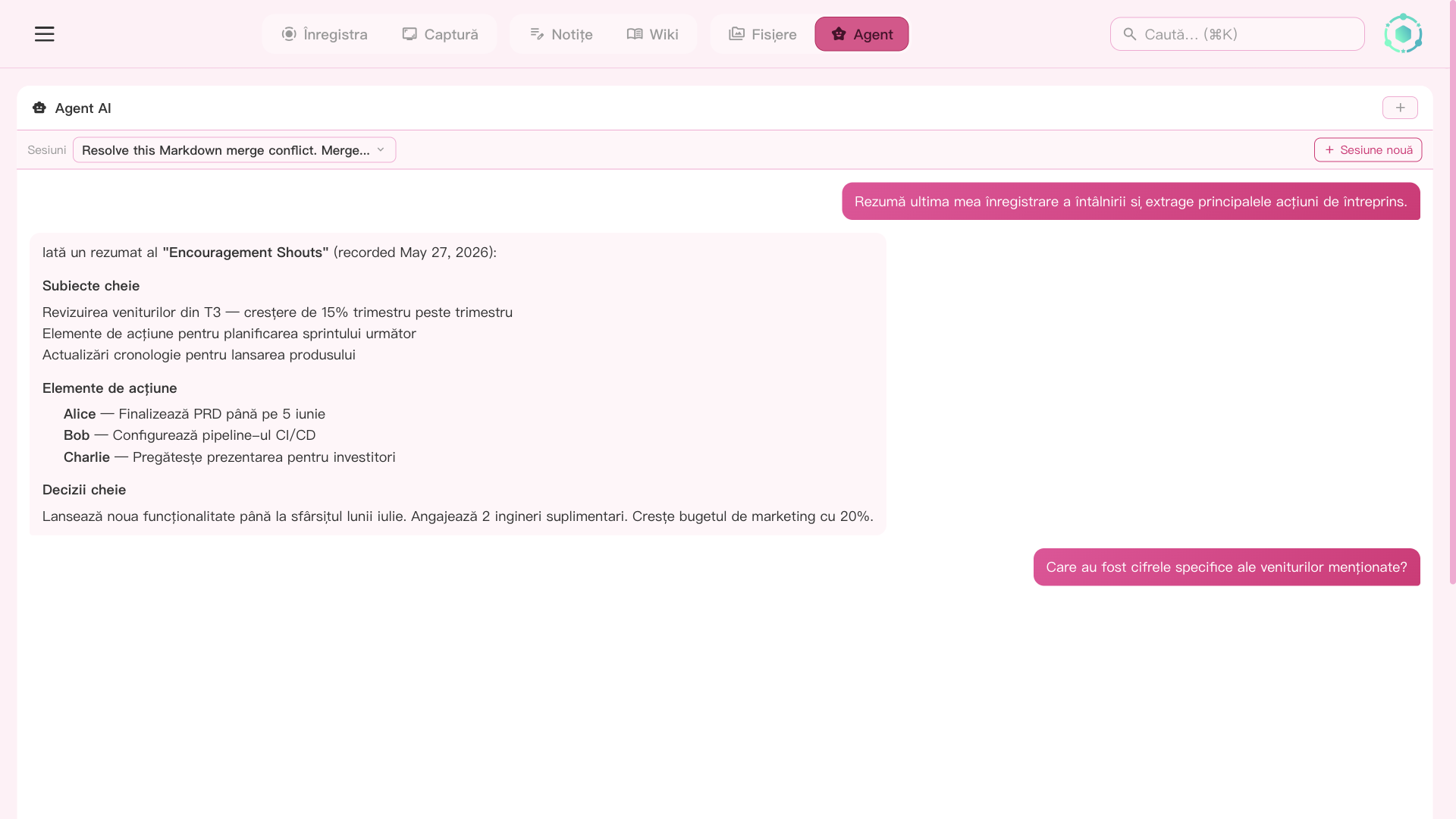
Ask natural language questions about your recordings
Built right into the app
The In-app AI Agent runs inside SeaMeet — no terminal, no browser tabs, no context switching. Open the Agent panel and start asking questions about your recordings immediately. Responses stream in real time via SSE so you see answers as they're generated.
Three panel modes
Floating
Free-floating panel you can position anywhere on screen. Stays out of your way while you work.
Docked
Snapped to the side of the app window. Resizes with the main content area.
Maximized
Full-width panel for detailed conversations, long responses, and multi-step workflows.
Context-aware conversations
The agent automatically references the content you're working with. It can see your open recording, full transcript, extracted summaries, and every screenshot captured during the session — no need to copy and paste.
Open recording
The agent knows which recording is currently selected and can reference its metadata, duration, and format.
Full transcript
The complete transcript with speaker labels and timestamps is available for the agent to search and quote.
Screenshots
Ask about visual content — charts, slides, code, or any UI captured during the recording. The agent can analyze images directly.
Extracted artifacts
Summaries, action items, key decisions, and chapters are all accessible to the agent for follow-up questions.
You stay in control
The agent asks before taking action. When it wants to perform a task that modifies data or accesses external resources, you see a permission dialog. For multi-step workflows, the agent presents a plan for your approval before executing.
Permission dialog
Before the agent writes files, modifies recordings, or takes screenshots, a dialog shows exactly what it wants to do. Approve or deny each action.
Plan approval
For complex multi-step tasks, the agent presents its plan first. Review each step, then approve execution. You can modify or cancel at any point.
12+ LLM providers — bring your own key
SeaMeet supports 12+ LLM providers with a BYOK (Bring Your Own Key) model. Enter your API key for the provider you want, and start chatting. Your keys are stored locally and never sent to SeaMeet's servers.
Gemini
Google Gemini models via API key.
OpenAI
GPT-4o and other OpenAI models.
Claude
Anthropic Claude models via API.
DeepSeek
DeepSeek models for cost-effective reasoning.
OpenRouter
Access 100+ models through OpenRouter.
Amazon Bedrock
Use Claude and other models via AWS Bedrock.
Groq
Ultra-fast inference with Groq hardware.
Mistral
Mistral AI models for multilingual tasks.
Ollama
Run local models with Ollama. Fully offline.
Together AI
Open-source models via Together AI.
xAI (Grok)
xAI Grok models.
Cerebras
Fast inference with Cerebras hardware.
Key Server — managed access alternative
Don't want to manage API keys? The Key Server option provides managed access to selected models. No API keys to configure — just enable Key Server in settings and start chatting. Usage is subject to fair-use limits.
Advanced: CLI providers
For power users who prefer terminal-based tools, SeaMeet also supports CLI-based AI agents. These are auto-detected when their binaries are installed on your system — no manual configuration needed.
Claude Code CLI
Claude Pro or Max requiredUse Anthropic's Claude Code to interact with your recordings via the terminal. Supports deep analysis, multi-step reasoning, and can work with SeaMeet's MCP server for programmatic access.
Codex CLI
OpenAIOpenAI's Codex CLI for terminal-based interactions. Auto-detected binary.
GitHub Copilot CLI
50 free chats/monthUse GitHub Copilot in the terminal to ask questions about your recordings. Included with any GitHub account that has Copilot access. Free tier includes 50 chat completions per month.
Gemini CLI
GoogleGoogle's Gemini CLI tool. Auto-detected when installed on your system.
What you can ask
The AI Agent understands your transcripts, screenshots, and extracted data. Here are some common use cases.
Q&A about meeting content
Ask natural language questions about what was discussed in a recording. "What did the client say about the timeline?" or "Summarize the action items from today's standup."
Screenshot analysis
AI Agent can analyze screenshots captured during recordings. Ask about charts, diagrams, or UI elements that appeared on screen during the meeting.
Cross-recording search
Query across multiple recordings at once. "Which meetings this week mentioned the Q3 budget?" or "Find all recordings where deployment was discussed."
Custom extraction
Go beyond built-in extraction templates. Ask the agent to pull specific information: competitor mentions, technical decisions, or anything relevant to your workflow.
Real-time streaming: All in-app providers use SSE (Server-Sent Events) for streaming responses. You see the answer appear token by token — no waiting for the full response to complete before you can start reading.
Not on the desktop app? See the web capability → AI Assistant